The Meta Pixel Helper (formerly Facebook Pixel Helper) is a free Chrome extension from Meta. It shows whether the Meta Pixel on a web page is working, which events it sends, and any errors it finds.
This guide shows how to install it, how to read what it tells you, and how to fix the 7 most common errors it shows.
What Is Meta Pixel Helper?
Meta Pixel Helper is a Chrome extension that checks the Meta Pixel on any page you visit. Click its icon and it lists:
- Which pixel IDs are on the page.
- Which events fired, such as PageView, ViewContent, or AddToCart.
- Any warnings or errors, with a short explanation.
It’s the fastest way to check your pixel before you spend money on ads. For example, you can add a product to cart on your own store and confirm that the AddToCart event fires once, with the right product details.
Good to know: Pixel Helper only sees events sent from the browser. It can’t see events sent from your server through the Conversions API. To check those, use the Test Events tab in Meta Events Manager.

How to Install Meta Pixel Helper
- Open the Chrome Web Store in Google Chrome.
- Search for “Meta Pixel Helper” in the search bar.
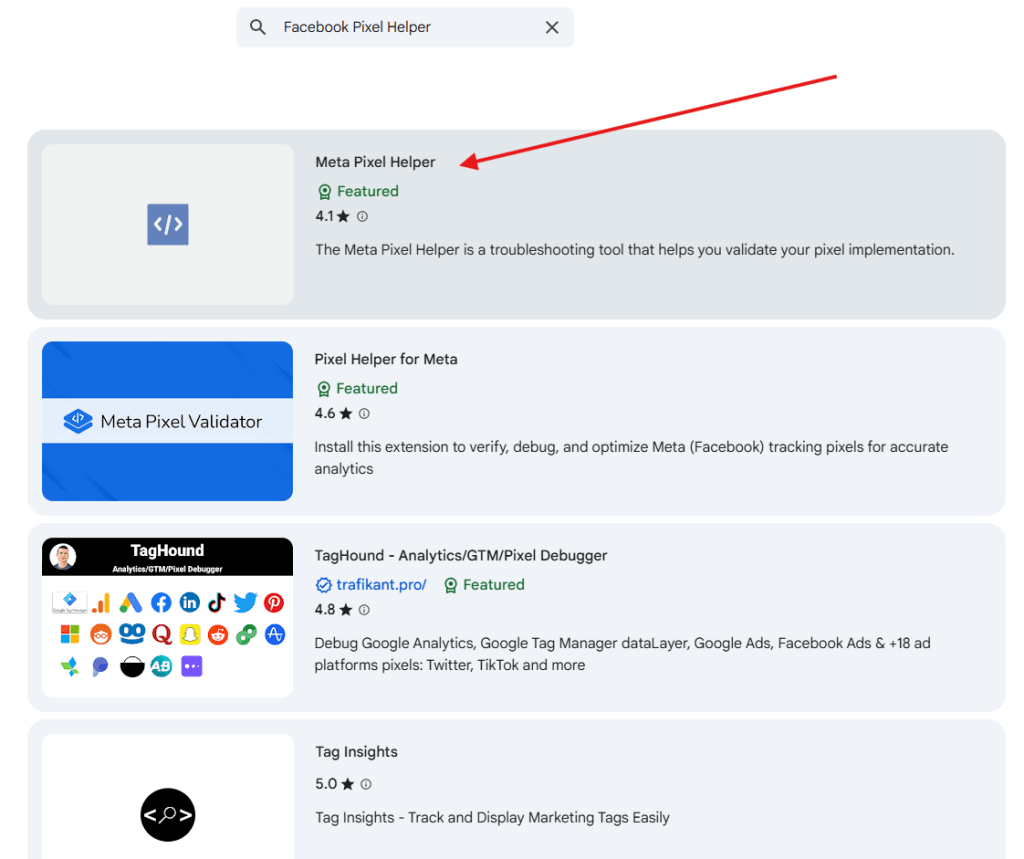
- Click “Add to Chrome”, then confirm by clicking “Add extension”.

- Check that it works. The Pixel Helper icon appears next to the address bar (pin it from the puzzle-piece menu if you don’t see it). Open any page and click the icon to see the pixel details and any errors.
How to Remove Meta Pixel Helper
- Click the three dots in the top-right corner of Chrome, then go to Extensions > Manage Extensions.
- Find Meta Pixel Helper in the list.
- Click Remove and confirm.
7 Common Meta Pixel Helper Errors and How to Fix Them
An error in Pixel Helper doesn’t always mean your pixel is broken. Some warnings are minor. Here are the ones you’ll see most often and what to do about each.
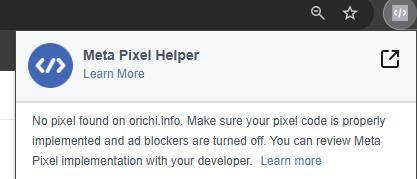
1. No Pixel Found
Pixel Helper can’t find any Meta Pixel code on the page.
Fix: Check that the pixel is installed on this page. On Shopify, check your pixel app or the Facebook & Instagram channel. If the code is there, make sure the Pixel ID matches the one in your Meta Events Manager.
2. Pixel Did Not Load
Pixel Helper found the pixel code, but the pixel never sent its request to Meta.
Fix: If the event is tied to an action, like clicking a button, do that action and check again. If the error stays, check that the pixel code is complete and that the Pixel ID is correct.

3. Not a Standard Event
The page sends an event name that isn’t one of Meta’s standard events (like Purchase or AddToCart).
Fix: If you made a custom event on purpose, you can ignore this. If you meant to track a standard event, check the spelling of the event name. For example, Purchase, not purchase.
4. More Than One Pixel Found
The page has more than one Pixel ID.
Fix: This is fine if you use several pixels on purpose, for example for different ad accounts. If you don’t, remove the pixels you don’t use so your data stays clean.
5. Pixel Activated Multiple Times
The same pixel fired the same event more than once on one page. This usually means the pixel code was added twice, for example by a theme edit and an app at the same time.

Fix: Make sure only one tool sends your pixel. Remove old pixel code from your theme, or turn off the duplicate app. See also: How to fix “Make sure identical events share a matching deduplication key”.
6. Invalid Pixel ID
The Pixel ID on the page doesn’t match a real pixel.
Fix: Copy your Pixel ID again from Meta Events Manager and compare it with the one on your site. A missing or extra digit from copy and paste is the usual cause. Not sure where to find it? See where to find your Facebook Pixel ID.
7. Pixel Took Too Long to Load
The pixel loaded so slowly that visitors may leave before it fires.
Fix: Make sure the pixel code is placed in the page header, not at the bottom. Also check for slow scripts or heavy apps that delay the page.
Keep seeing pixel errors on Shopify?
OC Meta Pixel installs Meta Pixel and Conversions API in about 2 minutes, with no code to paste and no duplicate events. Free plan available.
FAQs
Is Meta Pixel Helper free?
Yes. It’s a free Chrome extension made by Meta.
Does Meta Pixel Helper work on Safari or mobile?
No. It’s a Chrome extension, so it works in Chrome on desktop.
Why doesn’t Pixel Helper show my Conversions API events?
Pixel Helper only sees browser events. Conversions API events are sent from your server, so check them in the Test Events tab in Meta Events Manager.
What’s the easiest way to set up the Meta Pixel correctly on Shopify?
Use one tool for both Pixel and Conversions API so events aren’t sent twice. OC Meta Pixel does this without code and supports multiple pixels.
Conclusion
Meta Pixel Helper is the quickest way to see whether your pixel works. Install it, open your store, and check each key page: product page, cart, and checkout. Fix any errors one by one, then confirm your server events in Events Manager.
If you’d rather skip the manual setup, OC Meta Pixel sets up your pixel on Shopify correctly from the start.
Read more: Top 5 Best Shopify Facebook Pixel Apps · 7 Common Facebook Pixel & Conversions API Errors