Best video editing apps for social media is not always the most advanced one.
For TikTok, Instagram Reels, YouTube Shorts, Facebook, and Shopify product videos, speed often matters as much as editing power. You need an app that helps you cut clips quickly, add captions, resize for vertical video, clean up audio, export without quality loss, and keep your content looking consistent.
For ecommerce sellers, creators, and small marketing teams, the right choice depends on your workflow. A solo TikTok creator may prefer CapCut or InShot. A Shopify brand may need Canva or Adobe Express for brand templates. A podcast creator may need Descript to turn long videos into short clips. A more advanced editor may prefer LumaFusion, DaVinci Resolve, or Adobe Premiere.
This guide compares the best video editing apps for social media by use case, not hype.
How We Compared These Video Editing Apps
To make this guide more useful than a basic app list, we evaluated each video editing app based on official product information, current free-plan and watermark notes, and practical social media workflows.
The main factors were:
- Free plan availability
- Watermark rules on exported videos
- Export quality and resolution limits
- Caption tools
- Editing speed for short-form videos
- Template and brand asset support
- Best fit for TikTok, Instagram Reels, YouTube Shorts, ecommerce videos, or long-form repurposing
- Whether the app is better for beginners, brands, or advanced editors
Before publishing, we recommend running one simple hands-on test for the top apps: create a 15-second vertical product video, add captions, export it, and check whether the final file has a watermark, quality loss, export limit, or paid feature lock.
This keeps the article honest because app pricing, watermark rules, and free-plan limits can change.
12 Best Video Editing Apps Free Plan, Watermark, and Export Limits
Pricing and free-plan rules can change, so always check the official app page before choosing. This table focuses on the most important question for social media creators: can you export usable videos without paying?
| App | Free plan or free trial? | Watermark on free export? | Best for |
|---|---|---|---|
| CapCut | Yes | CapCut says its online video editor can export without a watermark | Fast TikTok, Reels, and Shorts editing |
| Adobe Premiere on iPhone | Yes | No watermark on free exports | iPhone creators who want more control |
| Canva | Yes | No watermark if using free Canva elements | Branded social videos and ecommerce content |
| Instagram Edits | Yes | No watermark | Instagram-first creators |
| VN Video Editor | Yes | No watermark | Free mobile editing |
| InShot | Yes, with ads and in-app purchases | Needs manual verification before publishing | Beginner daily social videos |
| KineMaster | Yes, with ads and in-app purchases | Needs manual verification before publishing | Mobile creators who want more control |
| LumaFusion | No standard free plan | Not a free editor | Advanced mobile editors |
| Filmora | Free trial / free access available | Yes, free-plan exports may include a watermark | Beginner-to-intermediate desktop/mobile creators |
| DaVinci Resolve | Yes | No regular watermark in the free version, but verify Studio-only effects before export | Advanced desktop editing |
| Descript | Yes | Watermark-free export depends on plan | Podcasts, webinars, and repurposing long videos |
| VEED | Yes | Yes on free exports | Browser-based quick edits |
We checked official product pages and app listings where available, but free-plan limits, watermark rules, and export options can change. Before publishing a campaign video, export one test clip from the current app version.
What Makes a Good Social Media Video Editing App?
A good social media video editing app should help you publish faster without making your videos look generic.
For most creators and brands, check these features first:
- Vertical editing for Reels, TikTok, and Shorts
- Easy trimming, splitting, and rearranging
- Auto captions or fast subtitle tools
- Text, stickers, transitions, and motion effects
- Background removal or green screen tools
- Brand templates or reusable presets
- Music, sound effects, and voiceover support
- Export options with no distracting watermark
- Stable performance on your main device
- Simple workflow for posting across platforms
Instagram Reels can support aspect ratios from 1.91:1 to 9:16, while YouTube says square or vertical videos up to three minutes can be categorized as Shorts if they meet the upload timing rules. TikTok’s own support page also notes that videos recorded in TikTok can be up to 10 minutes, while uploads can be up to 60 minutes. For most short-form social content, a vertical 9:16 workflow is still the safest starting point.
1. CapCut: Best Overall for Fast Social Media Editing
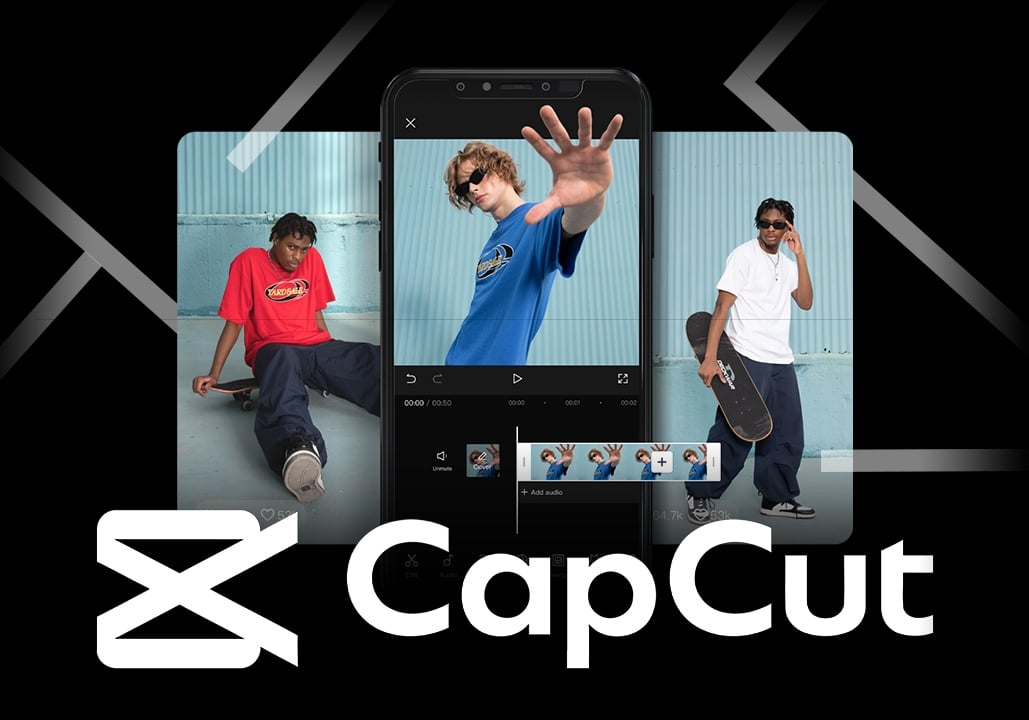
CapCut is one of the easiest apps to recommend for social media creators because it is built around short-form editing speed.
Its Google Play listing highlights basic editing tools such as trimming, splitting, merging, speed adjustment, transitions, keyframe animation, smooth slow motion, chroma key, and stabilization. It also lists social-friendly features such as auto captions, text-to-speech, motion tracking, and background removal.
CapCut is a strong fit for:
- TikTok creators
- Instagram Reels creators
- YouTube Shorts creators
- Ecommerce sellers making quick product clips
- Beginners who want trendy effects without learning pro software
The biggest reason to use CapCut is speed. You can record, cut, caption, add text, apply effects, resize, and export quickly. It is especially useful when you need to post often and follow fast-moving social trends.
The limitation is that CapCut can become template-heavy. If every video uses the same trending transitions, fonts, and effects, your brand may start to look like everyone else. Use CapCut for speed, but still build your own visual style.
Best choice if: you want the fastest all-around app for TikTok, Reels, and Shorts.
2. Adobe Premiere on iPhone: Best for Mobile Creators Who Want More Control
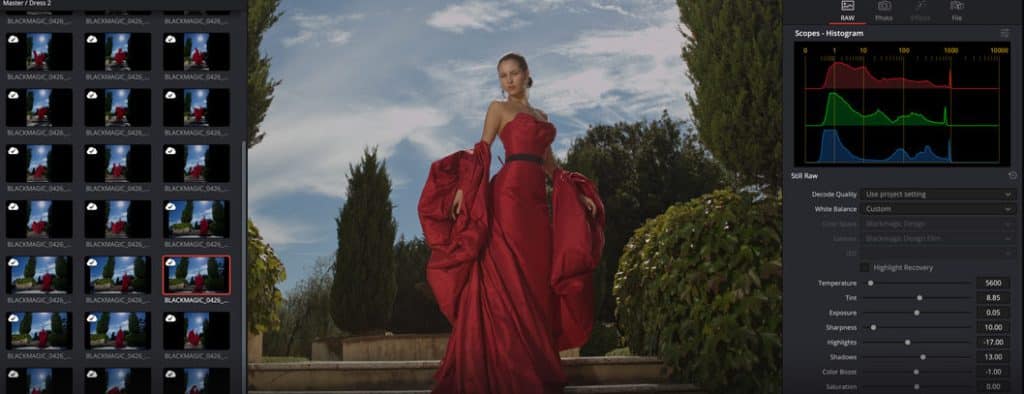
Adobe Premiere on iPhone is now a better recommendation than Adobe Premiere Rush for new users.
Adobe says Premiere Rush stopped being available for download from Adobe.com and mobile app stores on September 30, 2025, and technical support ends on September 30, 2026. Adobe says Rush is being replaced by Premiere on iPhone and Premiere on desktop.
Adobe Premiere on iPhone is positioned as a free mobile editing app with a precise multi-track timeline. Adobe also says it supports YouTube Shorts creation with templates, effects, transitions, title presets, and direct publishing to YouTube.
It is a strong fit for:
- iPhone creators
- YouTubers making Shorts
- Creators who already use Adobe tools
- Social media managers who need better timeline control
- Users who want watermark-free exports
Adobe also states that the iPhone app supports unlimited free 4K exports with no watermarks in the free version, while Firefly generative AI features use credits. It also says there is no Android version available yet, though an Android version is in development.
Best choice if: you use iPhone and want a cleaner bridge between mobile social editing and a more professional Adobe workflow.
3. Canva: Best for Brands, Templates, and Ecommerce Teams
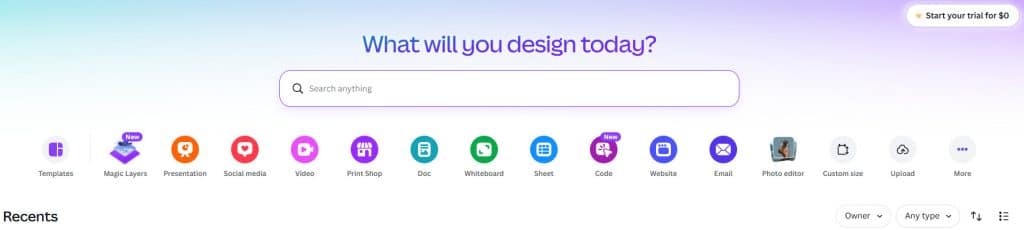
Canva is not just a graphic design tool anymore. Its video editor is useful for brands that care about consistency across posts, ads, product videos, and social graphics.
Canva’s video editor page highlights drag-and-drop editing, free stock photos and graphics, cross-device design, watermark-free downloads for free elements, collaboration, AI tools, auto captions, voiceovers, background removal, Magic Resize, and direct sharing or scheduling options.
Canva is a strong fit for:
- Shopify stores
- Small ecommerce teams
- Social media managers
- Brands that need templates
- Teams that reuse colors, fonts, logos, and layouts
The biggest advantage is brand control. If you make product launch videos, sale announcements, testimonial clips, or educational carousels, Canva helps your videos look consistent with the rest of your marketing assets.
The limitation is that Canva is not the best tool for complex timeline editing. It is better for branded social videos than detailed cinematic edits.
Best choice if: you want social videos that match your ecommerce brand identity.
4. InShot: Best Beginner App for Daily Social Videos
InShot is a simple and practical video editor for creators who want to make polished posts without learning a complex timeline.
Its Google Play listing describes InShot as an all-in-one video editor and video maker with music, text, transition effects, smooth slow motion, collage, blur background, and social sharing use cases for YouTube, Instagram, TikTok, WhatsApp, and Facebook.
InShot is a strong fit for:
- Beginners
- Solo creators
- Small business owners
- Simple product videos
- Instagram Stories and Reels
- Quick TikTok edits
Use InShot when you need basic edits done quickly: cut a clip, add text, add music, blur the background, make a collage, or format a simple video for a social post.
The limitation is that advanced editors may outgrow it. If you need serious audio mixing, deep color control, or complex multi-layer edits, you may prefer LumaFusion, DaVinci Resolve, or Adobe Premiere.
Best choice if: you want a simple phone editor for everyday social content.
5. VN Video Editor: Best Free No-Watermark Mobile Editor
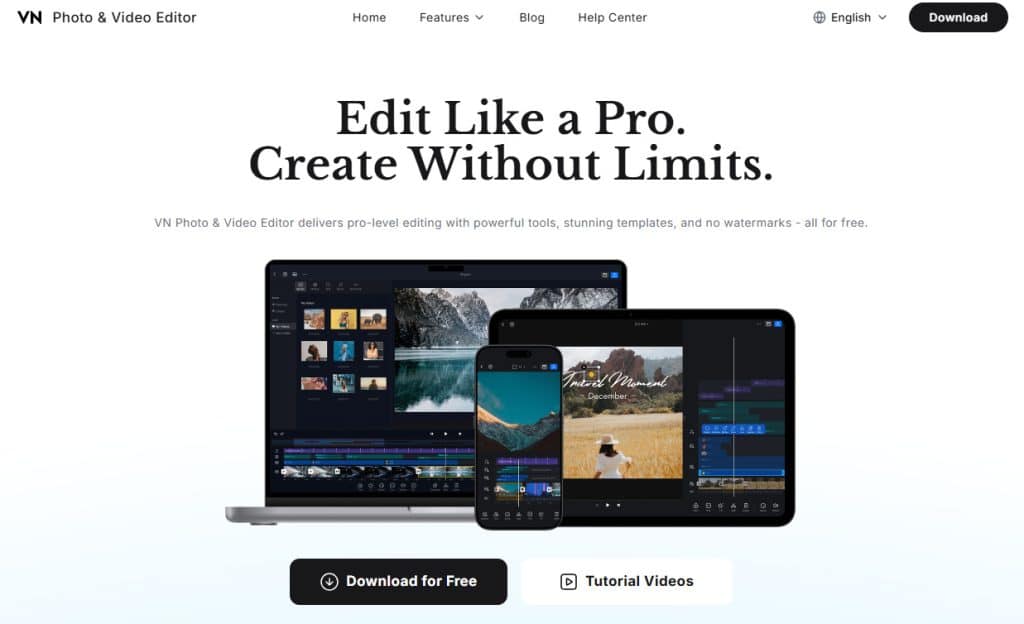
VN is a strong option for creators who want free editing without obvious branding on exports.
VN’s official site says it offers pro-level editing tools, templates, and no watermarks for free. The same page lists 700M+ downloads, a 4.8 App Store rating, and 150+ free templates.
VN is a strong fit for:
- Beginners who want more control than basic apps
- Creators who dislike watermarks
- Short-form video editors
- Mobile-first creators
- Students and hobby creators
VN feels more editing-focused than many template-first tools. It is good when you want timeline flexibility but do not want to pay before learning the basics.
The limitation is that VN may not have the same social trend ecosystem as CapCut. If you mainly chase TikTok trends, CapCut may feel faster. If you want a cleaner no-watermark editor, VN is worth testing.
Best choice if: you want a free mobile editor with no watermark.
6. Instagram Edits: Best for Instagram-First Creators
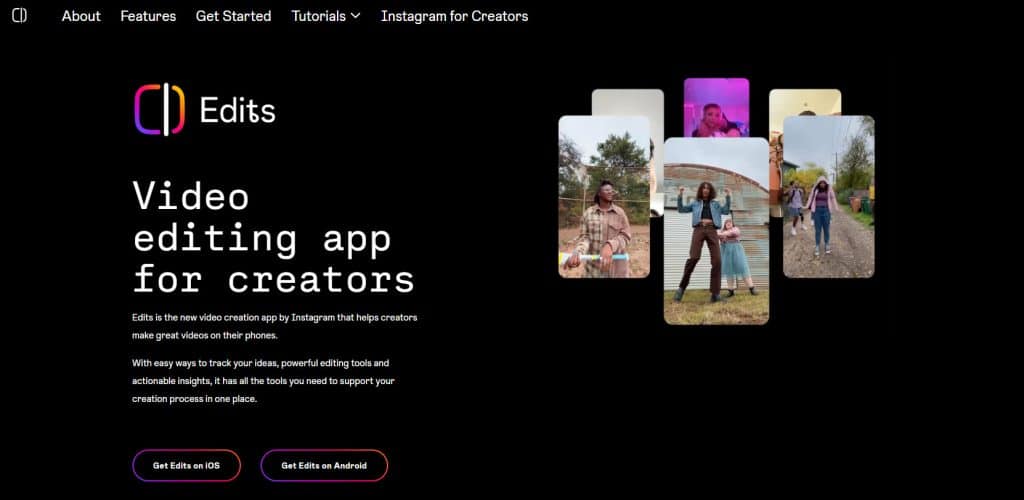
Instagram Edits is Meta’s dedicated video creation app for creators who focus heavily on Reels.
The Google Play listing says Edits is a free video editor from Instagram. It includes 4K exports with no watermark, draft organization, 10-minute capture, Instagram sharing, single-frame editing, AI animation, green screen, cutout, video overlay, audio enhancement, auto captions, trending audio inspiration, idea tracking, and a live insights dashboard for Reels performance.
Instagram Edits is a strong fit for:
- Instagram Reels creators
- Creators who want Reels insights
- Influencers tracking content ideas
- Social managers focused on Instagram
- Creators who want watermark-free exports
The most interesting feature is the connection between creation and performance. Instead of only editing videos, Edits helps creators organize ideas and understand how Reels perform.
The limitation is that it is Instagram-first. If your main platform is TikTok or YouTube Shorts, you may still prefer CapCut, Adobe Premiere, Canva, or Descript.
Best choice if: Instagram is your main growth channel.
7. KineMaster: Best Mobile App for Template + Timeline Editing
KineMaster is a long-running mobile editor that sits between beginner apps and more advanced tools.
KineMaster’s official site says it offers a full NLE video editing experience with audio editing, video editing, graphic resources, and thousands of templates. It also says its templates are ready for YouTube, TikTok, Instagram, and other social platforms.
KineMaster is a strong fit for:
- Mobile creators who want more editing control
- YouTube Shorts and Reels creators
- Template users who still want customization
- Creators who edit mostly on phone or tablet
KineMaster is useful when you want more control than InShot but do not want to move into desktop software.
The limitation is that you should check current export and watermark rules before committing, because free and paid feature limits can change.
Best choice if: you want a mobile editor with templates and more advanced editing control.
8. LumaFusion: Best Advanced Mobile Editor

LumaFusion is a strong option for creators who treat mobile editing seriously.
LumaTouch says LumaFusion is optimized for iOS and Android, compatible with iPhones, iPads, Apple Silicon Macs, Android phones, tablets, and Chromebooks. It also describes multi-track editing, effects, and titling.
LumaFusion is a strong fit for:
- Advanced mobile creators
- Travel vloggers
- iPad editors
- YouTubers who edit away from a desktop
- Creators who want more timeline control
Use LumaFusion when your videos need more than quick captions and templates. It is better for longer edits, layered projects, cleaner pacing, and more deliberate storytelling.
The limitation is that it may be more than a beginner needs. If you only make 15-second Reels, CapCut or InShot may be faster.
Best choice if: you want serious mobile editing power.
9. Filmora: Best Beginner-to-Intermediate Desktop and Mobile Editor
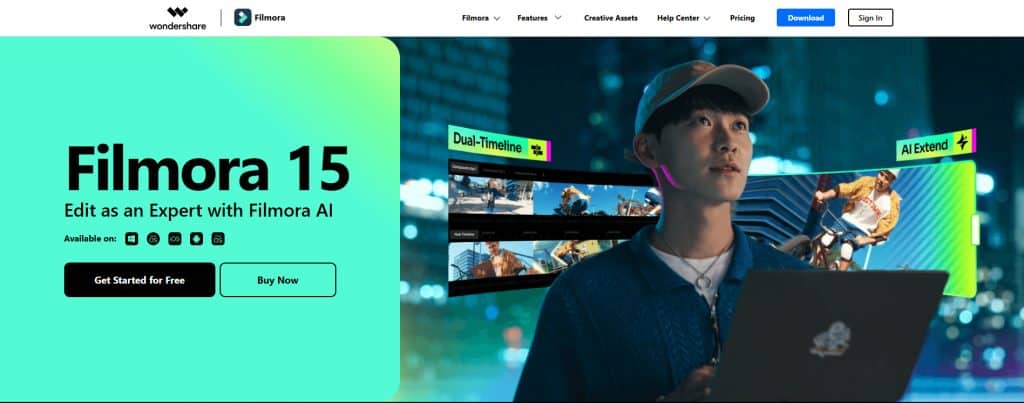
Filmora is a good middle-ground editor for creators who want more than a phone app but do not want the learning curve of DaVinci Resolve or Premiere Pro.
Wondershare describes Filmora as an all-in-one video editing software for desktop and mobile with intuitive tools, AI-powered features, templates, transitions, effects, drag-and-drop editing, music, stickers, and overlays.
Filmora is a strong fit for:
- YouTubers
- Small business marketers
- Course creators
- Social media teams
- Creators moving from mobile editing to desktop editing
Filmora works well when you need a balance of ease and features. It can support product videos, tutorial clips, YouTube content, and social posts without feeling as technical as professional tools.
The limitation is that it is still not the strongest choice for professional color grading, VFX, or advanced post-production.
Best choice if: you want an easier desktop editor with social-friendly features.
10. DaVinci Resolve: Best Free Advanced Editor for Serious Creators
DaVinci Resolve is not the fastest app for quick TikToks, but it is one of the strongest choices for creators who care about editing depth, color, audio, and long-term skill growth.
Blackmagic Design describes DaVinci Resolve as an all-in-one solution for editing, color, VFX, motion graphics, and audio. It says the free version supports 8-bit video formats up to 60fps and Ultra HD 3840 x 2160, while DaVinci Resolve Studio adds the DaVinci AI Neural Engine and additional effects.
DaVinci Resolve is a strong fit for:
- Advanced creators
- YouTubers
- Filmmakers
- Brands producing higher-quality video campaigns
- Editors who want a free professional-grade tool
Use DaVinci Resolve for videos that need better color, sound, and editing precision. For daily short-form posts, it may be slower than mobile-first apps. For serious content production, it is worth learning.
Best choice if: you want a powerful free desktop editor and do not mind a learning curve.
11. Descript: Best for Turning Long Videos Into Social Clips
Descript is different from most timeline editors because it lets you edit video by editing text.
Descript says its AI video editor automatically transcribes footage, lets users edit video by changing or deleting transcript text, and can help remove silences or filler words, improve audio, and add visuals or captions. It also says Descript can help creators make videos for YouTube, TikTok, LinkedIn, and more by repurposing long videos into clips and adding captions.
Descript is a strong fit for:
- Podcast creators
- Webinar hosts
- YouTube creators
- Coaches and educators
- Teams repurposing long-form content
If you already record long videos, Descript can save time by helping you find and clean up short clips. It is less about trendy effects and more about editing spoken content quickly.
The limitation is that it is not the best choice for visual-heavy edits, fast transitions, or advanced motion effects.
Best choice if: you turn interviews, podcasts, webinars, or tutorials into short social clips.
12. VEED: Best Browser-Based Editor for Quick Social Assets
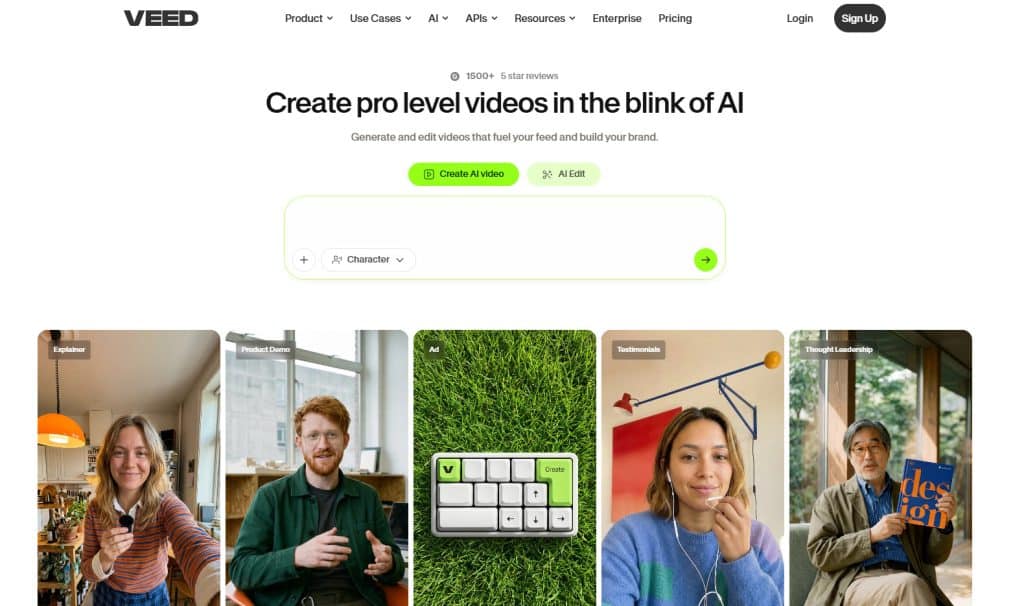
VEED is a useful browser-based option when you do not want to install a full editing app.
VEED says free users get basic editing tools such as trim, crop, resize, text, and music, with 720p exports and watermarking on free exports. It also lists AI tools such as Auto Edits, AI B-roll, and audio cleanup as limited trials for free users, with premium plans for 4K exports, more AI features, and watermark-free videos. If your team is building a broader content workflow, compare these features with other AI marketing tools before paying for overlapping software.
VEED is a strong fit for:
- Marketers
- Solopreneurs
- Browser-based workflows
- Simple captions and resizing
- Social clips made from existing footage
VEED is useful if you want a quick online editor for subtitles, resizing, basic edits, or repurposed content. It is not the best choice if you need offline editing or complex long-form projects.
Best choice if: you want a simple online editor for social video cleanup and resizing.
Best App by Social Media Use Case
Best for TikTok
Choose CapCut if you want speed, trends, captions, templates, and effects. It is the most natural choice for frequent TikTok posting.
Best for Instagram Reels
Choose Instagram Edits if Instagram is your main platform and you want idea tracking and Reels insights. Choose Canva if you need branded ecommerce Reels. Choose CapCut if you want faster trend-based edits.
Best for YouTube Shorts
Choose Adobe Premiere on iPhone if you are an iPhone creator who wants YouTube Shorts templates and a cleaner Adobe workflow. Choose DaVinci Resolve if you also create long-form YouTube videos.
Best for Shopify Product Videos
Choose Canva for branded product videos, sale videos, and launch content. Choose CapCut for fast TikTok-style product demos. If your Shopify store uses TikTok content on product pages, Orichi’s Madgic TikTok Video can help showcase TikTok videos and feeds on the storefront, embed widgets, auto-sync TikTok content, and support video-rich layouts.
Best for Podcasts and Long-Form Repurposing
Choose Descript if your main problem is cutting long videos into short clips, removing filler words, adding captions, and turning spoken content into social posts.
Best for Advanced Editing
Choose LumaFusion for advanced mobile editing. Choose DaVinci Resolve for desktop-level editing, color, audio, and VFX.
How to Choose the Right Video Editing App
Start with your real publishing workflow.
If you post short videos daily, choose speed over complexity. CapCut, InShot, VN, and Instagram Edits are better for this.
If you manage a brand, choose consistency. Canva, Adobe Express, Filmora, or Premiere can help you keep fonts, colors, templates, and assets under control.
If you repurpose long videos, choose transcript-based editing. Descript is usually easier than manually hunting through a long timeline.
If you want long-term editing skill, choose a deeper tool. LumaFusion and DaVinci Resolve take more time, but they give you more control.
If you sell products online, do not choose an editor only because it has cool effects. Choose one that helps you make clear product demos, customer proof, offer videos, tutorials, UGC-style clips, and short ads.
Simple Social Video Workflow for Ecommerce Sellers
Here is a practical workflow for a Shopify or ecommerce brand:
- Record one product video in vertical format.
- Create three versions:
- A product demo
- A customer problem/solution video
- A quick offer or sale video
- Add captions because many users watch without sound.
- Keep the hook in the first few seconds.
- Export in 9:16 for TikTok, Reels, and Shorts.
- Post organically first.
- Track saves, shares, comments, watch time, and click behavior with native platform insights or social media analytics tools.
- Turn the best-performing video into a product page asset, ad creative, or TikTok storefront widget.
This is where ecommerce teams can connect editing with conversion. A good video editing app helps you create the video. A good ecommerce workflow helps you use that video to build trust and sell.
Common Mistakes to Avoid
Choosing the most advanced app too early
If you are still learning short-form content, DaVinci Resolve may slow you down. Start with a tool that helps you publish consistently.
Using too many templates
Templates save time, but overusing them can make your brand look generic. Customize colors, fonts, pacing, and hooks.
Ignoring captions
Captions help with accessibility, clarity, and silent viewing. Most strong social editors now include some form of caption workflow.
Editing for trends but not for the customer
Trendy effects can get attention, but your video still needs a clear message. For ecommerce, show the product, the benefit, the use case, and the reason to care. If you use TikTok or Reels storytelling, formats like POV-style videos can work well when they make the product feel more relatable.
Forgetting platform fit
A polished YouTube video and a fast TikTok product demo are not the same thing. Match the app to the content format.
Final Recommendation
For most social media creators, CapCut is the best first app to try because it is fast, beginner-friendly, and built for short-form content.
For ecommerce and Shopify brands, Canva is often the better long-term choice for branded videos, while CapCut is better for fast TikTok-style product clips.
For Instagram-first creators, Instagram Edits is worth testing because it connects editing, ideas, trends, and Reels insights.
For advanced creators, LumaFusion and DaVinci Resolve offer more control.
For long-form repurposing, Descript is the strongest choice because text-based editing makes it easier to turn podcasts, webinars, and YouTube videos into social clips.
The best app is the one that helps you publish better videos consistently, not the one with the longest feature list.
Simple Hands-On Test Before Choosing an App
Before paying for a video editing app, test it with one real social media task.
Use this simple test:
- Import a 15-second vertical product or talking-head video.
- Trim the first and last second.
- Add auto captions.
- Add one text overlay.
- Add background music or voice cleanup if available.
- Export in vertical 9:16 format.
- Check the final video for watermark, quality loss, caption accuracy, export speed, and file size.
Use this scoring table:
| Test item | What to check | Why it matters |
|---|---|---|
| Export watermark | Does the exported video include an app logo or watermark? | A watermark may look unprofessional for brand content |
| Caption accuracy | Are captions mostly correct without heavy manual edits? | Captions save time and help silent viewers understand the video |
| Export quality | Does the final video look sharp after export? | Low-quality export can hurt TikTok, Reels, Shorts, and product page videos |
| Editing speed | Can you finish a simple edit in under 10 minutes? | Social media teams need repeatable workflows |
| Free-plan limits | Are key tools locked behind a paid plan? | A “free” app may still be limited for serious publishing |
| Brand control | Can you reuse fonts, colors, logos, and templates? | Ecommerce brands need consistent visuals |
For Orichi or Shopify sellers, the best test is a product demo video. If the app helps you create a clear hook, captions, product close-up, and clean export quickly, it is more useful than an app with many advanced features you rarely use.
FAQ
What is the best video editing app for social media?
CapCut is the best overall choice for many social media creators because it is fast, easy to use, and built for short-form content. Canva is better for branded ecommerce videos. Descript is better for repurposing long videos into clips. DaVinci Resolve is better for advanced editing.
What is the best free video editing app with no watermark?
VN and Instagram Edits are strong free options with no-watermark positioning. Adobe Premiere on iPhone also says it supports free 4K exports with no watermarks. If you mainly create videos for a Shopify store, you can also compare more free video editing software for Shopify. Always check the current app page before publishing because pricing and export rules can change.
Is CapCut still good for social media editing?
Yes. CapCut remains a strong choice for TikTok, Instagram Reels, and YouTube Shorts because it includes fast editing, auto captions, text-to-speech, background removal, effects, and social-friendly tools.
Is Adobe Premiere Rush still worth using?
New users should avoid building a workflow around Premiere Rush. Adobe says Rush is no longer available for download from Adobe.com or app stores as of September 30, 2025, and technical support ends September 30, 2026. Adobe recommends transitioning to Premiere on iPhone or Premiere desktop.
What app is best for Instagram Reels?
Instagram Edits is a strong option for Instagram-first creators because it includes Reels inspiration, idea tracking, captions, 4K exports, and a live insights dashboard. CapCut and Canva are also good choices depending on whether you want trend speed or brand templates.
What app is best for ecommerce product videos?
Canva is best for branded product videos and campaign assets. CapCut is best for fast TikTok-style demos. Descript is best if you repurpose long product tutorials or founder videos into clips.