We make one of the apps in this category, Orichi ChatGPT Ads Pixel ‑ Feed. To keep this fair, we apply the same checklist to our own app, and every point includes a way to check any app yourself.
By Alex – Founder at Orichi · Updated [November 4, 2026]
OpenAI Ads (also called ChatGPT Ads) is a new ad channel, and Shopify merchants now have many apps to choose from. Most of them promise “one-click pixel install.” That part is easy. What separates a reliable app from a basic one is everything after the install.
A good OpenAI Ads app for Shopify does three jobs:
- Sends complete conversion data to OpenAI, so the ad system can learn from your real sales.
- Proves the data is arriving, so you are not spending on broken tracking.
- Shows what your ads actually returned, using your real orders, not just platform numbers.
Use the checklist below to compare any app.
The checklist at a glance
| # | Criterion | Why it matters | Orichi |
|---|---|---|---|
| 1 | Server-side Conversions API (CAPI) | Browser pixels miss purchases blocked by ad blockers and browser limits. CAPI sends them from the server. | Yes |
| 2 | Deduplication with a shared event ID | Running pixel and CAPI together double-counts sales unless both send the same event ID. | Yes |
| 3 | oppref capture | oppref is the click identifier OpenAI uses to match a sale to an ad. If it is lost, real sales go unattributed. | Yes |
| 4 | Identifier coverage | Hashed email, phone and other identifiers help OpenAI match conversions to ad clicks. | Yes |
| 5 | No-code install | The app should install through a Shopify app embed and web pixel, with no theme code edits. | Yes |
| 6 | Visible delivery status | You should see which events fired and whether OpenAI accepted them. | Yes |
| 7 | Event Match Quality score | Shows how well your events can be matched, and what to fix to improve it. | Yes |
| 8 | Refund and cancellation handling | ROAS should use revenue net of refunds and cancellations, not gross order value. | Yes |
| 9 | Consent-aware tracking | Events should respect customer consent through Shopify’s Customer Privacy API. | Yes |
| 10 | Delivery log with retry | A log of each event and OpenAI’s response lets you find and resend failed events. | Yes |
| 11 | Broken-tracking alerts | You should be told when keys expire or events stop arriving. | Yes |
| 12 | Reconciliation with real orders | Compare OpenAI-reported conversions with the orders your store actually tracked. | Yes |
| 13 | Product feed in OpenAI format | Product feed ads need a catalog in OpenAI’s format, kept in sync with price and stock. | Yes |
| 14 | Per-country feeds | Each market needs its own prices, currency and language. | Yes |
Below, each point explained in plain language.
Part 1: Sending complete conversion data
1. Server-side Conversions API (CAPI)
A browser pixel runs in the shopper’s browser, so ad blockers, privacy settings and closed tabs can stop it from firing. The OpenAI Conversions API sends the same events from your store’s server, which those limits do not affect. Without CAPI, OpenAI only learns from the share of purchases the browser pixel survives, which weakens both your reporting and campaign optimization.
How to check any app: Ask whether Purchase events are sent from the server, not only the browser. A good app shows the event source (browser or server) in its event view.
In Orichi: CAPI is included on every plan, including Free.
2. Deduplication with a shared event ID
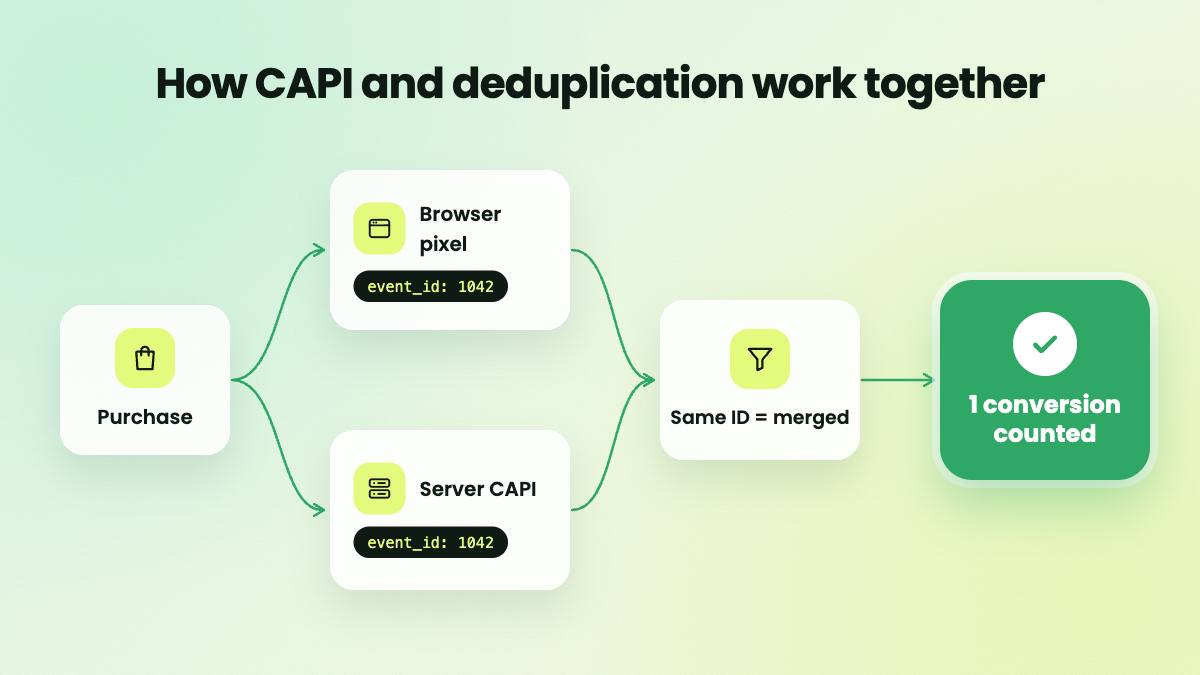
When you run the pixel and CAPI together, OpenAI may receive the same purchase twice. To count it once, both copies must carry the same event ID so OpenAI can merge them. If an app sends both without a shared ID, your conversions and ROAS will look inflated.
How to check any app: Ask how the app deduplicates browser and server events. Look for “shared event ID” or “event_id” in its docs.
In Orichi: Browser and server events share one event ID automatically.
3. oppref capture
When a shopper clicks a ChatGPT ad, OpenAI attaches a click identifier called oppref. It works like gclid for Google Ads or fbclid for Meta. OpenAI uses it to connect a later purchase back to the ad click. If the app drops oppref along the way, real sales from your ads can go unattributed.
How to check any app: Ask whether the app captures oppref and sends it with server-side conversion events, not just in the browser.
In Orichi: oppref is captured from ad clicks and sent with conversion events. Let’s see how it works on the instruction video
4. Identifier coverage
OpenAI matches conversions to ad clicks using customer identifiers such as email and phone. These are hashed (SHA-256) before sending, so raw personal data never leaves your store. The more identifiers an event carries, the more conversions OpenAI can match.
How to check any app: Ask which identifiers the app sends with each event, and confirm they are hashed.
In Orichi: Available identifiers are hashed and attached to each event.
5. No-code install
The app should install through a Shopify app embed and Shopify’s web pixel, not by pasting code into your theme. Theme code can break when you update or switch themes, and usually needs a developer to fix.
How to check any app: If setup asks you to edit theme.liquid or paste a script, it is not a no-code install.
In Orichi: Installs through an app embed with no theme edits. You only need your Pixel ID and API key.
If you are new to OpenAI and ChatGPT Ads, you can read our blog about how to launch your first ChatGPT Ads campaign
Part 2: Proving the data is arriving
6. Visible delivery status
Installing a pixel is not the same as tracking working. You should be able to see which events fired and whether OpenAI accepted them. Without this, you only find out tracking failed after you have already spent on ads.
How to check any app: Look for a live events view that shows each event type and its delivery status.
In Orichi: The live events dashboard shows events by type, with delivery status and a funnel view.
7. Event Match Quality score
Match quality shows how well your events can be linked to ad clicks, mostly based on which identifiers they carry. A low score often means missing email or phone data. A good app shows the score per event and tells you what to fix.
How to check any app: Ask whether the app shows a match quality score per event, with suggested fixes.
In Orichi: Event Match Quality is shown per event, with guided fixes.
8. Delivery log with retry
When an event fails, you need to know why. A delivery log records each event sent to OpenAI and the response OpenAI returned. That lets you spot errors such as an invalid key and resend failed events instead of losing them.
How to check any app: Ask whether you can see OpenAI’s actual response for each event, and whether failed events can be retried.
In Orichi: The delivery log shows each event with OpenAI’s response and one-click retry.
9. Broken-tracking alerts
API keys expire and settings change. If events stop arriving, you should hear about it right away, not weeks later when you review results.
How to check any app: Ask whether the app sends alerts (for example by email) when keys fail or events stop.
In Orichi: Alerts notify you when keys expire or events stop reaching OpenAI.
10. Consent-aware tracking
If you sell to customers in the EU or other privacy-regulated markets, tracking must respect each customer’s consent choice. Shopify’s Customer Privacy API is the standard way for apps to read that choice.
How to check any app: Ask whether the app follows Shopify’s Customer Privacy API before sending events.
In Orichi: Tracking follows Shopify’s Customer Privacy API.
Part 3: Showing what your ads actually returned
11. Refund and cancellation handling
A sale that is later refunded is not revenue. If an app calculates ROAS from gross order value, your results look better than they are, and you may scale campaigns that are not profitable.
How to check any app: Ask whether reported revenue is net of refunds and cancellations.
In Orichi: Revenue and ROAS are calculated net of refunds and cancellations.
12. Reconciliation with real orders
The number of conversions OpenAI reports and the number of orders in your store will rarely match exactly. Attribution windows, refunds and untagged clicks all create gaps. A good app puts both numbers side by side, so you can see the gap and judge results by real orders.
How to check any app: Look for a report that shows OpenAI-reported conversions next to orders tracked in your store.
In Orichi: The Performance report shows OpenAI conversions and store orders side by side, with spend, revenue and ROAS for each campaign and product.
-> for Black Friday: which offer to run, and how to tell if it paid: Black Friday Offers on ChatGPT Ads
Part 4: Product feeds
13. Product feed in OpenAI format
OpenAI can generate product ads from your catalog, but the feed must follow OpenAI’s format and stay in sync with price and stock. An outdated feed can show the wrong price or advertise products that are out of stock.
How to check any app: Ask how often the feed syncs, and whether the app shows why a product was skipped or rejected.
In Orichi: Product feeds sync to OpenAI via SFTP or hosted URL, with validation before delivery.
14. Per-country feeds
If you sell in more than one country, each market needs its own feed with local prices, currency and language. One global feed can show US prices to UK shoppers.
How to check any app: Ask whether the app creates separate feeds per market using your Shopify Markets settings.
In Orichi: You can create one feed per market, using that market’s prices and language.
Red flags
- Browser pixel only. No server-side CAPI means missed conversions.
- No delivery status. You cannot tell whether OpenAI received your events.
- ROAS from gross revenue. Refunds and cancellations are ignored.
- Two tracking apps sending OpenAI events. Running two apps for the same pixel can double-count conversions. Pick one.
- Theme code required. It can break when your theme updates.
How Orichi covers this checklist
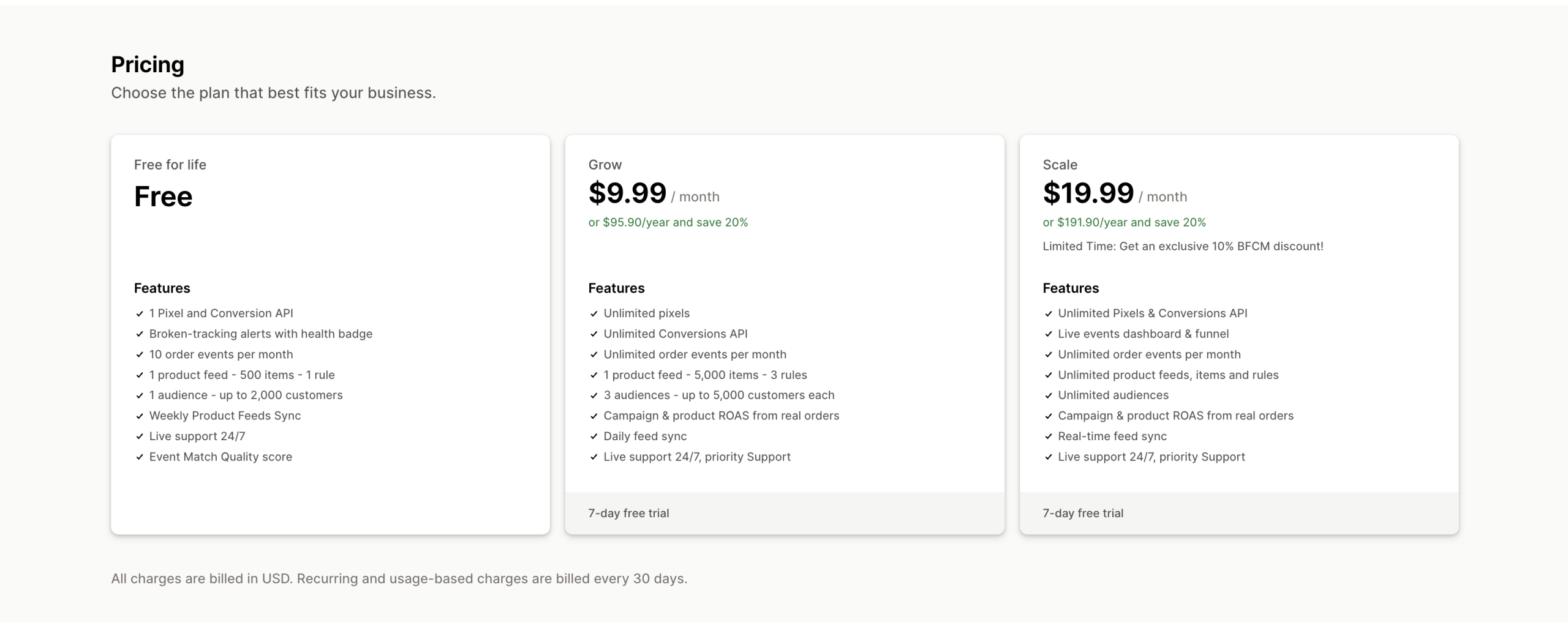
Orichi ChatGPT Ads Pixel‑ Feed covers all 14 points in one app: server-side tracking, delivery monitoring, real-order reporting, product feeds and hashed customer audiences. There is a free plan, so you can install it and check each point above yourself.
Install Orichi OpenAI Ads Pixels on the Shopify App Store
Let’s explore how customers share their experience about our app
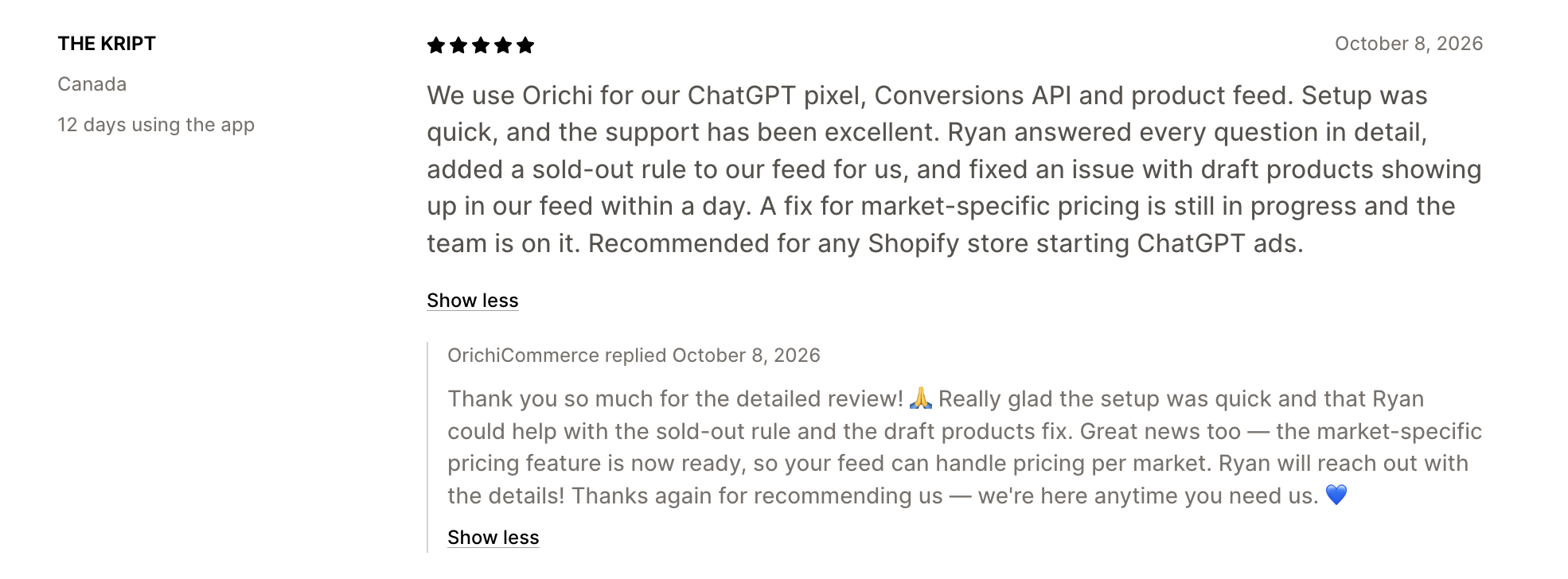
- Review from The KRIPT store after a haft of a month using our app
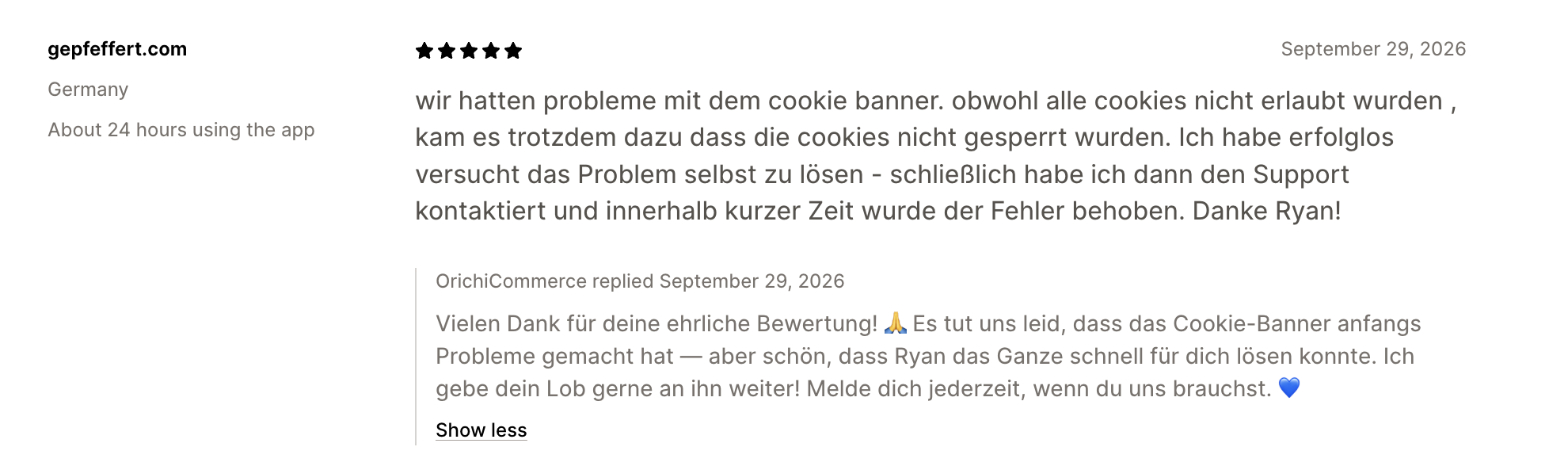
2. another review from a Germany store: Gepfeffert
You can read more here: Customer Reviews
FAQ
Is OpenAI Ads the same as ChatGPT Ads?
Yes. OpenAI Ads is the platform, and ChatGPT Ads are the ads it shows inside ChatGPT.
Does Orichi track refunds?
Yes. Revenue and ROAS are calculated net of refunds and cancellations.
Does it support oppref?
Yes. Orichi captures oppref and sends it with conversion events for attribution.
Is it GDPR consent-aware?
Yes. Tracking follows Shopify’s Customer Privacy API.
Does it use server-side Conversions API?
Yes, with deduplication through a shared event ID.
Do I need to edit theme code?
No. Orichi installs through a Shopify app embed.
Can I see if OpenAI received my events?
Yes. The delivery log shows each event and OpenAI’s response, with one-click retry.
Does it show Event Match Quality?
Yes, per event, with suggested fixes.
Will I know if tracking breaks?
Yes. Orichi sends alerts when keys expire or events stop arriving.
Does it compare OpenAI conversions with my real orders?
Yes. The Performance report shows both side by side.
Can I create feeds for different countries?
Yes. One feed per market, with that market’s prices and language.
Do I need an OpenAI Ads account first?
Yes. Create one at ads.openai.com to get your Pixel ID and API key, then connect them in the app.