Whether you’re just starting your online business or managing multiple websites, accessing your Wix account is the first step. Wix makes it simple to log in—but sometimes users run into problems, especially if they forget their email or password. In this guide, we’ll walk you through everything you need to know about logging in to Wix smoothly, including troubleshooting tips if you ever get stuck.
Step-by-Step: How to Log In to Your Wix Account
To log in to your Wix account, follow these steps:
1. Visit the Wix Website
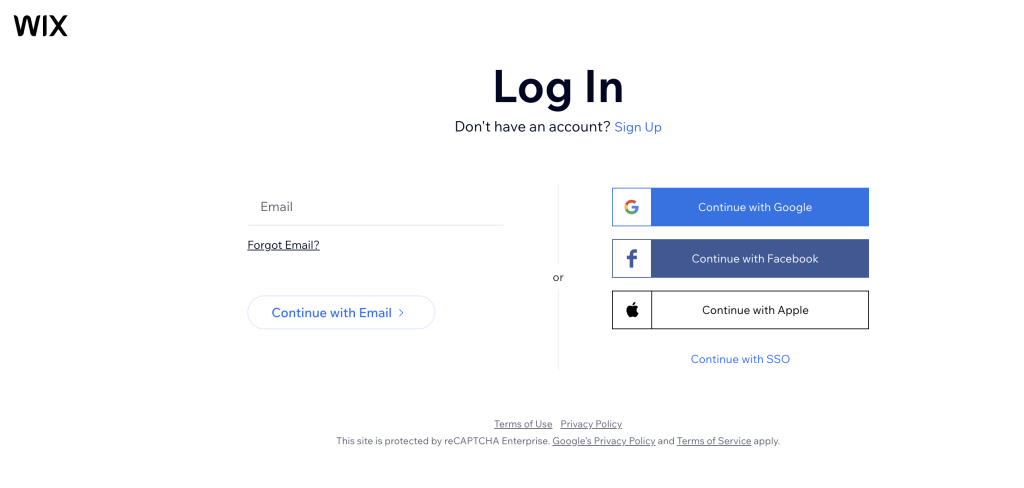
Open your browser and go to www.wix.com. On the homepage, look for the “Log In” button in the top-right corner. Click it to open the login page.
2. Choose Your Login Method
Wix offers several login methods. Choose the one you originally used when creating your account.
Log In with Email and Password
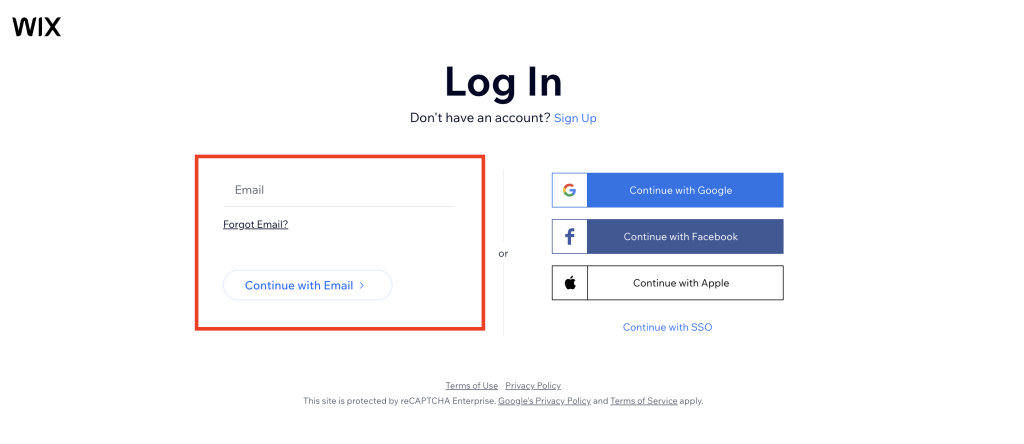
- Click on “Continue with Email”
- Enter your email address
- Then enter your password
- Click the “Log In” button
Log In with Google, Facebook, or Apple
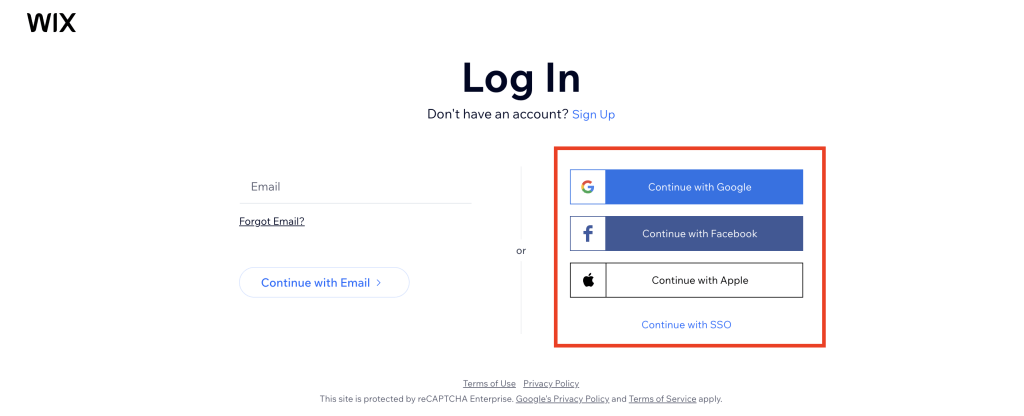
If you registered using your Google, Facebook, or Apple account:
- Click the respective social login button
- Follow the prompts to sign in via your chosen platform
Log In with SSO (Single Sign-On)
If you’re part of an organization that uses Single Sign-On, click “Continue with SSO” and follow your organization’s login process.
3. Access Your Wix Dashboard
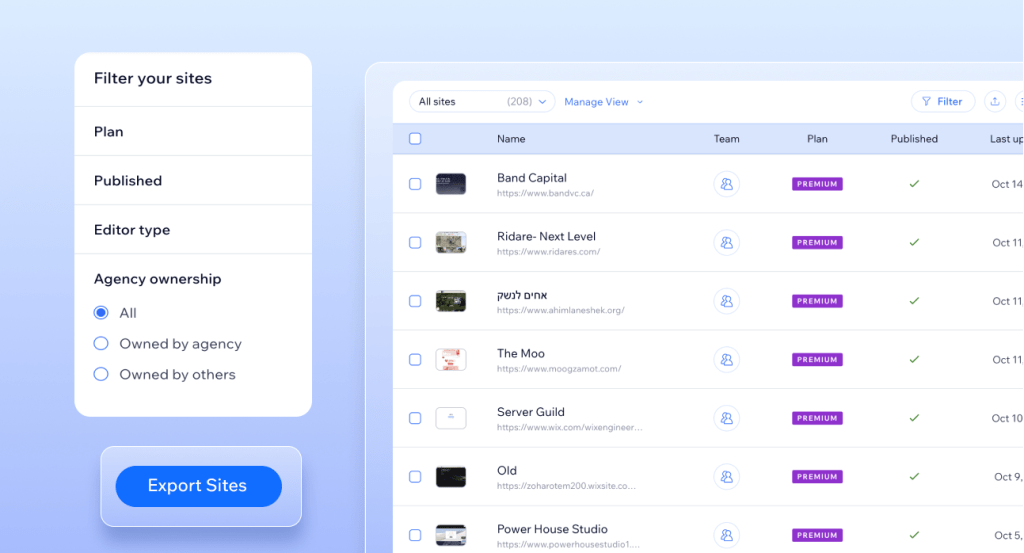
Once logged in, you’ll be taken to your Wix dashboard. If you have multiple websites, you’ll see a list of them and can select the one you want to manage. If you only have one site, you’ll be taken directly to its dashboard.
Common Wix Login Problems and How to Fix Them
Even though the process is straightforward, login issues can still happen. Here are the most common problems and how to solve them:
Forgot Password
If you forgot your password, simply click the “Forgot Password?” link on the login page. Enter your email address, and Wix will send you a reset link. Click the link in your inbox and follow the instructions to set a new password.
Forgot Email Address
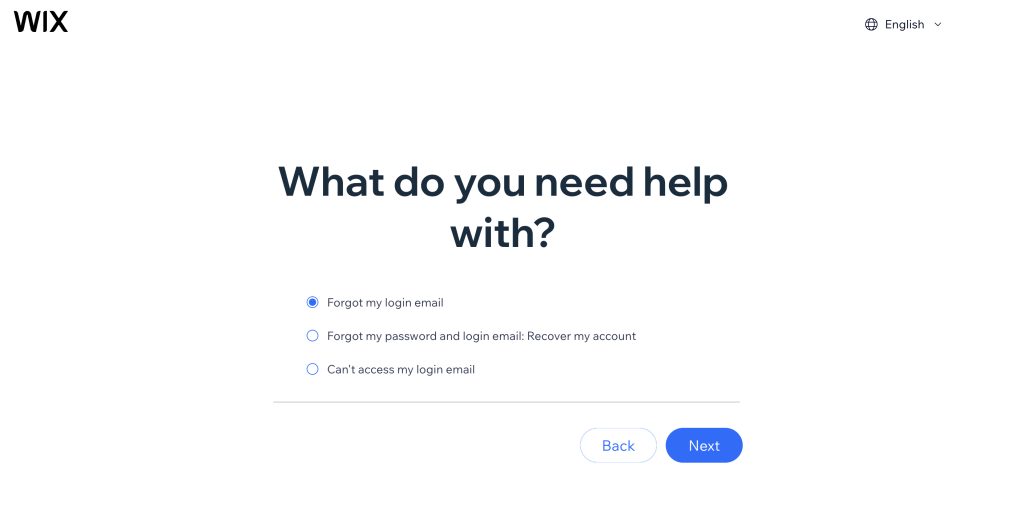
If you can’t remember which email you used to sign up, click “Forgot Email?” on the login page. Wix will ask you to enter your website address (URL), and they’ll help you identify the associated email address.
Lost Access to Email Account
If you no longer have access to the email account associated with your Wix login, you may still be able to recover your account. You can:
- Use a connected recovery phone number (if you previously set one up)
- Submit Wix’s Account Recovery Form and provide proof of ownership
Can’t Access Your Phone for 2-Step Verification
If you’ve enabled two-factor authentication and lost access to your phone:
- Try using an alternate recovery option, such as a backup code or registered email
- If none are available, fill out the Wix Account Recovery Form with full details
Signed In But Don’t See Your Website
Sometimes users accidentally log in with the wrong account—perhaps with Google or Facebook instead of their original email and password. If you log in and can’t see your site, try logging out and signing in using a different method.
Tips to Keep Your Wix Account Secure and Accessible
To avoid future login problems, here are some best practices:
- Always use the same login method you used to sign up. Switching between email and social logins can create confusion.
- Enable two-step verification for added security. This way, even if someone gets your password, they can’t access your account without the secondary code.
- Keep your recovery phone number and email address updated in your account settings.
- Store your login credentials in a secure password manager so you never forget them.
What to Do After Logging In
Once you’re logged in, you can start managing your website right away. Here’s what you can do from the Wix dashboard:
- Edit your site using the Wix Editor or Editor X
- Access your site’s analytics, SEO tools, and performance reports
- Connect a domain, manage billing, or upgrade to a premium plan
- Add apps, customize your online store, or create marketing campaigns
If you need to switch between sites, go to the “My Sites” section from your Wix dashboard and choose another site to manage.
Frequently Asked Questions (FAQs)
1. What should I do if I forgot the email I used to create my Wix account?
Use the “Forgot Email?” feature on the login page. Enter your website’s URL, and Wix will help locate the correct email associated with that site.
2. I no longer have access to my email. Can I still recover my Wix account?
Yes, you can try logging in using a recovery phone number or fill out the Wix Account Recovery Form with detailed information to prove ownership.
3. Why don’t I see my website after logging in?
This usually happens when you log in with a different email or social account than the one you used to create your site. Try logging out and signing in with the correct method.
4. Can I log in to Wix using my phone?
Yes, you can log in to Wix from any browser on your phone or by using the Wix Owner app, available on both iOS and Android.
5. How do I enable two-step verification for added security?
Go to your Wix account settings, then under “Security,” you can enable two-step verification and add a backup phone or email.
6. I get a blank page after clicking ‘Log In’—what’s wrong?
This could be caused by a browser issue or pop-up blocker. Try clearing your browser cache or switching to another browser.
7. What is the Account Recovery Form and when should I use it?
If you’re unable to log in using your usual email, phone, or recovery methods, the Account Recovery Form allows you to verify your identity and regain access manually.
Final Thoughts
Logging in to your Wix account is the first step toward building and growing your online presence. While the process is usually quick and easy, having backup options and knowing how to troubleshoot can save you time and frustration. Follow the steps in this guide, and you’ll always have access to your site when you need it.
If you’re ever unsure, Wix’s help center and customer care team are always available to assist you.