Hide product prices or Common request a quote from guests easily on Shopify. Show prices only to logged-in customers with simple code or apps. Learn 20 quick ways to add quote forms, file uploads, and B2B wholesale setup without Shopify Plus.

Q1. How do I hide product prices for guest visitors?
Do it yourself (free, basic coding):
Step 1: Go to Shopify Admin → Online Store → Themes → click Edit Code
Step 2: Open the file product.liquid (or search for price in the template files)
Step 3: Find the line that shows the price. Wrap it with this code:
liquid
{% if customer %}
  {{ product.price | money }}
{% else %}
  <p>Please log in to see the price.</p>
{% endif %}
Step 4: Click Save. Now guests see the login message, logged-in users see the price.
Step 5: Repeat this in product-card.liquid to also hide price on collection pages.
⚠️ This hides price for ALL products. For specific products only, see Q2.
Use an app instead: Madgic “Request a Quote & Hide Price” lets you hide price and Add to Cart for any product, collection, tag, or customer group – no code required, set up in minutes.
Q2. How to hide prices on specific products or collections, not the entire store?
Do it yourself:
Step 1: In Shopify Admin → go to Products → open a product you want to hide
Step 2: In the Tags field, type: hideprice → Save
Step 3: Go to Online Store → Themes → Edit Code
Step 4: In product.liquid, find the price section and wrap it:
liquid
{% if product.tags contains 'hideprice' %}
  <p>Contact us for price</p>
{% else %}
  {{ product.price | money }}
{% endif %}
Step 5: Do the same in product-card.liquid for collection pages
Step 6: Save and preview – only tagged products hide their price
Use an app instead: Madgic lets you target specific products, collections, or tags from a simple dashboard – no need to manually tag each product in code.
Q3. How to show prices only to logged-in customers?
Do it yourself:
Step 1: Edit Code → open product.liquid
Step 2: Find the price display block. Replace it with:
liquid
{% if customer %}
  {{ product.price | money }}
{% else %}
  <a href="/account/login">Log in to see price</a>
{% endif %}
Step 3: Also update product-card.liquid (collection page prices)
Step 4: Save → test by visiting your store while logged out
Use an app instead: Madgic handles this with a toggle – flip “hide from guests” on, done. No risk of breaking your theme code.
Q4. Can I hide the price for a specific variant? (e.g., premium material)
Do it yourself:
Step 1: Go to Shopify Admin → Products → open the product
Step 2: Note the exact variant name you want to hide (e.g., “Gold Edition”)
Step 3: Edit Code → open product.liquid
Step 4: Find where variant prices are displayed, then add:
liquid
{% for variant in product.variants %}
  {% if variant.title == 'Gold Edition' %}
    <p>Contact us for price</p>
  {% else %}
    {{ variant.price | money }}
  {% endif %}
{% endfor %}
Step 5: Save and test each variant on the product page
⚠️ This is tricky and varies by theme. If the price updates dynamically via JavaScript, CSS alone won’t work.
Use an app instead: Madgic supports variant-level price hiding – you pick which variants trigger the hide, without touching any code.
Q5. How do I hide the “Add to Cart” button and replace it with “Contact Us” or “Get Quote”?
Do it yourself:
Step 1: Edit Code → find product-form.liquid or search for add-to-cart in your theme
Step 2: Find the button code – usually looks like:
html
<button type="submit" name="add">Add to cart</button>Step 3: Replace it with a simple link:
html
<a href="/pages/contact">Contact Us for Price</a>Step 4: Style it with CSS to look like a button if needed
Step 5: Save and preview
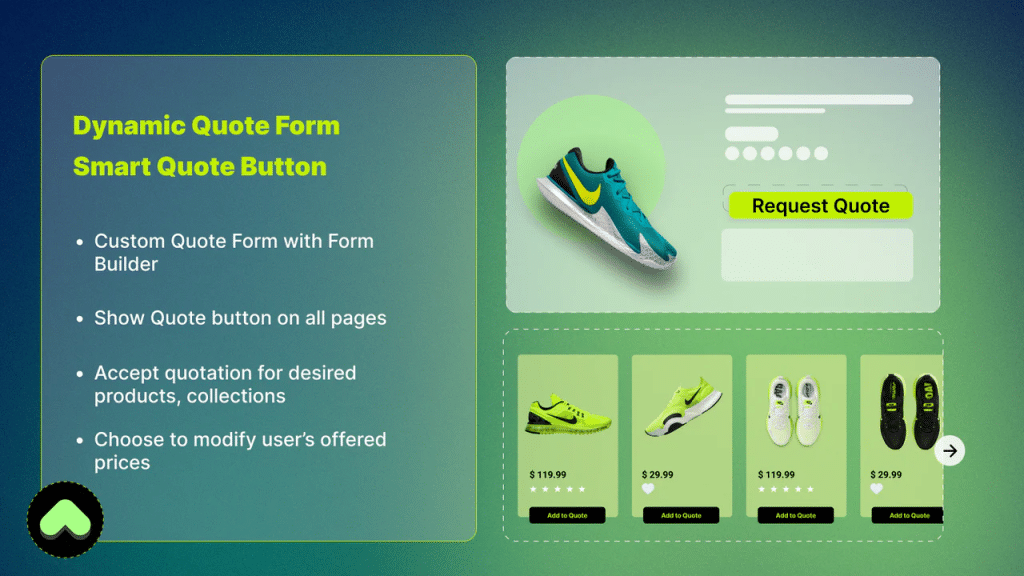
Use an app instead: Madgic replaces Add to Cart with a customizable RFQ (Request for Quote) form – no code required. You can set the button text, color, and which products it applies to.
Q6. How to display “Contact for Price” or “Price on Request” instead of the actual price?
Do it yourself:
Step 1: Tag the product with callforprice in Shopify Admin
Step 2: Edit Code → product.liquid → wrap the price:
liquid
{% if product.tags contains 'callforprice' %}
  <p><strong>Contact for Price</strong></p>
{% else %}
  {{ product.price | money }}
{% endif %}
Step 3: Style the text with CSS if you want it bold, colored, or bigger
Step 4: Save → preview the tagged product
Use an app instead: Madgic lets you replace prices with any custom text (“Price on Request”, “Call Us”, etc.) and style it to match your brand – for specific products or entire collections.
Q7. How to hide prices for guests but show different prices for different customer groups?
Do it yourself:
Step 1: In Shopify Admin → assign tags to customers (e.g., wholesale, vip, retail)
Step 2: Edit Code → product.liquid → use customer tag logic:
liquid
{% if customer.tags contains 'wholesale' %}
  {{ product.metafields.custom.wholesale_price }}
{% elsif customer.tags contains 'vip' %}
  {{ product.price | times: 0.8 | money }}
{% elsif customer %}
  {{ product.price | money }}
{% else %}
  <p>Log in to see price</p>
{% endif %}
Step 3: Set wholesale prices using product metafields (requires extra setup)
⚠️ This approach gets complex fast. It works but requires ongoing maintenance.
Use an app instead: Madgic hides prices for guests or customer groups from one dashboard, you define the rules, the app handles the logic automatically.
Q8. How do I add a “Request a Quote” button to product pages?
Do it yourself:
Step 1: Create a new page in Shopify Admin → Pages → call it “Request a Quote”
Step 2: Add a contact form to that page (use Shopify’s built-in form or embed a Google Form)
Step 3: Edit Code → product.liquid → add a button that links to the page:
html
<a href="/pages/request-a-quote?product={{ product.title | url_encode }}"
   class="button">Request a Quote</a>
Step 4: Save – the button appears on all product pages. Product name auto-fills in the URL.
Use an app instead: Madgic adds the RFQ button directly on the product page with the product already attached to the form – customers don’t have to manually describe what they want.
Q9. Can customers request quotes for multiple products at once (quote cart)?
Do it yourself: This is very hard without an app. A basic workaround:
Step 1: Create a “Quote Request” page with a text form
Step 2: Tell customers to list the products they want in the message box
Step 3: That’s the limit of a manual approach – no real quote cart behavior
Use an app instead: Apps like Storeify’s Request a Quote allow customers to add their preferred items to a quote cart and submit all at once, with their wished prices for each item. Madgic provides the same quote cart workflow with a managed dashboard for each submission.
Q10. How to send price quotes back to customers? What workflow do you recommend?
Do it yourself (manual workflow):
Step 1: Customer submits a contact/quote form with their info and products
Step 2: You receive the email notification
Step 3: Create a Draft Order in Shopify Admin → Orders → Drafts → Add products → set custom price
Step 4: Click Send Invoice – Shopify emails the customer a link to pay
Step 5: Customer pays, it becomes a real order
This works but is slow if you have many quote requests.
Use an app instead: Madgic lets you review, negotiate, approve, and convert quotes to draft orders in one click, all from one dashboard.
Q11. How can I convert a customer quote request directly into a Shopify order?
Do it yourself:
Step 1: Receive quote request (via email or form submission)
Step 2: In Shopify Admin → go to Orders → click Create Order
Step 3: Add the products, set the agreed price manually
Step 4: Add the customer’s details
Step 5: Click Send Invoice to email the payment link
Step 6: Customer pays → order is created
Use an app instead: Madgic converts accepted quotes to draft orders in one click – no copy-pasting product names and prices manually every time.
Q12. I need a quote form that supports file upload (PDF, images) – what are my options?
Do it yourself:
Step 1: Use a free third-party form tool like Tally.so or Jotform (both support file uploads)
Step 2: Embed the form on a Shopify page using an HTML embed block
Step 3: Configure the form to email you submissions with attached files
Step 4: Link to the form page from your product pages
Limitation: File uploads won’t be linked to specific products automatically.
Use an app instead: Apps like “D: Request a Quote, Hide Price” support file uploads and PDF generation directly in the quote form. Madgic’s advanced quote form builder also supports file attachment fields.
Q13. What information should I collect in a quote request form for a B2B/wholesale store?
Recommended fields for your form:
Step 1: Identity: Full Name, Company Name, Email, Phone Number
Step 2: Order details: Product name/SKU, Quantity needed, Preferred variants (size, color, material)
Step 3: Requirements: Delivery timeline needed, Shipping destination/country
Step 4:Context: Intended use or project description, Budget range (optional)
Step 5: Files (if needed): Technical specs, reference images, design files
Step 6: Notes: Any special requirements or questions
Keep the form short for small orders. Ask for more detail only if your product is complex or custom-made.
Use an app instead: Madgic’s form builder lets you add, remove, and reorder fields without codin and saves all submissions to your dashboard so nothing gets lost in email.
Q14. How to set up a B2B wholesale store with hidden pricing and quote requests (not Shopify Plus)?
Do it yourself (basic setup):
Step 1: Create a customer account registration page, set it to require approval before login (Settings → Customer accounts)
Step 2: Tag approved wholesale customers with wholesale in their profile
Step 3: Use Liquid code (see Q7) to show “Login for wholesale pricing” to guests
Step 4: Use Draft Orders to manually send quotes and invoices
Step 5: Create a separate “Wholesale” collection and restrict it with a password page if needed
This works but requires manual customer approval and order creation each time.
Use an app instead: Madgic is built exactly for B2B merchants who need hidden pricing and quote management without Shopify Plus. Set rules by customer group, collection, or tag, all without enterprise-level costs.
Q15. I sell custom/personalized products, how do I handle pricing when every order is different?
Do it yourself:
Step 1: Remove the price from the product page (set price to $0 or hide it with code)
Step 2: Add a contact form or inquiry link on each product page
Step 3: When a customer reaches out, discuss the details via email
Step 4: Create a Draft Order in Shopify Admin with the agreed custom price
Step 5: Send the invoice link, customer pays through Shopify checkout normally
Use an app instead: Madgic is ideal here, the RFQ form captures exactly what the customer wants (quantity, material, size, reference file), you review it, set your price, and send the quote back. The customer accepts and you convert it to an order in one click.
Q16. What is the best Request a Quote / Hide Price app for Shopify in 2026? Free options?
Here’s a quick comparison of top options:
| App | Free Plan | Key Strength |
|---|---|---|
| Madgic Request a Quote & Hide Prices | ✅ Yes | Built for Shopify badge, easy setup, quote-to-order |
| Globo Request a Quote | ✅ Yes | Supports file upload, HTML form fields |
| SA Request a Quote | ✅ Yes | Works on collection + product pages |
| CWS Request a Quote | Free trial | Multi-language, multi-currency |
| Extendons Hide Price | Free trial | Rule-based hiding, custom text/image replacement |
Best all-in-one pick: Madgic “Request a Quote & Hide Price”, rated 5.0 stars, carries the “Built for Shopify” badge (Shopify’s highest quality standard), has a free plan, and handles everything from price hiding to quote management and draft order conversion in one place.
Q17. How do I get email notifications when a customer submits a quote request?
Do it yourself:
Step 1: Use a contact form app or Google Form with email notifications enabled
Step 2: Or set up a Shopify Flow automation (free, available on all plans):
- Go to Apps → install Shopify Flow
- Create a workflow: Trigger = “Form submitted” → Action = “Send email to store owner”
Step 3: Test by submitting a dummy quote yourself
Use an app instead: Madgic sends automatic email notifications to you every time a quote is submitted, no setup required. You also get a dashboard view of all pending, approved, and completed quotes.
Q18. My store serves both retail (with prices) and wholesale (quote-based), how to manage both?
Do it yourself:
Step 1: Create two separate collections, “Retail Products” and “Wholesale Products”
Step 2: Tag wholesale customers in their account profile (e.g., wholesale)
Step 3: Use Liquid code in product templates to show price to retail customers, hide it for wholesale viewing conditions (see Q7)
Step 4: For wholesale, replace price with a “Request Quote” link pointing to your form page
Step 5: Use Draft Orders to process wholesale quotes manually
Keeping this working cleanly across theme updates is the main maintenance challenge.
Use an app instead: Apps like Q:Request a Quote are designed exactly for stores that show regular prices for some items while showing a quote request button for others – Madgic does this too with product/collection-level rules in one dashboard.
Q19. How to hide the price on collection pages and search results too, not just product pages?
Do it yourself:
Step 1: Edit Code → find product-card.liquid or card-product.liquid (name varies by theme)
Step 2: Add the same tag/customer check code used in Q2 or Q3
Step 3: For search results, find search-result.liquid or check your theme’s search template
Step 4: Add the same hide logic there
Step 5: Also check featured-product.liquid if your homepage shows products with prices
Step 6: Save and test by browsing collections and using the search bar
⚠️ You need to edit 3–5 different template files. Each theme names them differently.
Use an app instead: Madgic applies the hide rule globally across product pages, collection pages, and search results from one setting, you don’t hunt through multiple template files.
Q20. My quote form needs to support multiple languages, my store is multilingual. Any solution?
Do it yourself:
Step 1: Go to Shopify Admin → Settings → Languages → add your languages
Step 2: Use Shopify’s built-in translation editor to translate your form page text
Step 3: If using a third-party form embed, use a tool like Tally.so which supports multilingual fields natively
Step 4: For Liquid-based price replacement messages (like “Contact for Price”), translate them using Shopify’s locale files:
- Edit Code → open
locales/en.default.json - Add your custom text key, then create matching
fr.json,vi.json, etc.
Step 5: Reference the translation key in your Liquid template:
liquid
{{ 'products.contact_for_price' | t }}Use an app instead: CWS Request a Quote has full Shopify Markets support for multi-language and multi-currency. Shopify Madgic’s interface also supports custom text per language through Shopify’s translation system – all button labels and form fields can be translated without touching code., Q:, Quotes Guru) have built-in multi-language support or work smoothly with translation apps like Langify or Weglot.
Install Request a Quote & Hide Prices (start with free plan).
Combine with Shopify’s new native B2B catalogs for wholesale pricing.
You’ll solve 19 out of 20 questions in under 30–60 minutes.
Read more: