Facebook banner size is 851 x 315 pixels, the cover photo size Facebook recommends for Pages and personal profiles, saved as an sRGB JPG under 100 KB for the fastest loading. The banner is the wide image at the top of a profile or Page, also called a cover photo.
It does not display the same everywhere: desktop shows it at 820 x 312 pixels and phones at 640 x 360 pixels, so a design that looks right on a computer can lose its edges on mobile. The smallest size Facebook accepts is 400 x 150 pixels, but an image that small looks soft on large screens.
Keeping key content inside a 640 x 312 pixel center area prevents most cropping. This guide covers the exact size on desktop and mobile, then the sizes for Pages, profiles, groups and events.
Groups and events use different dimensions, 1,640 x 856 pixels and 1,920 x 1,005 pixels in most guides, but Facebook does not publish official numbers for them. It then explains the profile picture, 320 x 320 pixels and cropped to a circle, which covers part of the banner’s bottom-left corner.
Finally, it shows how to build a safe zone, which file format and weight to use, and how to fix a banner that looks blurry or cropped.
What Is the Facebook Banner Size?
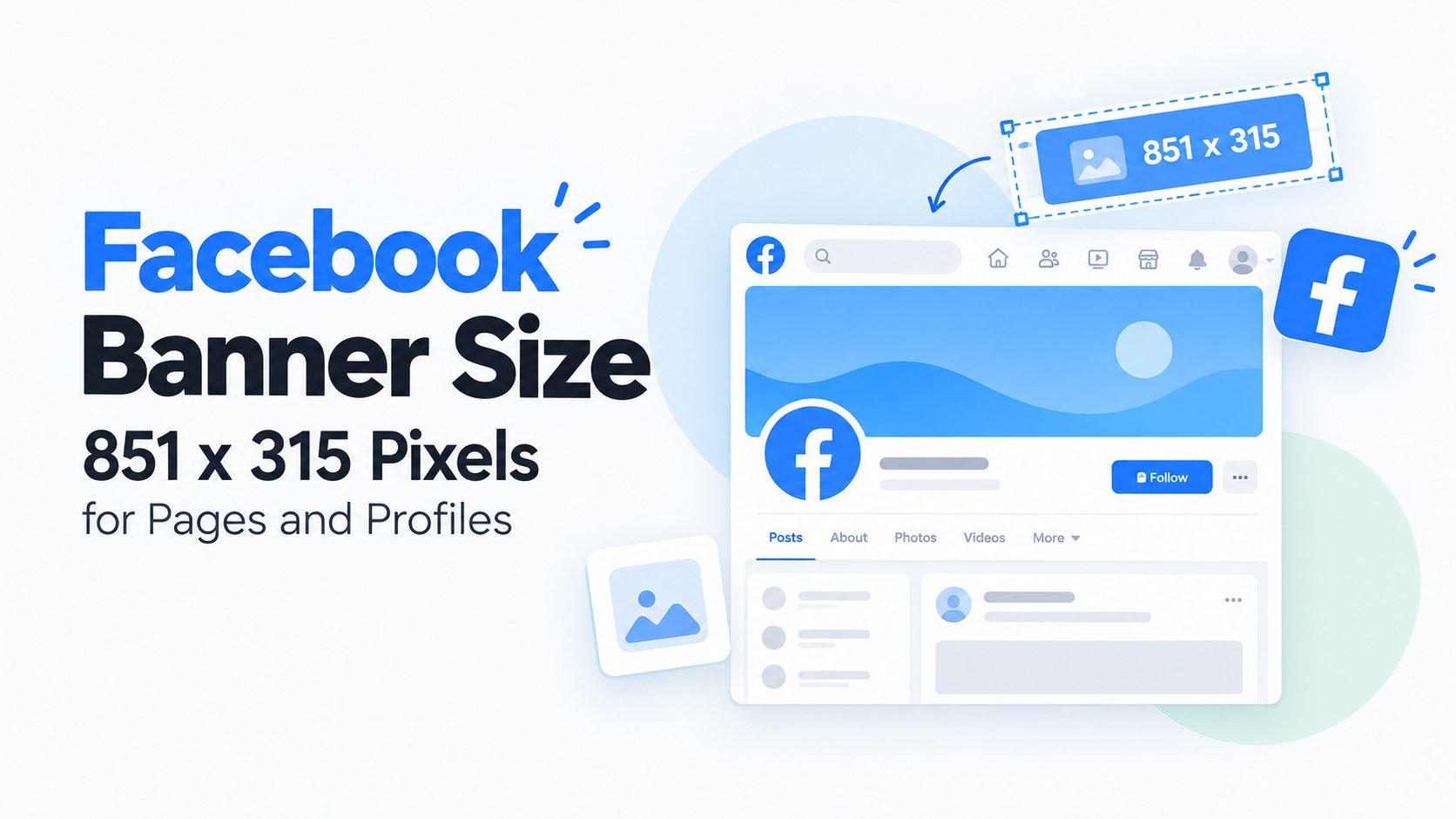
The Facebook banner size is 851 x 315 pixels. Facebook’s Help Center recommends uploading the cover photo as an sRGB JPG, 851 pixels wide and 315 pixels tall, under 100 KB, because this combination loads fastest.
The minimum is 400 x 150 pixels. The ratio is about 2.7:1, so the image is a wide, short strip.
Facebook Cover Photo Size on Desktop and Mobile
Facebook shows the same cover photo at two sizes: 820 x 312 pixels on desktop and 640 x 360 pixels on mobile. Desktop shows a wide strip, while mobile shows a taller, narrower crop from the center.
Desktop
On a computer, the cover photo displays at 820 x 312 pixels. The full 851 x 315 image is shown with only a few pixels trimmed.
Facebook’s Help Center describes the desktop cover as left-aligned and full width.
Mobile
On a phone, the cover photo displays at 640 x 360 pixels. Because this frame is taller relative to its width, Facebook crops the left and right sides.
Text or logos placed near the edges of an 851 x 315 image can be cut off on phones.
Facebook Banner Size for Pages, Profiles, Groups and Events
Pages and personal profiles use the same banner size, 851 x 315 pixels. Groups and events use larger, different sizes.
Here they are in order: Pages and profiles, groups, then events.
Pages and Personal Profiles
Both use 851 x 315 pixels. The difference is where the profile picture sits on top of the banner: bottom-left on personal profiles, and bottom-center on Pages, according to some design guides.
Check the preview after uploading.
Groups
The group cover size is 1,640 x 856 pixels in several design guides. Other sources list 1,640 x 922 pixels.
The width agrees across guides, but the height does not. Facebook does not publish an official number for group covers, so use 1,640 pixels wide and adjust the vertical position after upload.
Events
The event cover size is 1,920 x 1,005 pixels in several current design guides. This is also not an official Facebook specification.
Older guides list 1,200 x 628 pixels, so check the size shown in the event editor before you design.
Facebook Profile Picture Size and How It Overlaps the Banner
Upload a Page profile picture at 320 x 320 pixels.
Facebook displays it at a smaller size on the page and crops it to a circle. On mobile, it overlaps the banner, so keep logos and faces away from the corners of the square to prevent the circle crop from cutting them off.
How to Keep Your Banner Safe From Cropping
Place all important text and images inside a 640 x 312 pixel area in the center of the banner.
Then leave the bottom-left corner relatively clear, since the profile picture can cover part of the banner.
A practical workflow is:
- Create the banner at 851 x 315 pixels.
- Place headlines, logos and important graphics toward the center.
- Keep important information away from the edges.
- Leave space around areas covered by the profile picture.
- Preview the banner on both desktop and mobile before publishing.
Best File Format and File Size for a Facebook Banner
Use an sRGB JPG under 100 KB when possible. Facebook recommends this combination for fast loading.
PNG files can be larger, especially when the image contains detailed graphics. If a JPG looks too soft, some design guides recommend exporting at a larger size while keeping the same 2.7:1 ratio. However, Facebook may recompress larger files after upload.
If you’re using the banner as part of a Facebook advertising or social-commerce strategy, the image itself is only one part of the process. You also need reliable tracking to understand what happens after people interact with your Facebook campaigns and visit your Shopify store.
For Shopify merchants running Facebook or Meta Ads, OC Meta Pixel – Facebook Pixels can be used to manage multiple Facebook and TikTok pixels, track events and purchases, and add server-side Conversion API tracking. It also supports performance tracking, ROAS reporting and UTM tracking.

| TRY NOW |
How to Fix a Blurry or Cropped Facebook Banner
There are four steps to fix a blurry or cropped banner:
1. Resize the image
Resize your image to 851 x 315 pixels, or use a larger image with the same 2.7:1 ratio.
2. Move important content to the safe area
Keep text, logos and important visual elements inside the central safe area instead of placing them close to the edges.
3. Export correctly
Export the banner as an sRGB JPG and compress it as close to the recommended file size as practical without making the image visibly blurry.
4. Check the preview
Upload the image and check how it appears on both desktop and mobile. If Facebook crops an important element, adjust its position and upload the image again.
Conclusion
Design your Facebook banner at 851 x 315 pixels, keep key content in the central safe area, avoid placing important elements near the edges, and export it as an sRGB JPG.
For groups and events, start with the commonly used larger dimensions but check the current upload interface because Facebook does not provide the same official specifications for every cover type.
For Shopify stores using Facebook Ads, remember that creating the right banner is only the creative side of the process. Tracking clicks, events, purchases and ad performance helps you understand what happens after users interact with your Facebook campaigns.