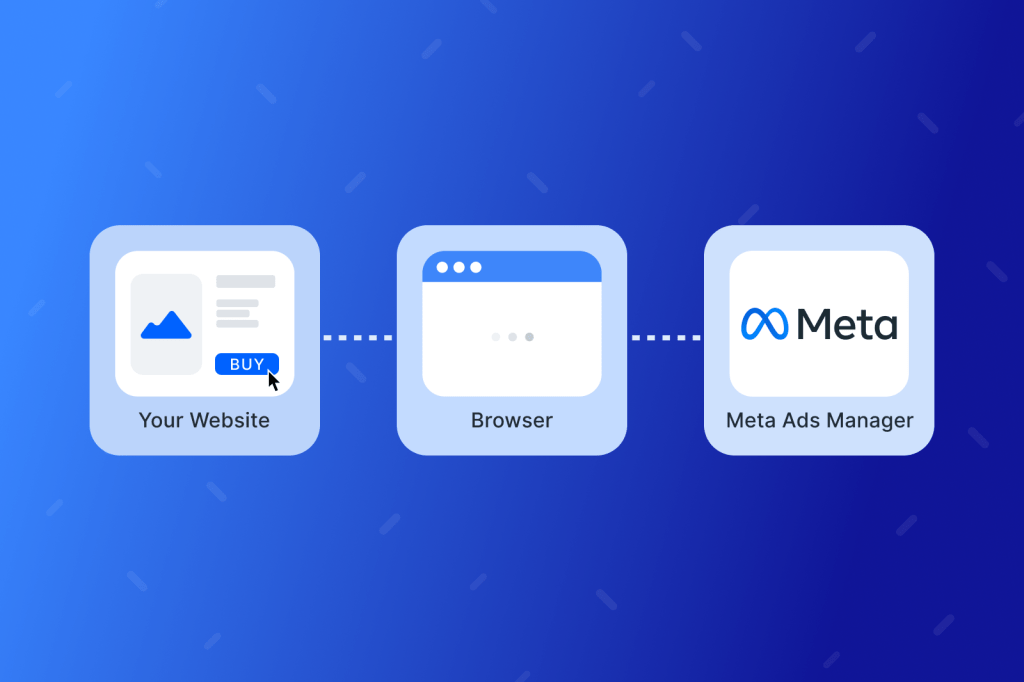
Facebook retargeting is a digital advertising strategy that focuses on re-engaging users who have previously interacted with your website or app. These users may have browsed products, added items to their cart, or viewed key pages without making a purchase. By using the Meta Pixel, businesses can track these actions and serve targeted ads on Facebook and Instagram to bring potential customers back. This method helps boost conversions by focusing on people who have already shown interest, making it one of the most efficient ways to maximize ad ROI.

How Facebook Retargeting Actually Works
At its core, Facebook retargeting is all about reconnecting with people who’ve already shown interest in your Shopify store. These are warm leads—shoppers who visited your site, browsed a product, maybe even added something to their cart—but didn’t take that final step to buy.
With Facebook’s tools (specifically, the Meta Pixel), you can track these interactions and then create ads that follow up with the right message at the right time. For example, if someone looked at a specific product but left without purchasing, you can show them that exact product in an ad later—sometimes within hours.
And it’s not just limited to Facebook. Your ads can also appear on Instagram, Messenger, and across Meta’s ad network, giving you multiple chances to re-engage your audience wherever they spend their time.
The magic lies in targeting. Instead of shouting your offer into the void, you’re speaking directly to people who already know your brand. That’s what makes Shopify audience targeting with Facebook Ads so effective.
How to retarget Shopìy Visitors by Facebook Ads Step by Step
Step 1: Set Up the Meta Pixel on Shopify
Before you can run effective retargeting ads, you need to make sure the Meta Pixel is properly installed on your Shopify store. The Pixel is a small tracking code from Meta (formerly Facebook) that records actions taken by visitors on your site—like viewing a product, adding to cart, or completing a purchase. It’s the key to building custom audiences and delivering highly relevant ads.
Installing it is simple. In your Shopify admin, go to Online Store → Preferences, scroll down to the Facebook Pixel section, and paste your Pixel ID (which you’ll find in your Meta Business Manager). Shopify will automatically handle the rest. We have a detail blog post to guide you step by step to find your Pixel ID, feel free to check it out
To confirm it’s working, use the Meta Pixel Helper (a free Chrome extension). It’ll show you whether your Pixel is firing correctly on each page.
Here are a few handy tools that can make setup and campaign management a lot smoother:
- Meta Ads Manager – where you’ll run and track all your Facebook ad campaigns.
- Meta Pixel Helper – a Chrome extension that helps you troubleshoot your Pixel setup in real time.
- Shopify’s Facebook Integration – found under your Marketing section in Shopify Admin for direct setup and syncing.
- The official Shopify Blog – regularly updated with Facebook marketing best practices.
Avoid common mistakes like using the wrong Pixel ID, forgetting to save changes, or testing the Pixel in private/incognito mode (which can block trackers). Getting this setup right ensures your retargeting ads are backed by clean, accurate data—essential for scaling your Shopify ad strategy.
Step 2: Build Your Retargeting Audiences in Meta Ads Manager
With your Meta Pixel in place and collecting data, it’s time to define who you want to reach with your ads. Inside Meta Ads Manager, go to Audiences and start by creating Custom Audiences based on visitor behavior from your Shopify store.
Here are a few high-impact segments to start with:
- All Website Visitors: People who landed on your site in the last 7, 14, or 30 days. Great for general brand reminders.
- Product Viewers: Those who looked at a product but didn’t add to cart. Serve them product-specific ads.
- Add-to-Cart Visitors: They were one step away from buying—remind them with urgency or a small incentive.
- Content Viewers: If you run a blog or video content, create audiences based on engagement to build brand familiarity.

You can also take these audiences and create Lookalike Audiences—people who share similar behaviors and interests but haven’t visited your store yet. This helps you expand reach while staying targeted.
For timing, shorter windows (like 7 days) work well for cart abandoners, while longer ones (up to 30 or 60 days) help catch window shoppers who need a little more time.
The key is segmentation: not all visitors are ready to buy now, so tailor your messaging based on how warm they are.
Step 3: Create Your Facebook Retargeting Campaign
Now that your audiences are set up, it’s time to launch your actual retargeting campaign inside Meta Ads Manager. Start by creating a new campaign and selecting your objective—either Sales or Conversions, depending on how your Shopify store is set up. These objectives will optimize your ads for actions that matter, like purchases or add-to-carts.

- Set Up Your Ad Set
Next, choose one of the Custom Audiences you created—such as visitors who added to cart but didn’t complete checkout. This group is typically the highest-converting. Then, set your budget (daily or lifetime); if you’re just starting out, $5–$10 per day is often enough for testing.
For placements, you can let Meta optimize automatically using Advantage+ Placements, or go manual if you want tighter control (e.g. only Instagram Stories or Facebook Feed).
- Designing the Ad
Use Dynamic Product Ads (DPA) to automatically show users the exact products they viewed on your site. These ads pull from your Shopify product catalog, making them highly personalized and efficient.
Enhance your creativity by:
- Adding urgency (e.g., “Only 3 left!” or “Sale ends tonight”)
- Including social proof, like a customer review or a 5-star badge
- Keeping visuals clean and copy short — people scroll fast
- Don’t Skip Testing
Run A/B tests with different elements: try swapping out headlines, CTAs (“Shop Now” vs “Get Yours”), or even ad formats (carousel vs. single image). Track what resonates.
This is where your campaign becomes more than a reminder — it becomes a conversion machine.
Pro Tips to Get the Most From Your Retargeting Ads
Retargeting works—but only if you run it smart. If you’re not careful, the same ad popping up repeatedly can annoy shoppers instead of nudging them to buy.
- Set a frequency cap: Don’t let your ads become background noise. Limit impressions to 2–3 per person per week.
- Exclude recent buyers: Create a separate audience of customers who already purchased, and remove them from retargeting campaigns.
- Refresh ad creatives regularly: Rotate visuals and copy every 2–3 weeks to prevent ad fatigue and keep engagement high.
- Use urgency with a light touch: Try time-sensitive phrases like “Ends tonight” or “Limited stock” to drive action—without being pushy.
- Leverage seasonal moments: Tailor your messaging around holidays, events, or your store’s sales calendar to catch shoppers when they’re ready.
- Focus on key metrics: Watch your CTR, ROAS, and conversions—not just impressions or reach. Let the data guide your next moves.
- Test and tweak continuously: Try different CTAs, formats (carousel, video), and audience windows. Small changes can lead to big wins.
With consistent testing and smart targeting, retargeting can become one of your most profitable marketing channels.
Bringing It All Together
You don’t need a massive ad budget to see results—you just need to show up for the right people at the right time. That’s exactly what Facebook retargeting allows you to do on Shopify.
Think of it like following up with a friend who almost made a purchase but needed a little nudge. When done right, retargeting feels helpful, not annoying—and it brings real results.
Start simple: install the Pixel, set up one audience, and launch a focused ad. Once you’ve got the basics working, you can build on that foundation with more refined targeting and creative testing.
In a world full of distractions, retargeting helps you stay visible, stay relevant, and stay profitable.