You can schedule tweets directly from the post composer on X.com.
Write your post, click the calendar icon, choose a date and time, select Confirm, and then schedule the post. X stores scheduled posts under Unsent posts, where you can review them before they are published.
In this guide, you will learn:
- How to schedule a post on X from a desktop browser
- Where to find, edit, or delete scheduled posts
- What to do when scheduling from a phone
- When to use the native X scheduler, X Pro, or a third-party tool
- How creators and ecommerce brands can build a simple posting schedule
How to Schedule a Tweet on X
The simplest free method is to use the standard post composer on X.com.
Step 1: Open the X Post Composer
Sign in to your account at X.com.
Select the Post button in the left-side navigation or click inside the post composer at the top of your timeline.
Make sure you are signed in to the correct account before writing the post, especially when you manage personal and business profiles.
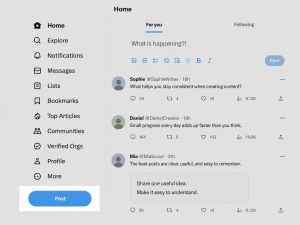
Step 2: Create Your Post
Write the text you want to publish.
You can also add supported content such as:
- Photos
- Video
- A GIF
- A poll
- Mentions
- A link
Review the post carefully before scheduling it. Check spelling, links, account mentions, media, and any campaign dates included in the copy.
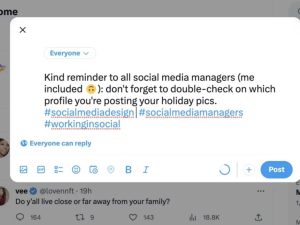
Step 3: Select the Schedule Icon
At the bottom of the compose box, click the calendar icon.
X will open a scheduling window where you can choose:
- Month
- Day
- Year
- Hour
- Minute
X’s official help documentation identifies the calendar icon as the option used to schedule a post for a later date and time.
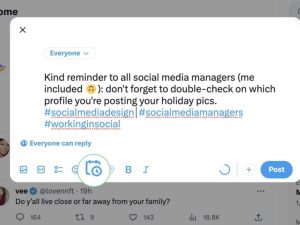
Step 4: Choose the Date and Time
Select when you want the post to be published.
Pay attention to the timezone displayed in the scheduling window. A post set for 9:00 a.m. in the wrong timezone may go live several hours earlier or later than expected.
Select Confirm when the date and time are correct.
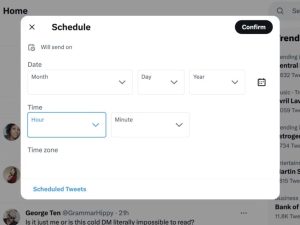
Step 5: Schedule the Post
After confirming the publishing time, review the post one more time.
Select Schedule instead of Post.
Your content will remain unpublished until the scheduled date and time.
Quick Scheduling Checklist
Before selecting Schedule, confirm the following:
- You are using the correct X account.
- The publishing date is correct.
- The timezone is correct.
- Links open the intended pages.
- Images and videos display correctly.
- Mentions point to the correct accounts.
- The post does not contain outdated prices or campaign details.
- Any required team approval has been completed.
This short review is especially important when scheduling promotions, product launches, event announcements, or posts for several accounts.
How to Find Your Scheduled Tweets
X places drafts and scheduled content in the Unsent posts area.
To find a scheduled post:
- Open the post composer on X.com.
- Select Unsent posts.
- Open the Scheduled tab.
- Review the posts waiting to be published.
X’s help documentation confirms that drafts and scheduled posts are available through Unsent posts in the compose window.
Depending on the current interface, the wording or position of the button may differ slightly.
How to Edit a Scheduled Tweet
Open the Scheduled section under Unsent posts and select the post you want to change.
You may then be able to adjust:
- The post copy
- Attached media
- The scheduled date
- The scheduled time
Review the post after making changes and confirm the new schedule.
Editing options can differ depending on where the post was created. For example, a post scheduled in Media Studio may need to be deleted and recreated instead of edited directly. X states that Media Studio scheduled posts cannot be edited inside Media Studio, although accounts with X Ads access may have additional editing options.
How to Delete a Scheduled Tweet
To cancel a scheduled post:
- Open the post composer.
- Select Unsent posts.
- Open the Scheduled section.
- Select the post.
- Choose the delete or remove option.
- Confirm the deletion.
Deleting a scheduled post prevents it from being published. It does not affect posts that are already live.
Can You Schedule Tweets on Mobile?
The most reliable native scheduling workflow documented by X uses the composer on X.com.
The X mobile app interface may not always show the same scheduling controls available on the desktop website. Features can also vary by account, device, app version, and platform.
When the calendar icon is not available in the mobile app, you have three practical options.
Option 1: Use X.com in a Mobile Browser
Open X.com in your phone’s browser and sign in.
Depending on the browser and current X interface, you may be able to access the web composer and scheduling controls. Requesting the desktop version of the website may help, although the layout can be less convenient on a small screen.
Option 2: Use a Third-Party Scheduling App
A compatible social media scheduler may let you create and manage X posts from its mobile application.
Before connecting your account, check:
- Whether X is supported on your plan
- Whether the tool can publish directly
- How many posts can be scheduled
- Whether threads and media are supported
- Whether the tool requires a paid plan for X
- Whether posts need mobile notification reminders instead of automatic publishing
Do not assume that every free social media scheduler includes X. For example, Orichi’s comparison of free scheduling tools notes that some free plans exclude Twitter/X. (Orichi’s free social media scheduling tools guide)
Option 3: Use X Pro
X Pro is designed for more advanced workflows, including managing multiple accounts and scheduling posts for future publication.
It is generally more suitable for people who regularly manage several timelines or accounts than for someone who only needs to schedule one occasional post.
Is It Free to Schedule Tweets?
Scheduling a standard post through the regular composer on X.com does not require a separate third-party scheduling subscription.
However, additional workflows may have different access requirements.
| Scheduling method | Best for | Cost consideration |
|---|---|---|
| Standard X composer | Scheduling an occasional post | Native scheduling option |
| X Pro | Multiple accounts and advanced timeline management | Access requirements may apply |
| X Ads | Organic or promoted campaign workflows | Advertising account may be required |
| Third-party scheduler | Multi-platform planning, approvals, bulk content, and analytics | Free-plan limits or paid plans may apply |
Always check the current access and pricing pages before choosing a tool, because plans and feature limits can change.
Native X Scheduler vs X Pro vs Third-Party Tools
The best method depends on how much content you publish and how many people are involved.
Use the Native X Scheduler When:
- You manage one X account.
- You schedule only a few posts.
- You do not need a visual content calendar.
- You do not need an approval workflow.
- You do not manage several social networks in one place.
- You want the simplest free method.
For many individuals and small businesses, the native scheduler is enough.
Use X Pro When:
- You manage multiple X accounts.
- You want to view several timelines at once.
- You need columns for searches, lists, notifications, or scheduled posts.
- Your work is focused mainly on X.
X Pro allows users to schedule posts and view or edit them by adding a Scheduled column.
X also states that its X Pro composer supports content such as photos, videos, GIFs, polls, emojis, threads, and scheduled posts.
Use a Third-Party Scheduler When:
- You manage X alongside Instagram, Facebook, LinkedIn, TikTok, or other platforms.
- You want a visual calendar.
- A manager or client must approve posts.
- You need bulk scheduling.
- You reuse evergreen content.
- You need cross-platform analytics.
- Several team members collaborate on the same calendar.
A third-party tool adds the most value when scheduling is part of a larger content workflow rather than a one-time task.
Can You Schedule Twitter Threads?
Thread support depends on the scheduling method.
X Pro’s current documentation says its composer can create threads, including scheduled posts.
For the standard X.com composer or a third-party tool, verify thread support before preparing a campaign. Some tools can schedule an entire thread, while others schedule only individual posts or require a manual publishing step.
When scheduling a thread:
- Make sure the posts appear in the correct order.
- Check that each post makes sense after the previous one.
- Place the strongest opening message in the first post.
- Test all links.
- Confirm that attached media belongs to the correct post.
- Preview the full thread before scheduling.
Avoid dividing a short idea into a long thread when one clear post would answer the reader’s question.
How to Schedule Posts for Multiple X Accounts
There are two main options for managing several X accounts.
X Pro
X Pro allows users to select the account they want to post from before scheduling content. Its scheduling instructions specifically advise confirming the selected account before composing and choosing the publishing date and time.
A Scheduled column can then be used to monitor upcoming content.
A Social Media Management Tool
A third-party platform may be more practical when the accounts belong to different clients, brands, stores, or departments.
Look for:
- Clear account labels
- Separate approval permissions
- Calendar filters
- Draft status
- Post previews
- Activity history
- Failed-post alerts
- Role-based access
Always check the selected profile before scheduling. Publishing a client campaign from the wrong brand account is one of the easiest scheduling mistakes to prevent.
How Teams Can Schedule Posts Without Sharing Passwords
Sharing an X password among several employees creates unnecessary security and accountability problems.
X offers delegation features that let multiple users collaborate on an account without sharing its password. X Delegate can assign account access and roles, while X Pro team roles may allow contributors and administrators to schedule posts.
For a team workflow:
- Assign access to each team member individually.
- Give users only the permissions they need.
- Create posts as drafts before scheduling.
- Require approval for sensitive campaigns.
- Keep a record of who reviewed the post.
- Remove access when someone leaves the team.
A third-party tool with approval workflows may still be a better option when clients, agencies, designers, and copywriters all participate in the process.
How to Choose the Right Time to Schedule a Tweet
Scheduling software publishes the post at the time you choose, but it cannot guarantee engagement.
Start with the times when your own followers are active. Then compare the results of posts published at different times.
Review:
- Impressions
- Replies
- Reposts
- Likes
- Link clicks
- Profile visits
- Conversions, when applicable
Broad posting-time studies can provide a starting point, but your own account data should guide the final schedule.
For a more detailed starting framework, read Orichi’s guide to the best time to post on Twitter/X.
Ecommerce Example: Schedule Posts for a Product Launch
An ecommerce business can use scheduled X posts to support a launch without publishing every update manually.
Here is a simple example framework:
| Timing | Example post |
|---|---|
| Seven days before launch | Tease the upcoming product or problem it solves |
| Three days before launch | Highlight one feature, use case, or material |
| One day before launch | Remind followers of the launch date |
| Launch time | Publish the product announcement and link |
| Later on launch day | Share a demonstration, FAQ, or product detail |
| Two or three days later | Share a use case, review, or common customer question |
This schedule is only a planning example. It does not guarantee higher reach, engagement, or sales.
Adjust the sequence based on:
- The complexity of the product
- The length of the sales cycle
- Existing audience interest
- Available images and video
- Inventory
- Promotion dates
- Customer questions
Shopify merchants can also review Orichi’s guide on how to use X for an ecommerce business.
Common Tweet Scheduling Problems and Fixes
The Schedule Icon Is Missing
First, confirm that you are using X.com in a supported desktop browser.
Then try:
- Refreshing the page
- Signing out and back in
- Disabling a browser extension that may affect the interface
- Clearing cached site data
- Opening X in another browser
- Checking whether the post format supports scheduling
Some post types have different limitations. For example, X states that longer posts cannot currently be scheduled on the web.
The Post Was Published at the Wrong Time
The most common cause is a timezone mismatch.
Check:
- The timezone shown in the scheduling window
- Your computer or phone timezone
- Daylight-saving changes
- The timezone used by a third-party scheduling tool
- The location configured in your account or workspace
For global campaigns, write the timezone beside the planned publishing time in your editorial calendar.
Example:
July 22, 9:00 a.m. EDT
This is clearer than writing only July 22, 9:00 a.m.
You Cannot Find the Scheduled Post
Open the composer and check Unsent posts.
Also verify:
- You are signed in to the correct account.
- The post was actually scheduled rather than saved as a draft.
- The content was not created through X Pro, Ads Manager, Media Studio, or a third-party tool.
- Another team member did not delete or reschedule it.
Posts created in different X tools may appear in different management areas.
The Post Failed to Publish
A scheduled post may fail because of:
- An expired third-party account connection
- Deleted or unsupported media
- Account restrictions
- A changed password
- Missing tool permissions
- A temporary platform problem
- Content that exceeds a platform limit
- A link or post format rejected by the connected tool
Reconnect the account and review the scheduler’s error message before recreating the post.
The Image or Video Does Not Appear Correctly
Check the media before scheduling.
Confirm:
- The file format is supported.
- The upload completed.
- The aspect ratio works in the X feed.
- Text is not cut off in the preview.
- The media belongs to the correct post or thread entry.
- The file was not removed from a connected media library.
For an important campaign, preview the post on both desktop and mobile.
The Scheduled Post Contains an Outdated Link
Promotional URLs sometimes change between the day a post is scheduled and the day it is published.
Before a campaign goes live:
- Test the landing page.
- Confirm the offer is still active.
- Check redirects.
- Verify tracking parameters.
- Confirm that inventory or registration is still available.
Do not leave time-sensitive promotional posts unattended for long periods.
Best Practices for Scheduling Tweets
Keep Space for Real-Time Posts
Do not schedule every post.
X is built around current conversations, replies, news, and community interaction. Leave room for timely posts and direct engagement.
Avoid Publishing Several Posts at the Same Moment
Unless the posts form a deliberate thread, spread them out so they do not compete for attention.
A content calendar should create consistency, not overwhelm followers.
Review Sensitive Posts Manually
Avoid fully automating content related to:
- Breaking news
- Emergencies
- Public complaints
- Politics
- Serious social events
- Legal disputes
- Safety issues
- Sudden product problems
A post that seemed appropriate when scheduled may become insensitive after circumstances change.
Do Not Use Scheduling as a Substitute for Engagement
Publishing consistently may support your content strategy, but account growth also depends on:
- Replying to relevant discussions
- Answering customer questions
- Creating useful posts
- Building relationships
- Reviewing performance
- Adjusting topics based on audience response
For additional growth ideas, see Orichi’s guide on how to grow your Twitter following.
Review the Queue Before Major Events
Check scheduled posts before:
- Product launches
- Holidays
- Major news events
- Store closures
- Pricing changes
- Campaign extensions
- Website maintenance
- Inventory problems
Pause or revise anything that is no longer accurate.
Frequently Asked Questions
Can You Schedule Tweets for Free?
Yes. X’s standard web composer includes a native scheduling option. Open the composer on X.com, select the calendar icon, choose the date and time, and confirm the schedule.
Third-party tools may charge for X scheduling or exclude X from their free plans.
Where Are Scheduled Tweets Stored?
Scheduled posts created through the standard X composer are available under Unsent posts in the compose window. Open the Scheduled section to review them.
Can You Edit a Scheduled Tweet?
Scheduled posts created on X.com may be reviewed and changed before publishing. However, editing rules vary by tool. Media Studio, for example, may require you to delete and recreate a scheduled post.
Can You Schedule Tweets From Your Phone?
The mobile app may not provide the same scheduling workflow as the desktop website. You can try X.com in a mobile browser or use a compatible third-party scheduler. Verify the controls available on your current device and account.
Can You Schedule a Twitter Thread?
X Pro documentation indicates that its composer supports threads and scheduled posts. Support in the standard composer and third-party tools should be verified before scheduling a campaign.
Can You Schedule Direct Messages?
No. X Pro’s current FAQ states that scheduled Direct Messages are not supported.
Can Several People Manage Scheduled Tweets?
Yes. Teams can use X Delegate, X Pro team access, or a third-party scheduling platform. These options allow collaboration without requiring everyone to share the main account password.
Why Did My Scheduled Tweet Fail?
Common causes include expired permissions, account restrictions, unsupported media, a changed password, or a temporary platform issue. Reconnect the account, review the error message, and check the post format before scheduling it again.
Conclusion
The quickest way to schedule a tweet is to use the calendar icon in the post composer on X.com.
This native method is suitable for individuals, creators, and small businesses that only need to prepare a few posts in advance.
X Pro is more useful when you manage multiple accounts or want a column-based workflow. A third-party scheduler becomes more practical when your team needs a visual calendar, approvals, bulk scheduling, or multi-platform publishing.
Whichever method you choose, review the account, date, timezone, links, and media before scheduling. Then keep space in your calendar for real-time conversations instead of automating every post.