Shopify can natively limit how many units of each variant a customer adds to one cart. However, it cannot natively enforce a cumulative purchase limit for the same customer across separate orders.
Use Shopify’s built-in Add-to-cart limit when you need one universal quantity cap for every variant. Use an order-limit app such as Madgic when you need different rules for specific products or collections, or when the limit must follow a customer over days, months, or their lifetime. Stores with specialized requirements can also build a custom server-side validation.
The right method depends on what you mean by “per customer.”
Per-Order Limit vs. True Per-Customer Limit
A per-order limit only checks the customer’s current cart. A true per-customer limit also considers previous purchases.
| Limit type | What it checks | Can a customer place another order? | Typical solution |
|---|---|---|---|
| Per variant in one cart | Quantity of each variant currently in the cart | Yes | Shopify Add-to-cart limit |
| Per product or collection | Selected products in the current purchase | Usually, unless purchase history is checked | Order-limit app |
| Daily or monthly customer limit | Purchases made during a defined period | Not after reaching the period limit | Order-limit app or custom system |
| Lifetime customer limit | The customer’s cumulative purchase history | No, unless the customer can bypass identification | Order-limit app or custom system |
| Front-end quantity control | What the quantity selector allows | Yes | Theme code |
For example, suppose you want each customer to receive only one free sample.
A cart limit of one prevents a shopper from adding two units to the current cart. It does not necessarily stop that shopper from completing the order and immediately placing another order for the same sample.
That distinction determines which method you should use.
1. Use Shopify’s Native Add-to-Cart Limit
Shopify provides a built-in setting that limits the maximum quantity of each variant customers can add to a cart.
To configure it:
1, From Shopify Admin, go to Settings.

2, Select Checkout.
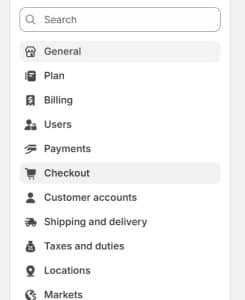
3, Find Advanced preferences then Click Add-to-cart limit.
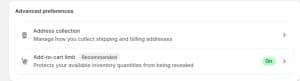
4, Activate Set a maximum quantity per item that can be added to a cart.
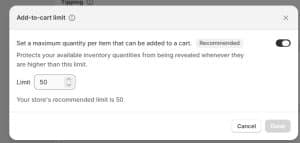
Enter the maximum quantity.
Click Done, then save your checkout settings.
Shopify may also display a recommended limit based on the store’s sales history. You can choose a different value if the recommendation does not match your inventory or promotion.
See Shopify’s official instructions for the current interface: Set a limit to the maximum quantity of items per cart.
What Shopify’s Native Limit Actually Controls
The native limit:
- Uses one maximum value across the store.
- Applies to all customers and carts.
- Calculates the limit separately for each variant.
- Controls the quantity in the current cart or order.
- Does not create different rules for individual products or collections.
- Does not check how many units the customer purchased in previous orders.
The variant behavior is especially important.
If a T-shirt has red, blue, and green variants and the limit is three, a customer may be able to purchase three red shirts, three blue shirts, and three green shirts. Shopify treats each variant independently rather than combining them into one product-level total.
The native limit also has exceptions. Shopify states that it does not apply in certain situations, including POS carts, draft orders, some B2B scenarios, products without inventory tracking, and products configured to continue selling when out of stock.
2. Set a Customer Purchase Limit With Madgic
When a quantity rule needs to target a specific product, variant, collection, product tag, or cart, use an order-limit app such as Madgic Order Limits.
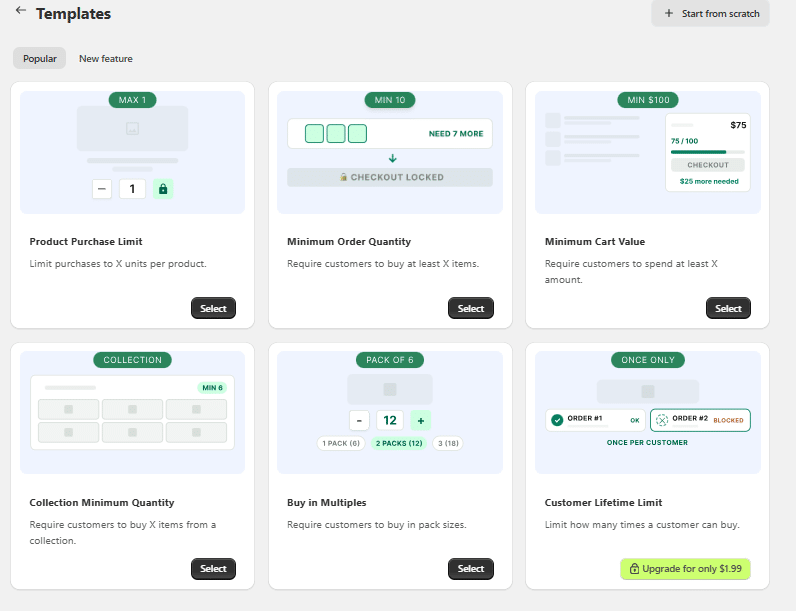
Madgic supports minimum and maximum quantities, exact quantities, multiples, cart value and weight limits, and purchase limits that can apply once or reset after a defined number of days, weeks, or months.
This makes the app more suitable for situations such as:
- One promotional item per customer.
- Two free samples every 30 days.
- A monthly purchase cap for a controlled product.
- Different limits for different variants.
- Limits applied to products in a selected collection.
- A maximum total quantity for a cart.
- Pack-size requirements such as multiples of three or six.
- Lifetime purchase restrictions.
The app can also display customized messages on the product page, cart, and checkout button and validate the order during checkout. Current supported features are listed on the Madgic Shopify App Store page.
How to Create a Limit Rule
The exact labels in the app may change as the interface is updated, but the general setup process is:
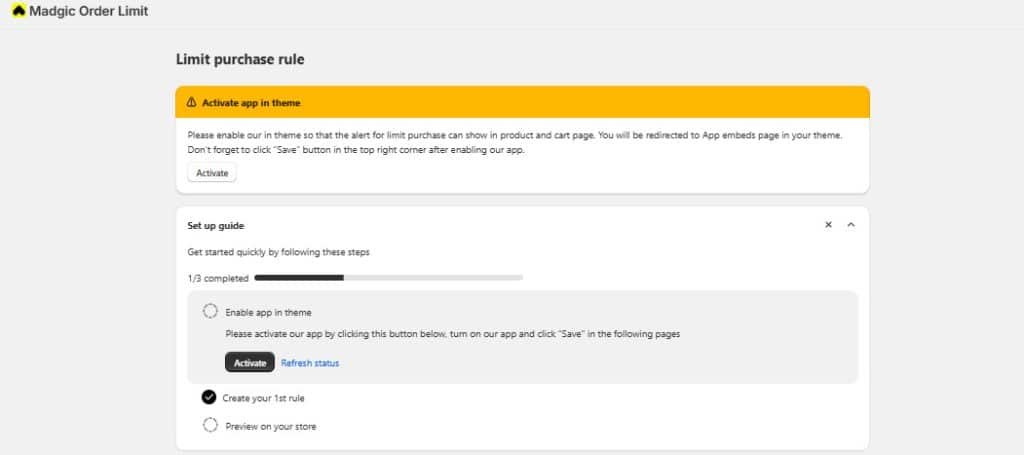
1, Install Madgic Order Limits from the Shopify App Store.
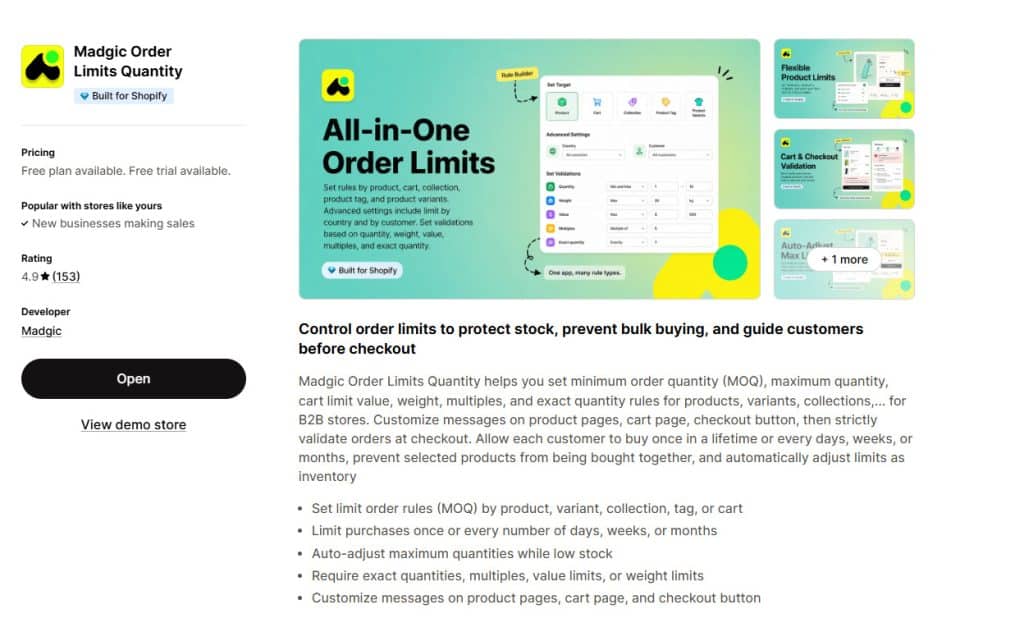
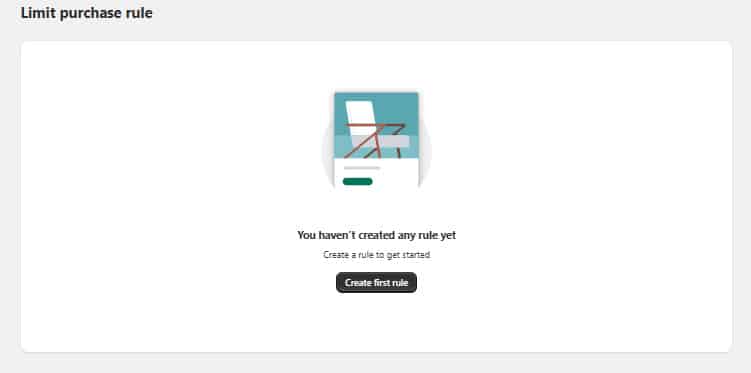
2, Open the rule builder and create a new limit rule.
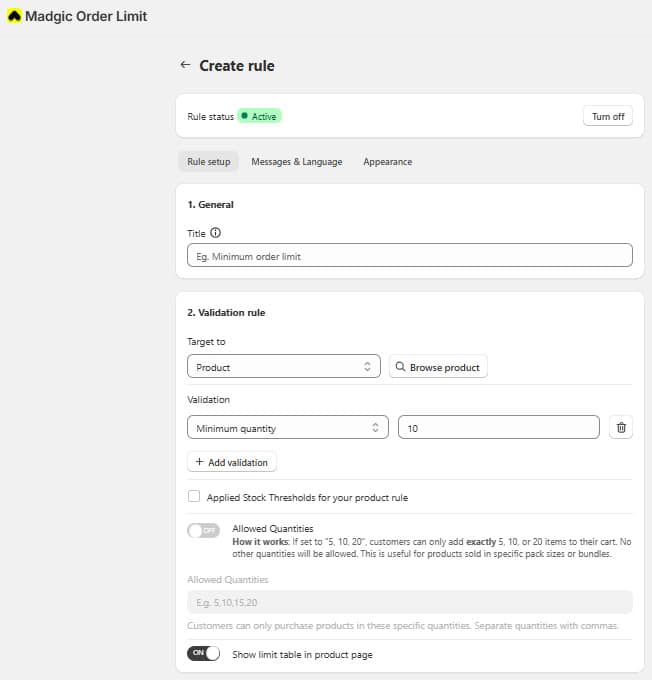
3, Select a maximum quantity rule.
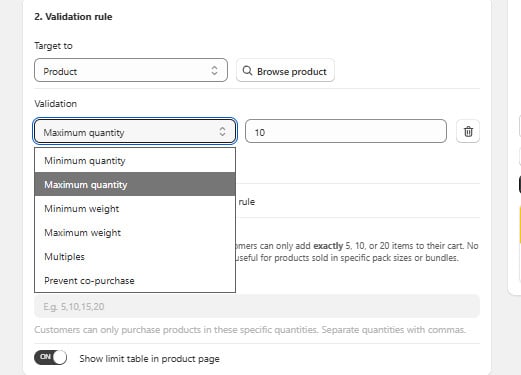
4, Choose what the rule should target.
5, Enter the maximum quantity.
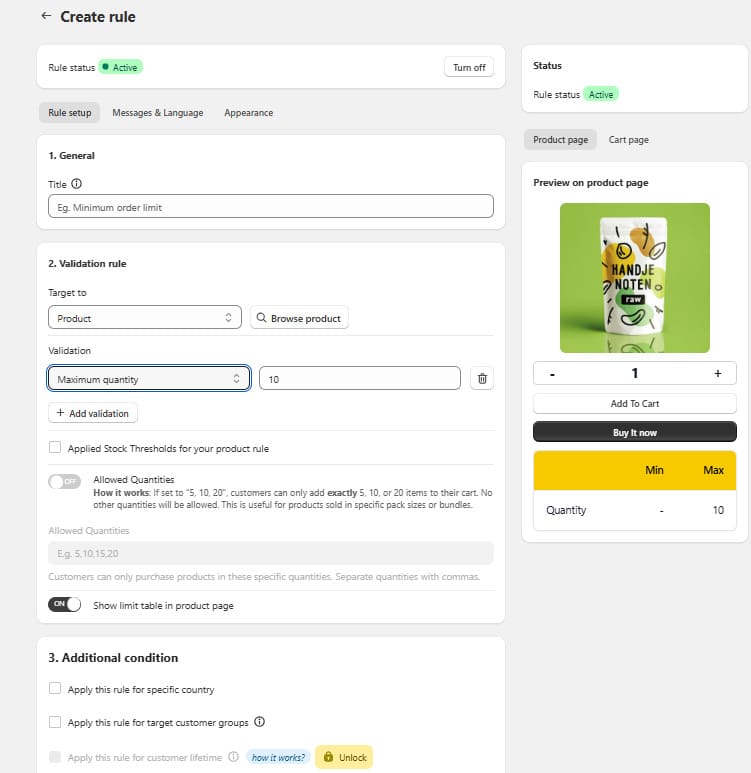
6, Choose whether the rule applies to the current order, once, or during a recurring time period.
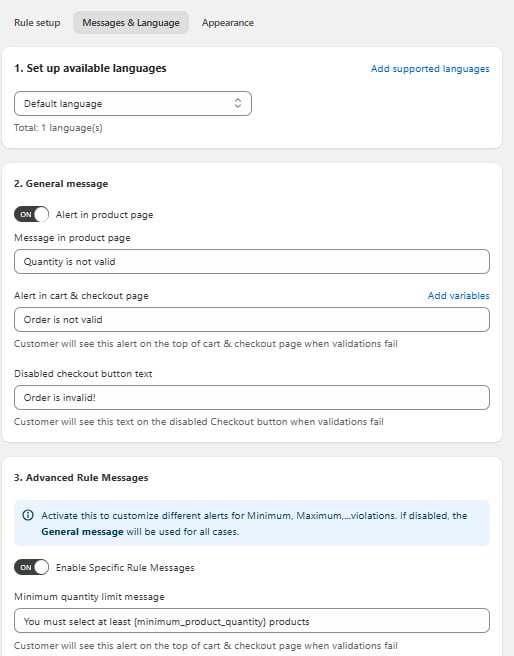
7, Write the message customers should see when they exceed the limit.
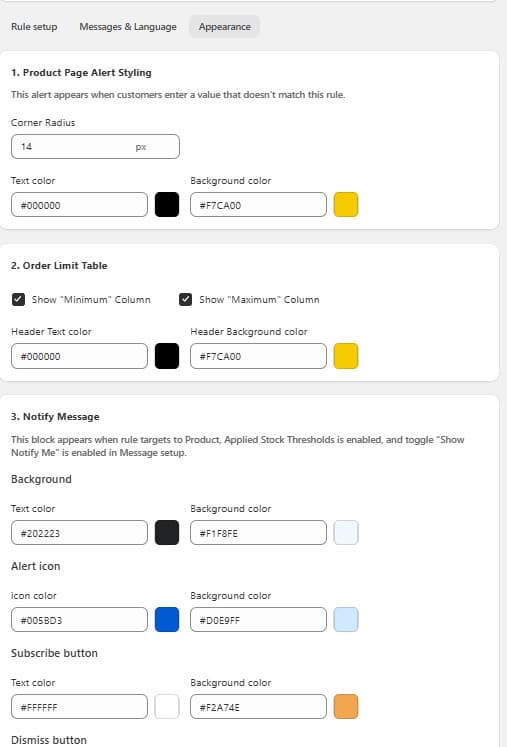
8, Save and activate the rule.

9, Test it on the storefront and at checkout.
Choose the Correct Target
Madgic can target different levels of the catalog:
- Variant: Use this when each size, color, or SKU needs its own limit.
- Product: Use this when the rule should cover the selected product.
- Collection: Use this for a group such as Samples, Clearance, or Limited Releases.
- Product tag: Use this when tagged products should share a rule.
- Cart: Use this when the maximum applies to the entire order.
Be careful when setting a collection rule. Confirm whether you want the maximum applied separately to each product or to the combined quantity of all products in the collection.
For example, a maximum of eight for a Samples collection could mean either:
- Up to eight units of each sample product; or
- Up to eight sample items combined.
Test the rule with several different products from the collection before publishing it.
Write a Useful Error Message
The message should explain what happened and how the customer can continue.
For example:
You can purchase up to two items from the Samples collection every 30 days. Please reduce the quantity in your cart to continue.
Avoid generic messages such as “Invalid cart.” A clear message reduces confusion and unnecessary support requests.
What to Verify Before Launching
A true per-customer rule depends on how the customer is identified and how previous orders are counted.
Before relying on the rule, confirm:
- Whether the customer must log in.
- How guest checkout purchases are identified.
- Whether orders placed before the app was installed are counted.
- Whether canceled or refunded orders still count.
- What happens when a customer uses a different email address.
- Which store timezone controls a daily or monthly reset.
- Whether POS and draft orders are included.
- Whether the limit works with Shop Pay and other accelerated checkouts.
These behaviors can affect whether the rule matches your intended policy. Do not assume that every customer-identification method handles them in the same way.
3. Build a Custom Checkout Validation
A custom validation is suitable when the store has requirements that cannot be represented by a standard rule builder.
Examples include:
- Different purchase limits based on customer status.
- Limits connected to an external membership database.
- Rules that depend on several products and customer attributes.
- Regulated-product purchase controls.
- Custom approval or eligibility workflows.
Shopify’s Cart and Checkout Validation Function API runs validation logic on Shopify’s servers. It can block checkout when the cart does not meet the store’s requirements and supports accelerated checkout methods such as Shop Pay, PayPal, Google Pay, and Apple Pay.
This is more reliable than changing a quantity input in the theme because customers cannot remove the validation simply by changing front-end code. Learn more in Shopify’s documentation on cart and checkout validation.
A cumulative customer limit may also require a system that records previous purchases and makes the relevant status available to the validation. That makes a true lifetime limit more complex than checking the quantity currently in the cart.
Why Theme Code Is Not a True Customer Limit
Some tutorials recommend adding a max attribute to the theme’s quantity input. This may stop the plus button or quantity field from accepting a larger number, but it does not create a reliable per-customer rule.
A front-end restriction may fail when the customer uses:
- A cart drawer with different markup.
- A Buy It Now button.
- An accelerated checkout.
- A direct cart request.
- A custom storefront.
- Another theme component that does not use the edited input.
- A second order after completing the first one.
You may also see code that references:
variant.quantity_rule.max
This value represents a Shopify variant quantity rule and can be set through a B2B catalog. When no such rule exists, Shopify returns a default maximum value of null. It should not be presented as a universal one-line solution for setting a custom customer limit.
Shopify documents this behavior in its Liquid quantity rule reference.
Theme code can still improve the customer experience by disabling buttons or displaying an early warning. It should support a server-side rule, not replace one.If you are comparing several tools, review these Shopify order limit apps based on the rule types and checkout coverage your store needs.
How to Test a Quantity Limit Before Launch
Do not test only the plus button on the product page. A rule is ready only when it behaves correctly across the full purchase flow.
Test the following scenarios:
- Add a quantity below the limit.
- Add the exact maximum quantity.
- Attempt to exceed the maximum.
- Change the quantity on the product page.
- Change it in the cart drawer.
- Change it on the full cart page.
- Attempt to continue through checkout.
- Test Buy It Now or an accelerated checkout.
- Place a second order using the same customer.
- Test as both a logged-in customer and a guest.
- Add multiple variants of the same product.
- Add several products from the same collection.
- Cancel or refund a test order and try again.
- Test on both desktop and mobile.
Record the expected result for each scenario. This makes it easier to identify whether a problem comes from the rule configuration, customer identification, theme messaging, or checkout validation.
Common Ways Customers Can Bypass Quantity Limits
The possible bypass depends on the method being used.
- Placing Multiple Orders: A cart or per-order limit resets after checkout. Use a rule that checks customer purchase history when the limit must apply across transactions.
- Buying Different Variants: Shopify’s native setting calculates each variant separately. Use a product-level rule if several variants must share one maximum.
- Using a Different Customer Identity: A customer may use another email address or account. No ordinary ecommerce rule can guarantee that two different identities belong to the same person without additional identity verification.
- Skipping the Edited Theme Element: A theme-only restriction can be bypassed by another cart or checkout route. Use server-side checkout validation for enforcement.
- Using Guest Checkout: A purchase-history rule needs a consistent way to identify the buyer. Confirm how the selected app treats guest orders before promising a strict per-customer limit.
FAQs
Can Shopify Limit One Item per Customer?
Shopify can set a native maximum of one for each variant in the current cart. It does not natively stop the same customer from completing the order and purchasing the item again in a separate order.
Use a customer purchase-limit app or custom system when “one per customer” must cover multiple orders.
Can I Set a Maximum Order Quantity Without an App?
Yes. Shopify’s Add-to-cart limit can set one maximum value that applies to each variant in a cart. It is suitable for a universal per-order limit but not for product-specific, collection-specific, monthly, or lifetime customer rules.
Can I Set a Monthly Purchase Limit on Shopify?
Shopify does not provide a native cumulative monthly customer limit. Madgic supports purchase limits that reset after a selected number of days, weeks, or months.
Can I Limit the Combined Quantity of a Collection?
Use an app that supports collection targeting. After creating the rule, test several different products from the collection to confirm that the app groups quantities the way you intend.
Do Customer Limits Work With Guest Checkout?
This depends on how the app identifies customers and connects guest orders. Confirm the app’s guest-checkout behavior before launching the rule.
Can Customers Bypass a Shopify Quantity Limit?
A customer can often bypass theme-only controls or per-order limits by using another purchase path or placing another order. Server-side checkout validation is more reliable, but cumulative limits still depend on accurate customer identification and purchase-history data.
Does an Order-Limit App Slow Down the Shopify Theme?
Performance depends on how the app displays storefront messages and integrates with the theme. A checkout validation runs in Shopify’s backend, while optional product-page or cart messaging may require storefront components. Test the installed configuration instead of assuming that every app or theme combination behaves identically.
Set the Limit That Matches the Real Policy
Start by deciding whether the limit applies to a cart, an order, a time period, or the customer’s complete purchase history.
Use Shopify’s native Add-to-cart limit for a simple universal per-variant cap. Use Madgic Order Limits when you need targeted product or collection rules, recurring purchase periods, or lifetime customer limits. Choose a custom validation only when the store has specialized logic that an existing app cannot support.
Whichever method you choose, test the rule at checkout and across multiple orders before announcing the restriction to customers.