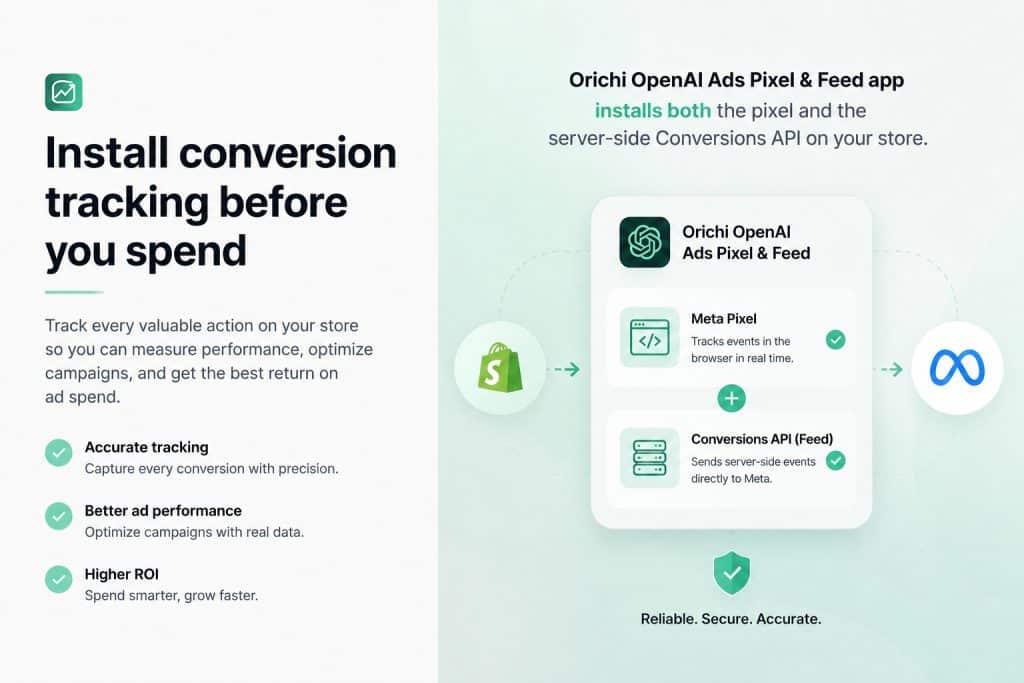
The OpenAI Ads Pixel and Conversions API (CAPI) integration for Shopify via Orichi is a conversion tracking system designed to connect OpenAI Ads campaigns with real ecommerce performance data from Shopify stores. This setup enables merchants to track user actions such as product views, cart additions, and completed purchases through both browser-based Pixel events and server-side API events, ensuring high attribution accuracy and full-funnel visibility. The guide below follows a structured implementation process covering credential setup, app installation, event verification, and troubleshooting to ensure reliable tracking for future ChatGPT advertising campaigns.
Before you start: OpenAI Ads is currently US first and rolling out to a limited set of markets (Canada, Australia, New Zealand, with the UK, Mexico, Brazil, Japan, and South Korea coming next). You can install the pixel and CAPI on your store regardless of your market. Having tracking ready means clean data from day one when ads reach you. You’ll only be able to run campaigns once advertising is available in your customers region.
What you’ll need
- A Shopify store (any plan)
- Access to OpenAI Ads Manager at ads.openai.com (or an account from your OpenAI account team)
- About 10 minutes
Step 1 Get your Pixel ID and Conversions API key from OpenAI
Both credentials come from the same place in OpenAI Ads Manager.
- Log in to ads.openai.com
- Open the Conversions tab
- Create a new Pixel if you don’t have one. This gives you a Pixel ID
- In the same Conversions tab, provision a Conversions API key (a Bearer token). If you can’t find it, your OpenAI account team can provide one
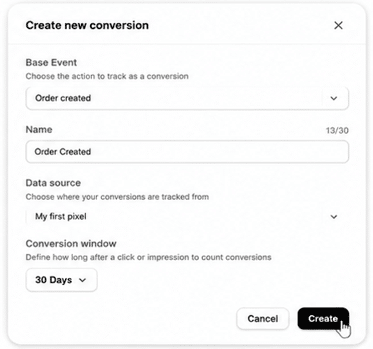
Keep both values handy. You’ll paste them into the Orichi app in the next step.
Why you need both: the Pixel ID identifies your account for browser events; the API key authenticates server-side events sent from Orichi’s backend to OpenAI’s Conversions API. The app uses the same Pixel ID across both so OpenAI can deduplicate matching events.
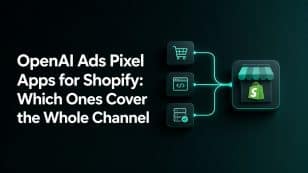
Not every Shopify app covers the same OpenAI Ads workflow. Compare the current OpenAI Ads apps for Shopify by tracking, feed, reporting, and audience coverage before you install one.
Step 2 Install the Orichi OpenAI Ads Pixel & Feed app
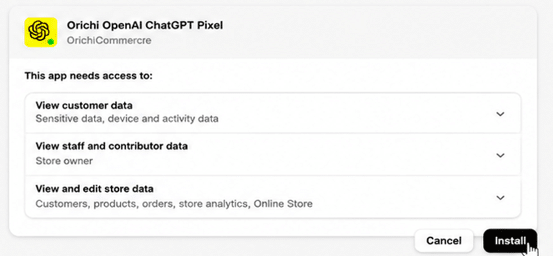
- Go to the Shopify App Store and search for OpenAI Ads Pixel & Feed by Orichi
- Click Install and approve the requested permissions
- You’ll land on the app’s setup screen inside your Shopify admin
The app is free to install.
Step 3 Connect your Pixel
1. In the app, click Add Pixel or Create Pixel
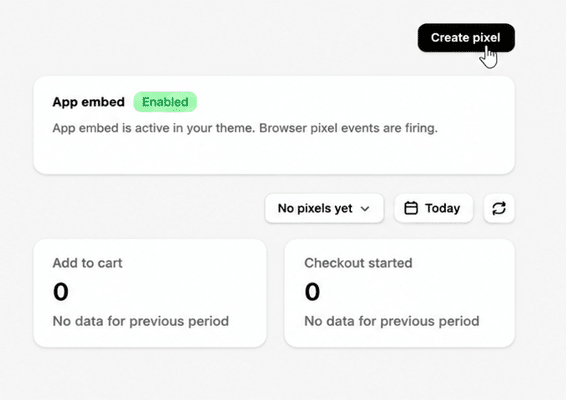
2. Paste your Pixel ID from Step 1
3. Paste your Conversions API key
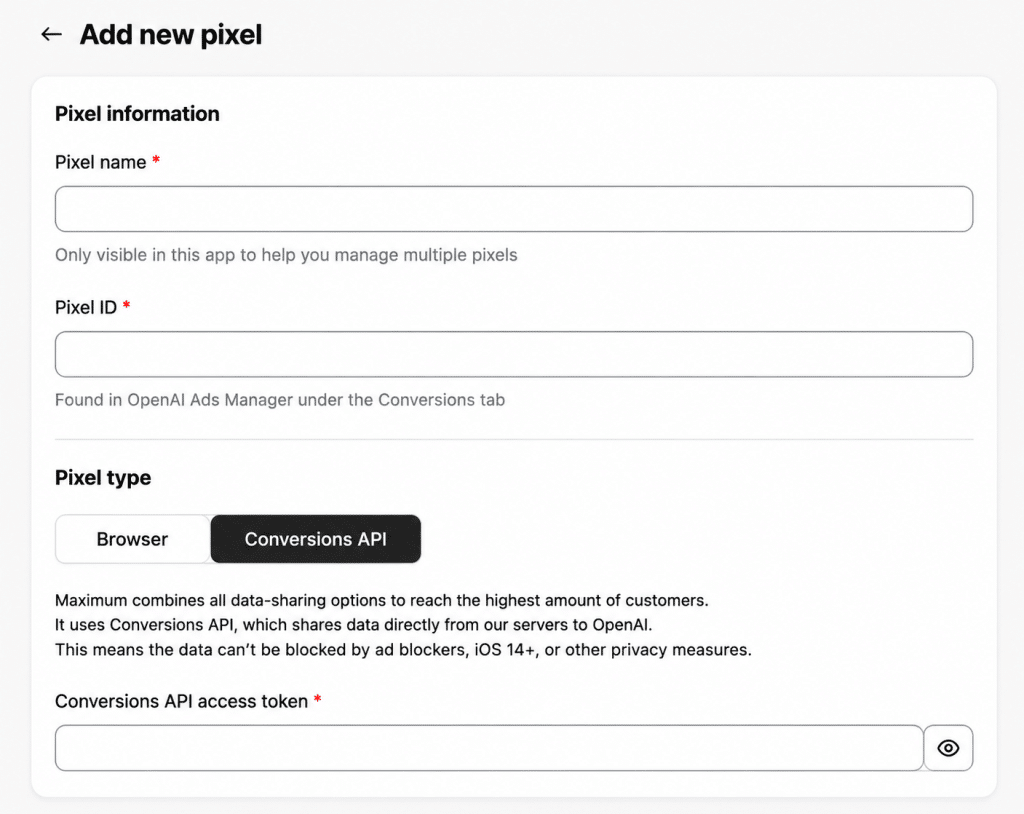
Save
That’s the core connection. Behind the scenes the app now handles two things you’d otherwise have to build yourself:
- Browser pixel: it loads OpenAI’s measurement SDK and fires events from the storefront, placed correctly in the page head so early events aren’t lost
- Server-side CAPI: it sends the same events from Orichi’s backend directly to OpenAI’s Conversions API, so conversions still land even when the browser event is blocked
Both fire with a shared event ID so OpenAI collapses the browser and server versions into a single conversion instead of double-counting.
Step 4 Confirm which events are tracked
The app maps your store’s real shopping actions to OpenAI’s standard event taxonomy automatically. The events tracked are:
| OpenAI event | When it fires |
|---|---|
| page_viewed | Any page load on your store |
| contents_viewed | A product page is viewed |
| items_added | A product is added to cart |
| checkout_started | The customer begins checkout |
| order_created | An order is completed purchase |
For purchase events, the app sends the order value and currency so you can measure revenue and ROAS, not just conversion counts.
You don’t need to configure these individually. They’re wired up on install. If you want to confirm, the app’s dashboard shows which events are active.
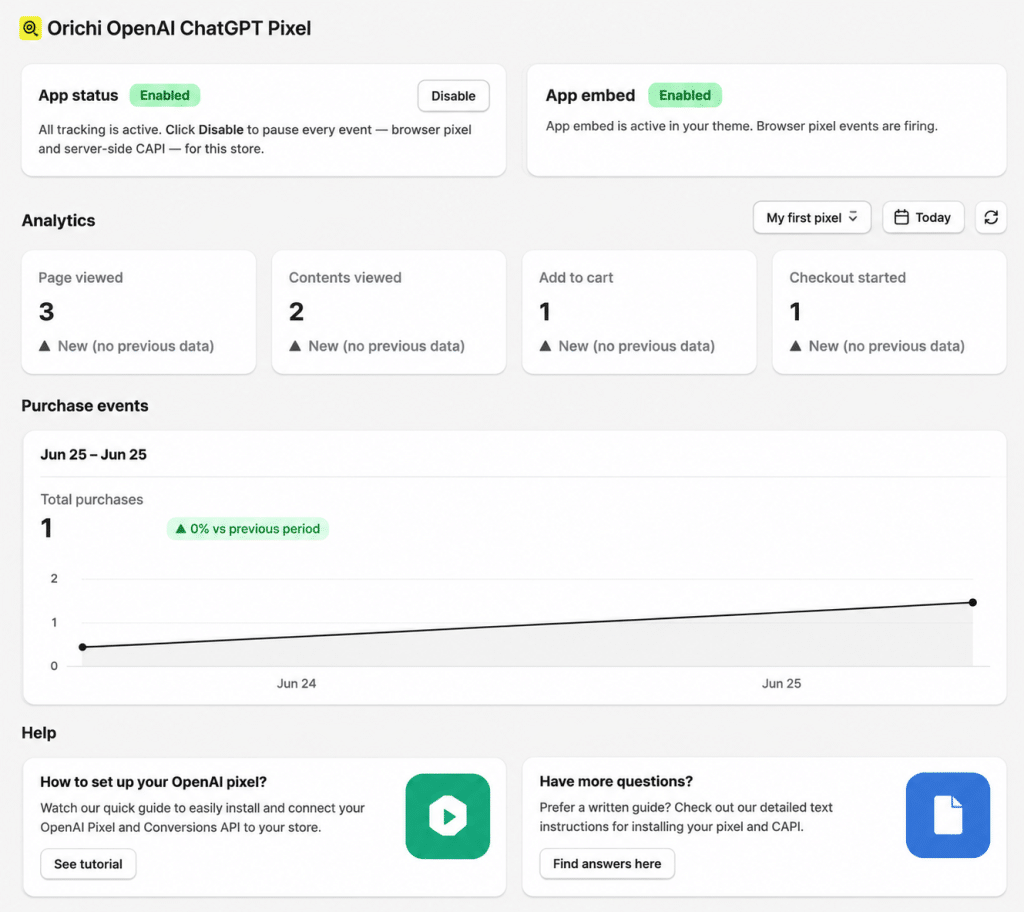
Step 5 Verify events are firing
Before you trust the numbers, confirm the integration end-to-end.
- In the Orichi app, open the status or debug panel if available. It will show recent events sent via both the pixel and CAPI
- Place a test order on your store or use Shopify test order mode
- Check that an order_created event appears, and that the browser and server versions share the same event ID. This is what proves deduplication is working
- Optionally cross-check in OpenAI Ads Manager Conversions or Events where a known test conversion should appear without duplicates
If you see the order event arriving once not twice with the correct value, your setup is correct.
What the app handles for you that manual setup gets wrong
If you’ve implemented Meta CAPI before, you know the failure points. Orichi handles them by default:
- oppref capture. OpenAI’s pixel captures this attribution identifier automatically in the browser, but the Conversions API does not. You have to capture it yourself and pass it with each server event. Orichi captures oppref on the storefront, stores it, and attaches it to the server-side event so your offline or server conversions stay attributable. This is ported from the same proven mechanism Orichi uses in its Facebook Pixel app
- Deduplication. The shared event ID is generated and applied consistently across pixel and CAPI so you never inflate conversions
- Correct hashing. User identity fields email, external ID are sent as lowercased, trimmed SHA-256 hashes never raw matching OpenAI privacy requirements. Geographic data, IP, and user agent are passed as allowed
- Head placement and load timing. The pixel is placed and initialized so early events like page views on arrival aren’t lost to script load races the single most common manual install error
Troubleshooting
No events showing up. Re-check that the Pixel ID and API key are pasted correctly with no extra spaces. Confirm the app is enabled and your theme is published.
Events appear twice in Ads Manager. This usually means a second tracking method is installed alongside Orichi for example a manual pixel snippet or a GTM tag using a different event ID. Remove the duplicate source or align the event IDs.
Purchase value is missing or wrong. Confirm your store currency is set correctly. The app formats currency and amount to OpenAI spec automatically, but a misconfigured store currency will carry through.
I’m not in an eligible ad market. That’s fine. The pixel and CAPI will still install and fire. You won’t see campaign performance until OpenAI Ads is available in your region, but your conversion history will be ready when it is.
You’re done
With the pixel and CAPI both live and deduplicated, you have the measurement foundation OpenAI itself recommends the same dual track standard used by Meta and Google. When you launch ChatGPT campaigns, you’ll see real conversions and revenue not just clicks, and you’ll be able to optimize with confidence.
Orichi builds Shopify apps trusted by thousands of merchants. The OpenAI Ads Pixel & Feed app installs ChatGPT conversion tracking browser pixel plus server-side CAPI on your store in minutes, free. Install it here.