In recent years, more people have started questioning their relationship with social media. Maybe you’re feeling overwhelmed by constant notifications. Maybe you’re concerned about privacy. Or maybe you just want a break from endless scrolling. Whatever your reason, searching for how to delete Twitter/X account is completely understandable.
The good news is that deleting your account isn’t complicated. The important part is understanding how Twitter/X’s deletion system actually works before you take action. Once you know what to expect, the process becomes simple and stress-free.
This guide will walk you through everything step by step, whether you’re using a smartphone or a desktop computer.

Deactivation vs. Permanent Deletion: What You Should Know
Before moving forward, there’s one key detail you need to understand: Twitter/X does not immediately delete your account. Instead, it first deactivates it.
Here’s what that means in practical terms:
- Your account becomes inactive right away.
- A 30-day grace period begins.
- Permanent deletion only happens after 30 days without logging back in.
During this 30-day window, you can still reactivate your account at any time simply by logging in again. If you change your mind, everything will be restored. However, once those 30 days pass, your account and all associated data are permanently removed.
Think of it as a safety cushion. It gives you space to reconsider without losing everything instantly.
How to Delete Twitter/X Account on Mobile (Android & iPhone)
If you mainly use Twitter/X on your phone, the process takes just a few minutes.
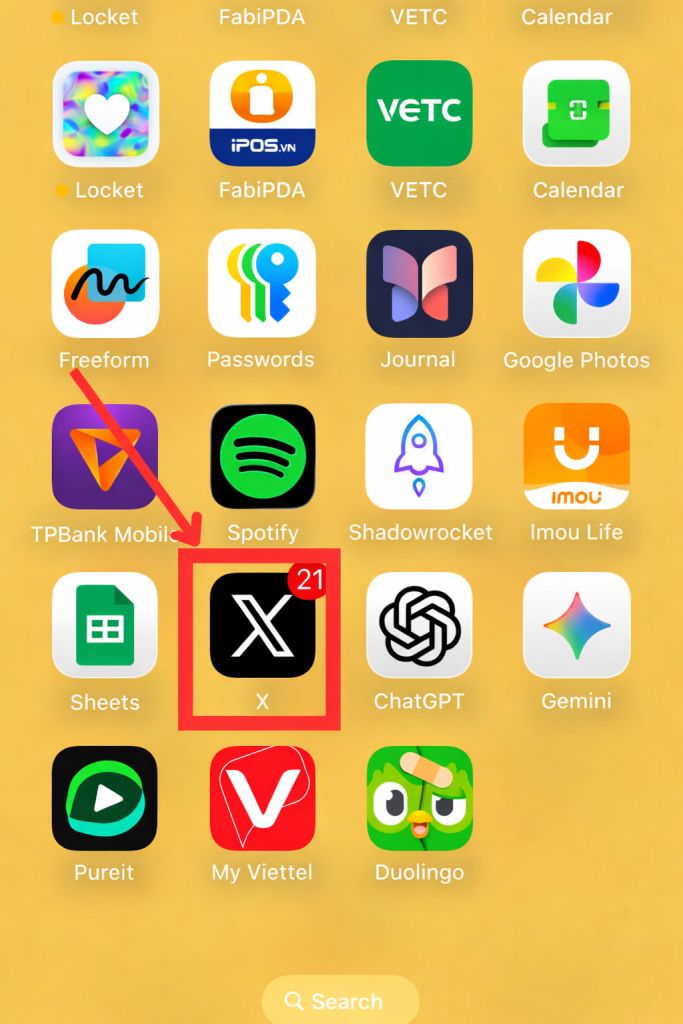
Step 1: Open the Twitter/X App
Make sure you are logged into the account you want to delete.
Step 2: Go to Settings and Privacy
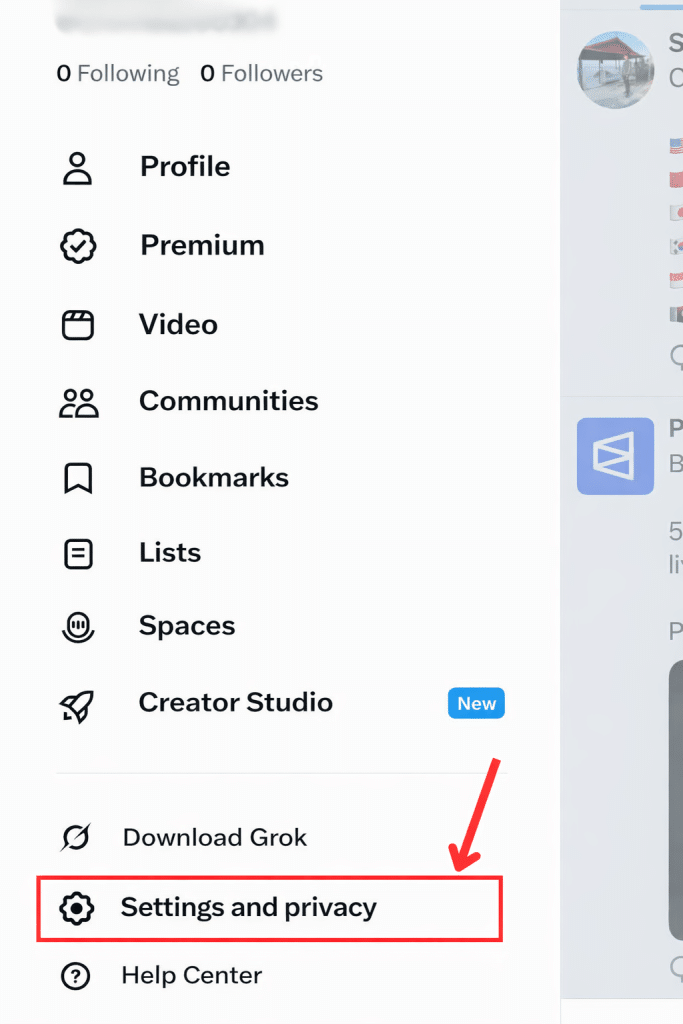
Tap your profile icon in the top-left corner of the screen. From the menu that appears, select Settings and Privacy.
Step 3: Select “Your Account”
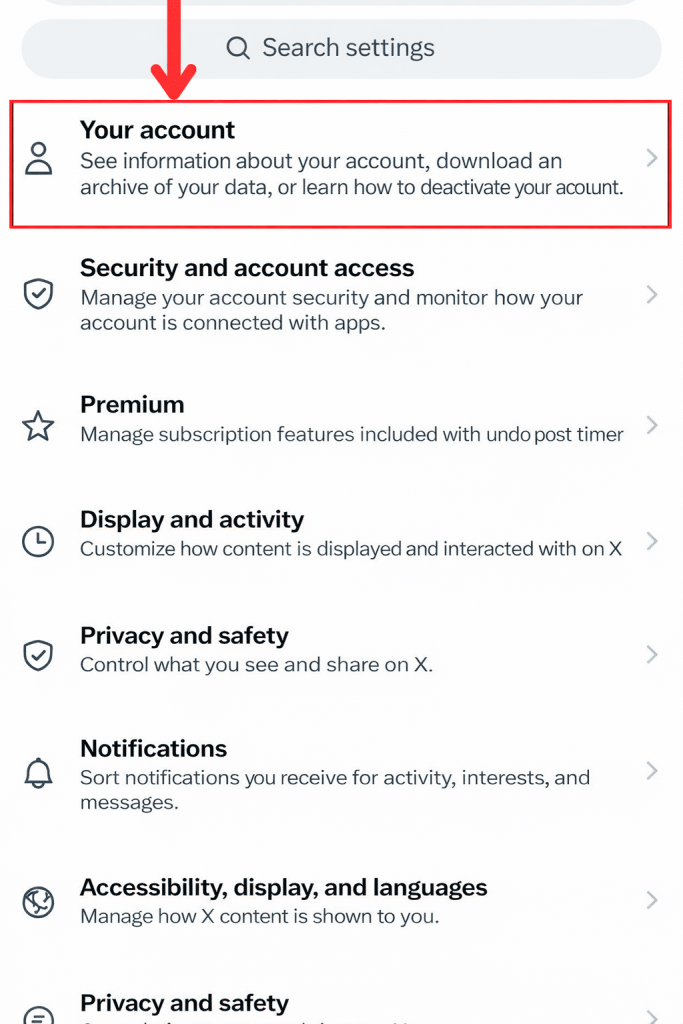
Inside the settings menu, tap Your Account to view account management options.
Step 4: Choose “Deactivate Your Account”
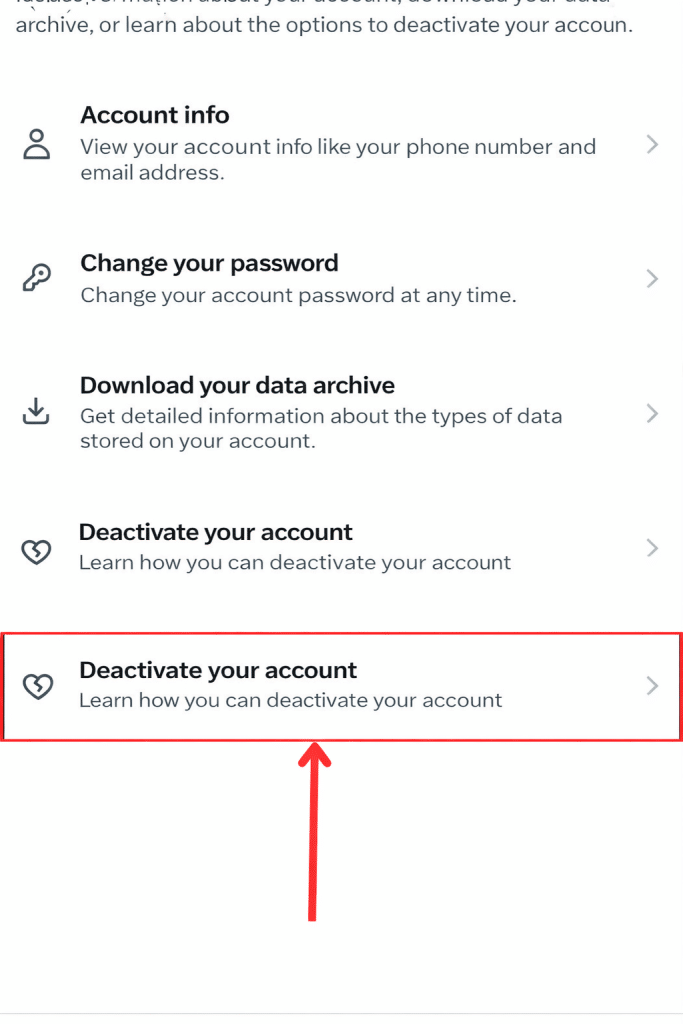
You’ll see an option labeled Deactivate your account. Tap it.
Discover other our article here: https://orichi.info/resources/blog/
Step 5: Confirm Deactivation
Scroll down, tap Deactivate, and enter your password when prompted.
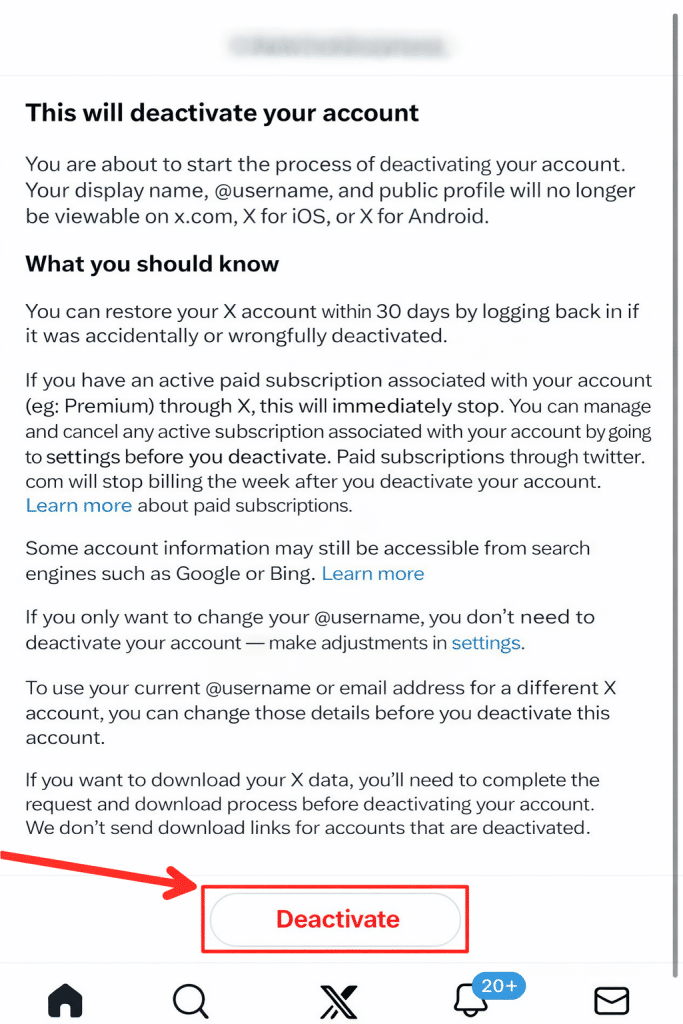
After confirming, your account will immediately enter the 30-day deactivation period.
How to Delete Twitter/X Account on Desktop
If you prefer using a computer, the steps are very similar:
- Go to x.com and log in.
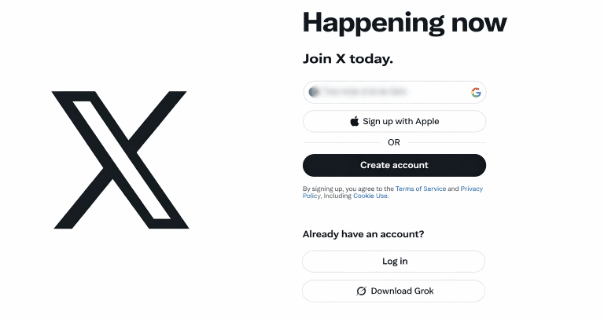
2. Click More in the left-hand sidebar.

3. Select Settings and Privacy

4. Click Your Account.
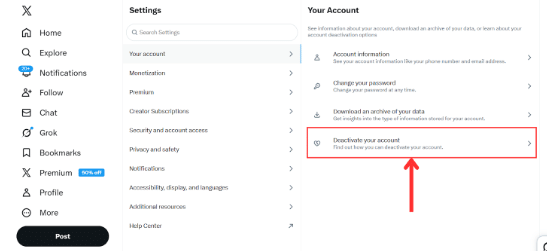
5. Choose Deactivate your account.
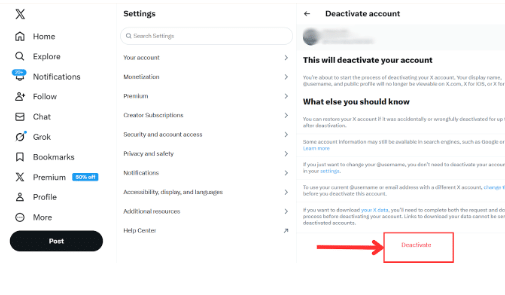
6. Enter your password to confirm.
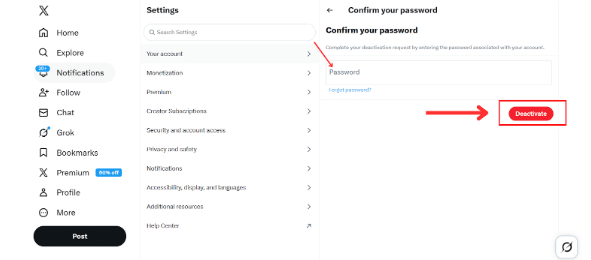
Once completed, your account is deactivated and scheduled for permanent deletion after 30 days of inactivity.
What Happens After You Delete Twitter/X Account?
Understanding the consequences helps you avoid surprises later.
Immediately After Deactivation
- You can no longer access your account.
- Your profile (name, bio, profile photo) disappears from public view.
- Your tweets, likes, replies, and interactions are no longer visible.
- You stop receiving notifications or emails from Twitter/X.
If someone searches for your username, your profile will not appear.
During the 30-Day Grace Period
- You can reactivate your account anytime by logging back in.
- Your content and profile will be restored if you return within this timeframe.
This period is helpful if you’re unsure or simply testing whether life without Twitter/X feels right.
After 30 Days
- All account data is permanently deleted.
- Your username may become available for someone else.
- Recovery is no longer possible.
Some information may still appear briefly in search engine results due to cached pages, but this typically disappears over time.
Important Things to Do Before Deleting
Before you finalize your decision, consider taking a few precautionary steps.
First, download your Twitter/X data if you want to keep a personal archive of your tweets or messages. Once your account is permanently deleted, this information cannot be recovered.
Second, disconnect any third-party apps or services linked to your account. This helps prevent login issues in the future.
Finally, make sure you remember your login credentials during the 30-day window. If you change your mind, you’ll need them to reactivate your account.
Deleting a social media account may seem like a small technical action, but it often represents something larger — a shift in priorities, habits, or digital boundaries.
Why Do People Decide to Delete Twitter/X?
The growing number of searches for how to delete Twitter/X account reflects broader changes in how people think about online life.
Some common reasons include:
- Privacy and data security concerns
- Reducing screen time and distractions
- Improving mental health
- Avoiding online conflict or negativity
- Simplifying digital identity
For many people, deleting a social media account isn’t about anger or frustration. It’s about intentional living. It’s about deciding where your attention and energy should go.
Final Thoughts
Learning how to delete Twitter/X account is straightforward. The technical steps take only a few minutes. What truly matters is understanding the 30-day deactivation system before making a final decision.
If you’re looking for a digital reset, this process gives you flexibility. You can step away temporarily or make a permanent exit. Either way, the choice is yours.
In today’s always-connected world, choosing to disconnect — even for a while — can be a powerful and empowering decision.