SocialBee is an AI-powered social media management tool that helps you create content, schedule posts, and track performance across multiple platforms.
But is it the right tool for your workflow—especially if you want evergreen content that keeps working without daily posting stress?
In this article, we will show you what SocialBee does, how its key features work, and how to set it up fast.
Hopefully, after reading, you’ll know whether SocialBee fits your goals and budget—and you’ll have a simple setup checklist you can follow today.
Quick Definition (in one breath)
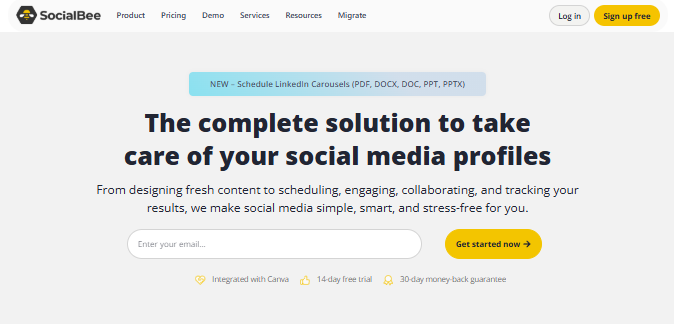
SocialBee is a social media dashboard built around evergreen content recycling, AI-assisted post creation, and multi-platform scheduling.
Interestingly, it’s designed to help you reuse your best content automatically—so your calendar stays full without repeating manual work.
Overview: What SocialBee is best at
SocialBee focuses on evergreen posting with automatic reuse, plus AI support to speed up writing.
Moreover, it’s built for solopreneurs and small teams who want a clean workflow: categories → queue → schedule → measure.
Additionally, SocialBee supports multiple profiles (commonly 5–25 depending on plan) and includes analytics windows (often 3 months on entry plans).
Furthermore, it can be useful for local brands because it supports Google Business Profile posting.
What is SocialBee?
SocialBee is an AI-powered platform that lets you manage Facebook, Instagram, TikTok, LinkedIn, X (Twitter), Threads, YouTube, Pinterest, and more from one dashboard.
Surprisingly, the “secret sauce” is not just scheduling—it’s how SocialBee organizes content using categories and recycling rules.
Additionally, SocialBee uses data-driven insights in its reporting and content recommendations, referencing large-scale publishing analysis (including a reported 9.3M-post dataset).
To sum up, it’s a posting system designed for consistency, not chaos.
Key Features (the ones you will actually use)
1) AI Copilot
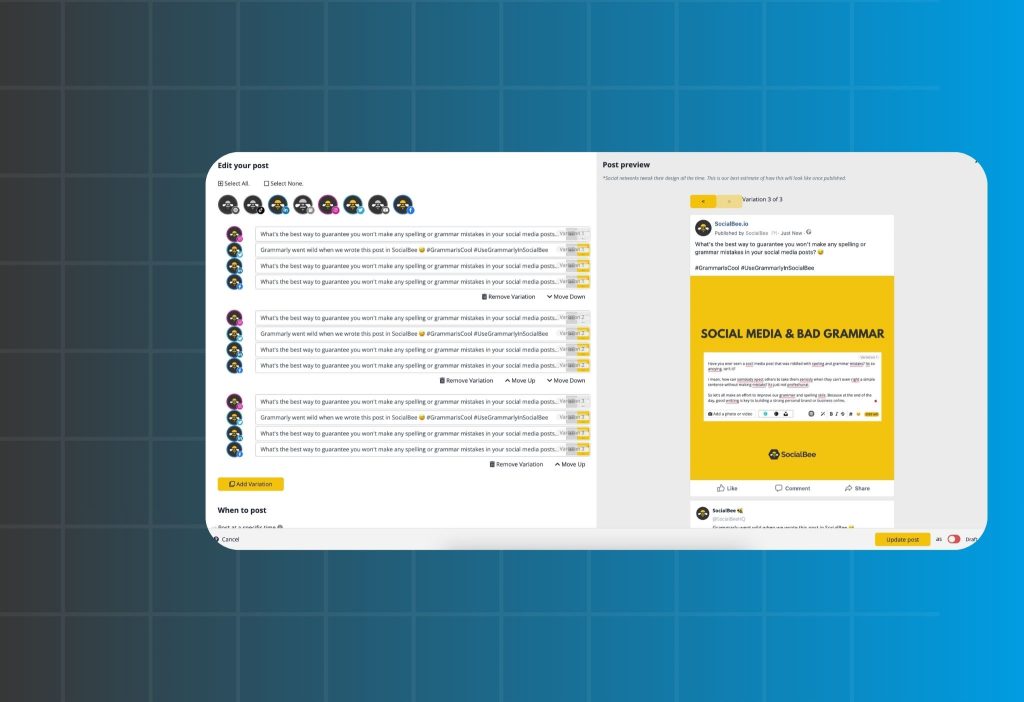
AI Copilot helps you draft posts faster and create variations for different platforms.
Moreover, it can support practical tasks like creating multiple captions, generating ideas, and improving clarity.
2) Content Categories + Recycling
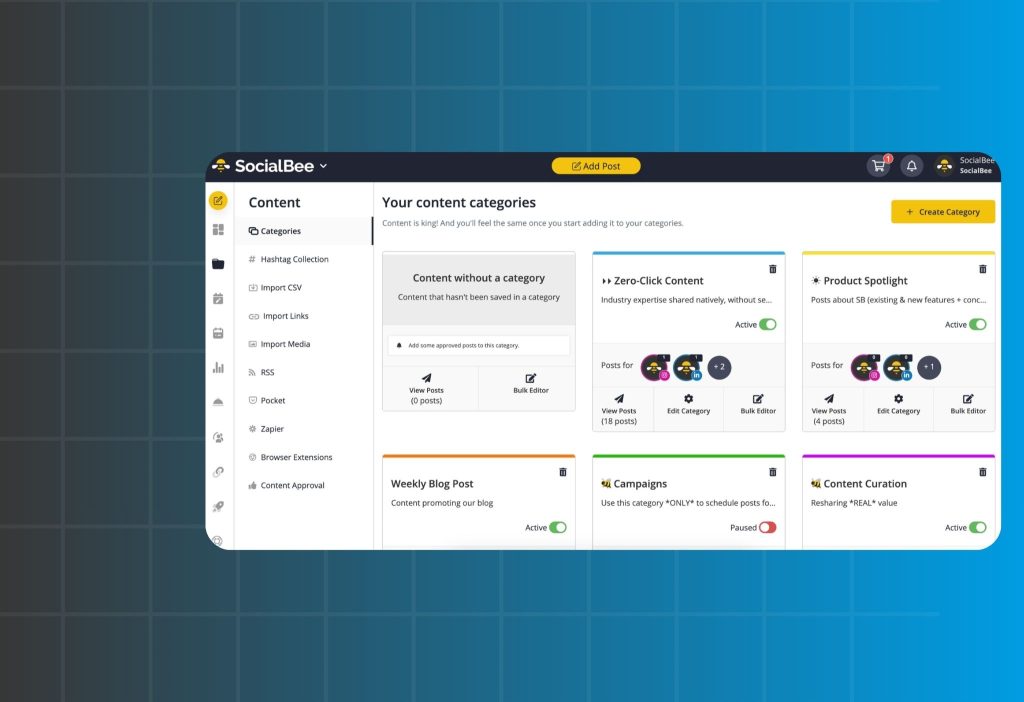
You can group content into categories (e.g., Tips, Proof, Offers, Community).
Additionally, SocialBee can automatically recycle evergreen posts based on the schedule you set.
3) Scheduling + Calendar Views
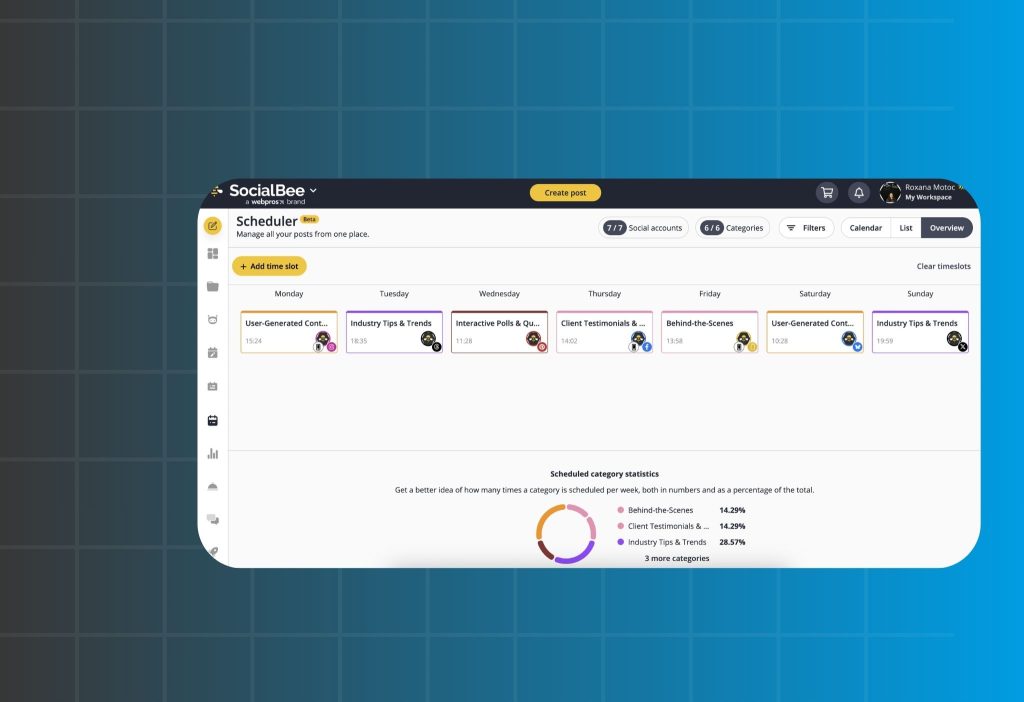
You can schedule posts using calendar-style views and preview how your content will appear.
Furthermore, you can plan ahead across multiple platforms without switching tools.
4) Analytics
You can track impressions, engagement, and growth trends in one place.
Interestingly, many users love the “enough analytics” approach—simple, clear, and actionable.
5) Collaboration (team workflows)
You can set approvals and share branded reports (typically on higher plans).
Moreover, this helps agencies and small teams reduce posting mistakes.
Pricing (simple breakdown)
SocialBee commonly offers plans like:
- Bootstrap: around $29/month (solo, ~5 profiles)
- Accelerate: around $49/month (solo, ~10 profiles)
- Pro: around $99/month (teams, ~25 profiles)
Additionally, annual billing usually saves money compared to monthly.
Furthermore, SocialBee typically offers a 14-day free trial and often states no credit card required, but always confirm on the pricing page before subscribing.
Pros and Cons (honest take)
Pros
SocialBee’s content recycling is available across plans, which is rare at this price level.
Moreover, the category-based workflow is perfect for evergreen marketing.
Additionally, AI support is practical for daily posting, especially when you need variations.
Furthermore, Google Business Profile support is a nice bonus for local brands.
Cons
SocialBee is not a full social listening tool, so it may not replace enterprise “monitoring suites.”
Surprisingly, multi-user support is usually strongest on higher plans, which can limit bigger teams.
Additionally, if you are extremely video-first, you may want richer video template workflows than what a scheduling tool typically provides.
To sum up, it’s best for evergreen scheduling—not advanced listening or production.
Reviews and Reputation (what people usually say)
Many users praise SocialBee for saving time with recycling and scheduling.
Moreover, common criticism is that analytics can feel basic for advanced teams.
Interestingly, real-world anecdotes often mention consistent posting volume (e.g., frequent posting cycles supported by recycling).
Furthermore, SocialBee references its own reporting and research updates, which helps build credibility for its approach.
What could be better?
SocialBee would be stronger with built-in social listening or deeper monitoring features.
Additionally, more advanced video templates and richer analytics breakdowns would help agencies scale faster.
Moreover, cheaper add-on users for smaller plans would make collaboration easier for growing teams.
To sum up, it’s great at evergreen automation—but it could expand into “insights + listening” over time.
Should you use it?
Yes, if you want evergreen recycling, AI-assisted writing, and a budget-friendly scheduler for a solo or small international team.
Additionally, it’s a strong pick if you want to post consistently across multiple platforms without building everything manually.
No, if you need deep social listening, competitor monitoring, or heavy video production workflows.
Furthermore, large agencies may prefer enterprise suites built for monitoring and governance.
SocialBee Setup Tutorial (30–60 minutes)
Step 1: Create your workspace and connect channels
Go to Dashboard → Accounts / Social Profiles.
Click Connect and choose the platform.
- Select the platform (Facebook, Instagram, LinkedIn, TikTok, etc.)
- Log in and approve permissions
- Choose the page/profile you want to connect
- Repeat for each channel you manage
You should see your connected profiles listed with a “connected/active” status.
Step 2: Build Content Categories (this is the core)
Go to Content → Categories.
Click Add Category.
- Create 6–10 categories (Tips, Proof, Offers, Community, Blog, Repurpose)
- Assign a default schedule frequency per category
- Set rules for evergreen vs time-sensitive content
- Name categories clearly (avoid vague labels)
You should see a category list with labels you can recognize instantly.
Step 3: Add evergreen posts and enable recycling
Go to Content → Create Post (or Queue).
Choose Category and select your channel(s).
- Write one core post, then create platform variations
- Attach images or video thumbnails if available
- Select the category that matches the intent
- Tick Recycle/Re-queue for evergreen content
You should see the post in your queue under the correct category.
Step 4: Set your posting schedule
Go to Scheduler → Calendar (or Posting Schedule).
Click Add Time Slot (or edit existing slots).
- Choose weekdays and time blocks
- Assign categories to specific time slots
- Balance content types (don’t post promotions every day)
- Add more slots only after your baseline is stable
You should see a weekly calendar view with category-driven time slots.
Step 5: Use AI Copilot for fast variations
Go to Post Editor → AI Copilot (or AI assistant area).
Click Generate or Rewrite based on your need.
- Generate 3–5 caption variations
- Choose tone (professional, friendly, direct)
- Add platform-specific hooks (short for X, longer for LinkedIn)
- Save the best version per platform
You should see multiple ready-to-use versions without rewriting from scratch.
Step 6: Review analytics and adjust categories
Go to Analytics → Overview.
Select a time range and a channel.
- Check engagement trends per category
- Identify top-performing evergreen posts
- Reduce categories that underperform
- Double down on categories that drive saves/comments/clicks
You should see clearer patterns about what content is worth recycling.
Troubleshooting (quick fixes)
Symptom: Posts are not publishing.
Cause: Missing permissions or an expired connection.
Action: Reconnect the profile, confirm permissions, then wait 5–10 minutes and retry.
Optional: [Official Help Link Placeholder]
Symptom: Instagram posts publish without the expected format.
Cause: Platform-specific limitations or wrong post type selection.
Action: Check the post type (Reel/Story/Post), adjust aspect ratio, and re-upload media.
Optional: [Official Help Link Placeholder]
Symptom: Analytics looks “too basic” or missing older data.
Cause: Your plan may limit analytics history, or the date range is short.
Action: Expand the date range, confirm plan analytics window, or export and track externally.
Optional: [Official Help Link Placeholder]
Symptom: Recycling feels repetitive.
Cause: Too few variations in the evergreen pool.
Action: Add 10–20 new evergreen posts, then generate 2–3 variations per post using AI.
Optional: [Official Help Link Placeholder]
FAQs
1) Does SocialBee have a free plan?
The answer is No. SocialBee typically focuses on a free trial instead of a permanent free plan.
Alternatively, if you need a forever-free option, consider a basic scheduler that offers a limited free tier.
2) Can SocialBee replace social listening tools?
The answer is No. SocialBee is mainly built for publishing, scheduling, recycling, and analytics.
Alternatively, pair it with a dedicated listening tool if monitoring keywords and sentiment is essential.
3) Is SocialBee good for agencies?
The answer is Yes. It can work well for small agencies, especially if you need categories, approvals, and organized scheduling.
Alternatively, large agencies may prefer enterprise tools that offer deeper governance and monitoring.
4) Is SocialBee worth it for solopreneurs?
The answer is Yes. The evergreen recycling workflow can save you hours each week and keep your posting consistent.
Alternatively, if you only post occasionally, a simpler scheduler might be enough.
5) Can I manage multiple platforms from one dashboard?
The answer is Yes. SocialBee is designed for multi-platform scheduling and content organization.
Alternatively, if you only use one platform, a single-channel tool may be cheaper.
Install Links
- Web: https://socialbee.com
- Android app (Google Play): https://play.google.com/store/apps/details?id=io.socialbee
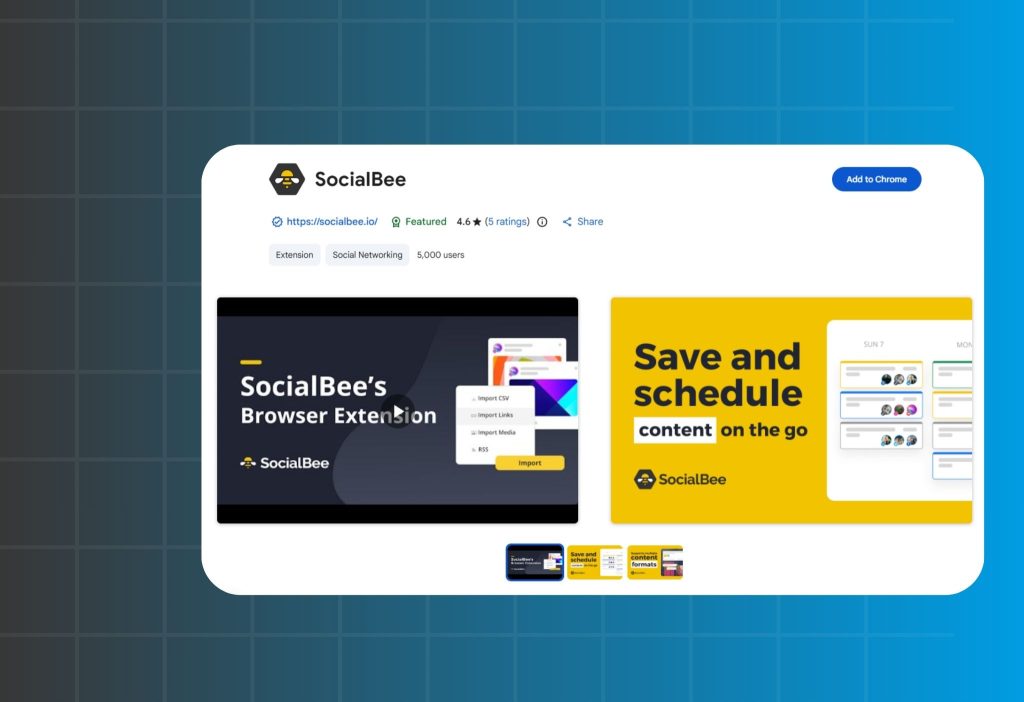
- Chrome Extension: Search “SocialBee” in the Chrome Web Store
Read more: Top AI Tools for Growing Shopify Stores
Conclusion
To sum up, SocialBee is a practical AI-assisted scheduler built around evergreen recycling and category-based planning.
Additionally, for your next read, I recommend an internal guide like: “How to build a social media content calendar that actually stays consistent” (internal link).
Moreover, if you found this tutorial helpful, leave a comment with your niche, share it with a teammate, or contact us if you want a done-for-you SocialBee setup.