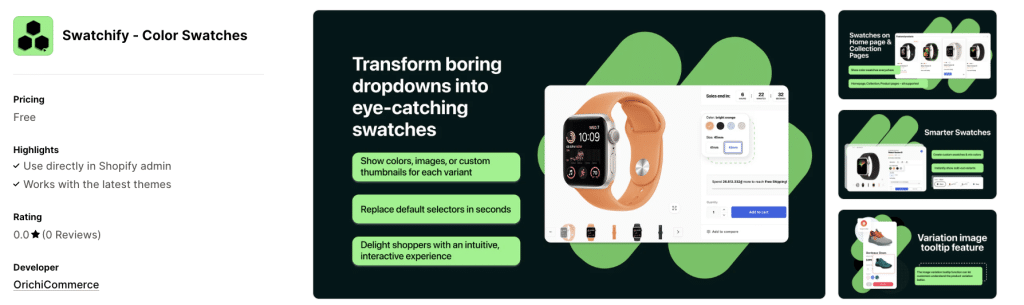
Swatchify helps you effortlessly manage and display product variants to drive more sales. Follow this step-by-step guide to set up and customize your color swatches.
Prerequisites to Set up Swatchify
- Install Swatchify from the Shopify App Store
- Ensure you have admin access to your Shopify store
Setup Process
Step 1: Embed Swatchify App on Theme
- Enable the App: Click the “Enable app” button in the yellow notification banner
- Theme Integration: The app requires theme editor access to work correctly on your store
- Activate App Embed: Complete the app embed process to activate SwatchPilot on your storefront
- Navigate to your theme’s App embeds section
- Find “Color Swatches” under Development Color Swatches
- Toggle the switch to enable the app embed
- Note: If you see “This app embed doesn’t have customizable settings,” you can proceed to manage the app directly
Step 2: Configure Options
Once the app is successfully embedded:
- You’ll see the “Your widget is working!” confirmation message
- The setup guide will show completed tasks with checkmarks
- Click “Configure options” to proceed to customization
Step 3: Active Widget & Custom Display Settings
In the Color configuration panel:
- Active Widget Settings:
- Toggle “Active widget to display your swatches” to enable
- Choose where to display: Product page, Collection page, and/or Home page
- Template & Style Options:
- Template: Select “Swatch” (default option)
- Style: Choose “Image” for picture swatches
- Type: Select “Circle” for round color swatches
- Upload Images or Pick Colors:
- For each color variant (Black, Blue, etc.), you can:
- Upload custom images in the Preview column
- Use default color representations
- The system will automatically detect your product variants
- For each color variant (Black, Blue, etc.), you can:
Step 4: Customize Widget Appearance
Click “Customize” to access advanced styling options:
Appearance Settings:
- Size: Choose from Small, Medium, or Large
- Border radius: Set rounded corners (e.g., “4” for subtle rounding)
- Spacing: Control distance between swatches (e.g., “10” for standard spacing)
Color Options:
- Default color: Base swatch appearance
- Selected color: How active selection looks
- Hover color: Interactive state styling
Animation Settings:
- Hover animation: Choose “Label” to show color names on hover
- Out of stock: Select “Strike-out” to mark unavailable variants
- Strike color: Customize the strike-through appearance
Step 5: Save Changes
- Review all your settings in the preview pane
- Click “Save” to apply your configuration
- Check your storefront to confirm the widget displays correctly
Tips for Success
- Test thoroughly: Visit your product pages to ensure swatches appear as expected
- Mobile optimization: Check how swatches display on mobile devices
- Variant images: Ensure you have high-quality images for each color variant
- Contact support: Use the “Contact us” button if you encounter any issues
Troubleshooting
If the widget isn’t appearing:
- Confirm the app embed is enabled in your theme
- Check that you’ve selected the correct pages for display
- Verify your products have color variants configured
- Contact SwatchPilot support for additional assistance
Your Swatchify color swatches are now ready to enhance your customers’ shopping experience!
Conclusion
Setting up SwatchPilot transforms your Shopify store’s product presentation, making it easier for customers to visualize and select their preferred variants. By following these five straightforward steps—from embedding the app to customizing the appearance—you’ll create an intuitive shopping experience that can significantly boost conversion rates and reduce product returns.
The visual nature of color swatches eliminates guesswork for customers, while the customizable styling options ensure the widget seamlessly integrates with your brand aesthetic. Remember that a well-configured swatch system not only improves user experience but also demonstrates professionalism and attention to detail that customers appreciate.
Take time to test your setup across different devices and product pages to ensure optimal performance. With SwatchPilot properly configured, you’re well-positioned to provide customers with the smooth, visual product selection experience they expect from modern e-commerce stores. And don’t forget to discover more our apps to boost your sales
Frequently Asked Questions (FAQ)
Q: How long does it take to set up SwatchPilot? A: The complete setup typically takes 15-30 minutes, depending on how many product variants you need to customize and whether you upload custom images for each color option.
Q: Will SwatchPilot work with my existing theme? A: Yes, SwatchPilot is designed to work with all Shopify themes. The app embed system ensures compatibility, and the customization options allow you to match your store’s design aesthetic.
Q: Can I display swatches on multiple pages? A: Absolutely! You can enable swatches on product pages, collection pages, and your home page simultaneously. Simply toggle the appropriate options in the Active Widget Settings.
Q: What happens if a color variant is out of stock? A: SwatchPilot automatically handles out-of-stock variants by applying a strike-through effect, making it clear to customers which options are unavailable while still showing the complete range.
Q: Can I use my own images instead of solid colors? A: Yes, you can upload custom images for each variant in the Preview column. This is particularly useful for patterns, textures, or gradient colors that solid swatches can’t accurately represent.
Q: Do I need coding skills to customize the appearance? A: No coding required! All customization is done through user-friendly settings panels where you can adjust size, colors, spacing, and animations using simple controls and dropdowns.
Q: Will the swatches work on mobile devices? A: Yes, SwatchPilot is fully responsive and optimized for mobile devices. However, we recommend testing on various screen sizes to ensure the sizing and spacing work well for your specific setup.
Q: What if the swatches don’t appear after setup? A: First, confirm the app embed is enabled in your theme’s App embeds section. Also verify that your products have properly configured color variants and that you’ve selected the correct display pages in the widget settings.
Q: Can I change the swatch style after initial setup? A: Yes, you can modify all settings at any time. Simply return to the SwatchPilot configuration panel to adjust templates, styles, colors, or any other appearance settings.
Q: Is there a limit to how many color variants I can display? A: SwatchPilot automatically detects and displays all your product variants. There’s no artificial limit, though we recommend keeping the number reasonable for optimal user experience and page loading speed.