Several tools exist to transfer data from WooCommerce to Shopify. They are not interchangeable. The right tool depends on your store size, technical comfort level, budget, and how much data you need to move. Here are the five most-used options, evaluated on automation depth, SEO preservation, support for orders and customers, price, and ease of use.

1. Cart2Cart – Best for Most Stores
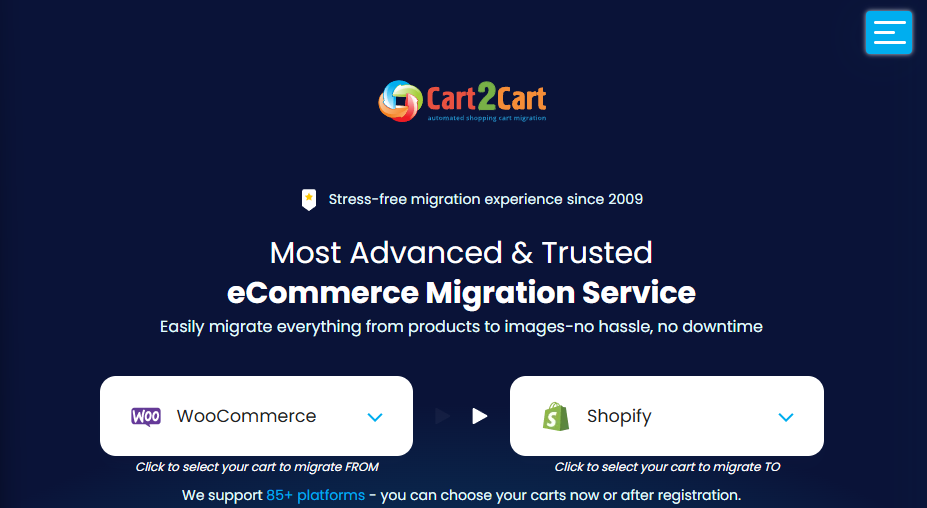
Cart2Cart is the most widely used WooCommerce to Shopify migration service, and it earns that position. The interface is three steps: connect your WooCommerce source store, connect your Shopify destination store, run the migration. No plugin installation in WordPress. No API credentials to configure manually. No technical knowledge required.
Cart2Cart migrates products, orders, customers, customer reviews, and coupons in a single automated process. It supports more than 85 ecommerce platforms, so if you ever need to migrate again, the workflow is the same. The standout feature is the free demo migration – test with 10 products before paying anything. SEO URL mapping and 301 redirect creation are handled automatically. Pricing starts at $69 for a one-time migration and scales with the number of entities you are transferring.
Best for: Store owners who want a reliable WooCommerce Shopify migration without touching any code. This is the default recommendation for 80% of migration scenarios.
2. LitExtension – Best for SEO Preservation and Complex Stores
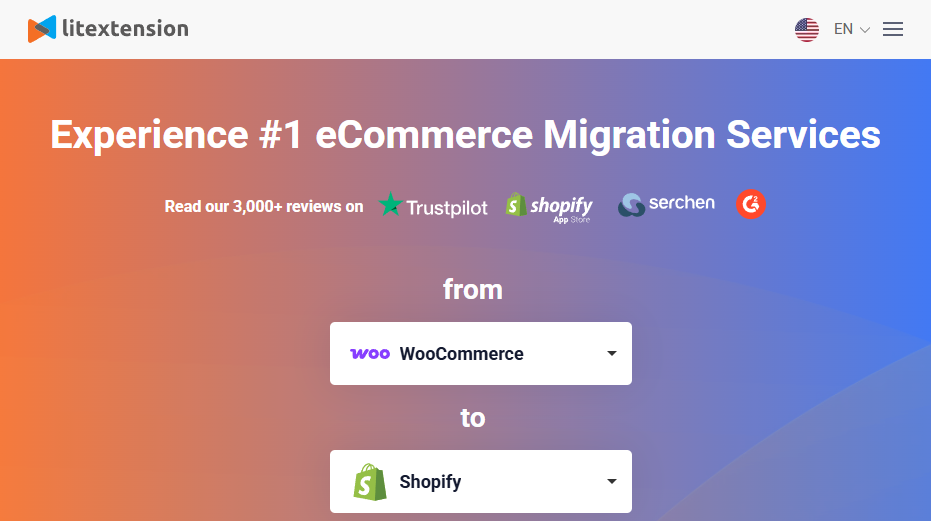
LitExtension is a full-service migration platform with the strongest track record for preserving SEO URLs during a WooCommerce to Shopify migration. Their 24/7 live chat support sets them apart from every other tool on this list – you have a technical team available throughout the entire process.
LitExtension migrates products, SEO metadata, order history, customer data, and blog posts. The field mapping customization is deeper than Cart2Cart – custom taxonomies, WooCommerce product attributes, metafields, and complex category structures are all supported. If any data is missing after migration, LitExtension offers a free re-migration. Pricing starts at $79 for a complete migration package, slightly higher than Cart2Cart but with a more hands-on level of support.
Best for: SEO-sensitive stores, stores with complex product data structures, and store owners who want expert guidance rather than a self-serve tool.
3. Matrixify – Best for Large Stores and Technical Users
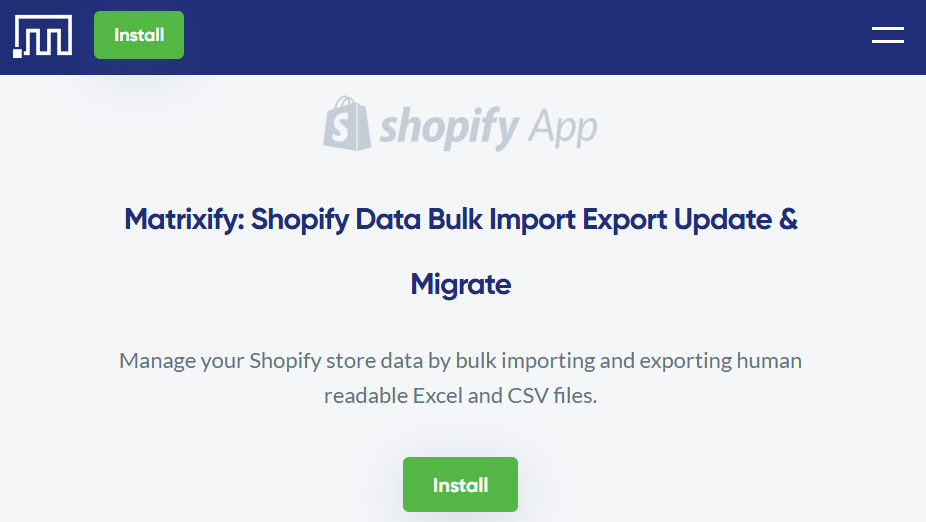
Matrixify takes a fundamentally different approach to WooCommerce Shopify data transfer. Instead of a guided wizard, it connects directly to the WooCommerce REST API and lets you work with your data in Excel format. You can review every field, edit values, and validate the entire dataset before a single record enters your Shopify store.
The dry run feature is Matrixify’s biggest advantage: run a complete simulated migration and get a detailed report of what will happen without actually importing anything. This makes it the safest tool for stores with complex product variants, WooCommerce product metafields, custom post types, or bundle products. At $20 per month, it is also the most cost-effective option for large stores that need to run multiple imports or maintain ongoing catalog synchronization.
Best for: Stores with more than 1,000 SKUs, complex data structures, and users who are comfortable working with CSV files and REST APIs.
4. Ablestar Importer – Best for Mid-Size Stores Needing Repeat Imports
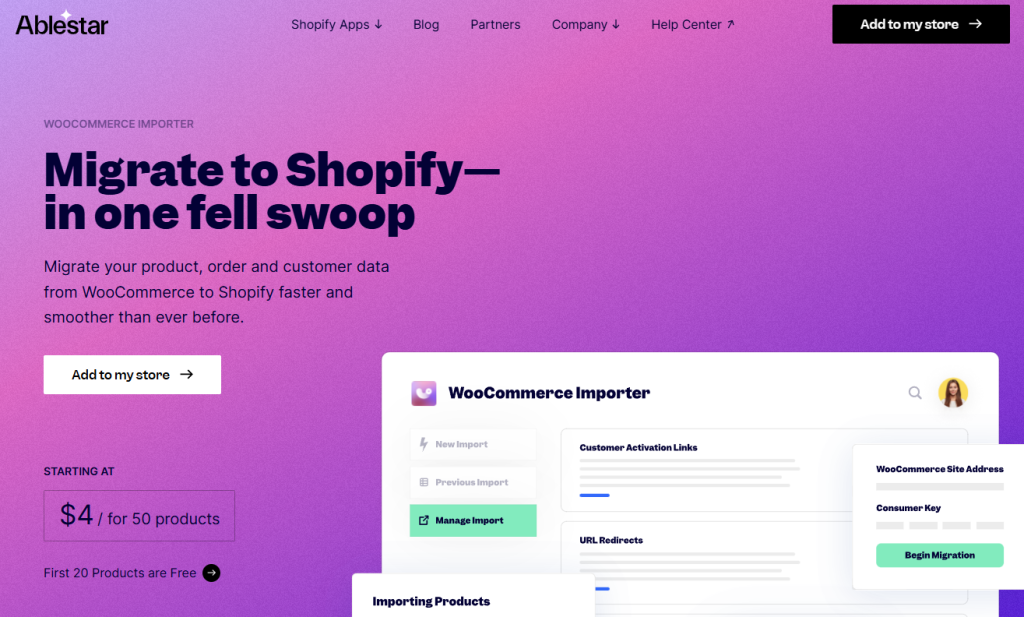
Ablestar is a native Shopify app – install it directly from the Shopify App Store with no external service accounts or third-party connections needed. Its strength is detailed mapping reports. After every import, you see exactly which fields transferred successfully, which were skipped, and why. That level of transparency makes troubleshooting straightforward.
Ablestar supports re-import and periodic catalog updates after the initial migration, which Cart2Cart does not. Automatic URL redirects are created during import. The main limitation is scope: Ablestar handles products only and does not migrate WooCommerce orders or customer accounts. At $19.99 per month, it makes sense if you need ongoing catalog synchronization after migration – but for a single one-time transfer, Cart2Cart costs less.
Best for: Mid-size stores (200–1,000 SKUs) that need to migrate their product catalog and then continue syncing or updating inventory on an ongoing basis.
5. W2S Migrate WooCommerce to Shopify – Best Free Option
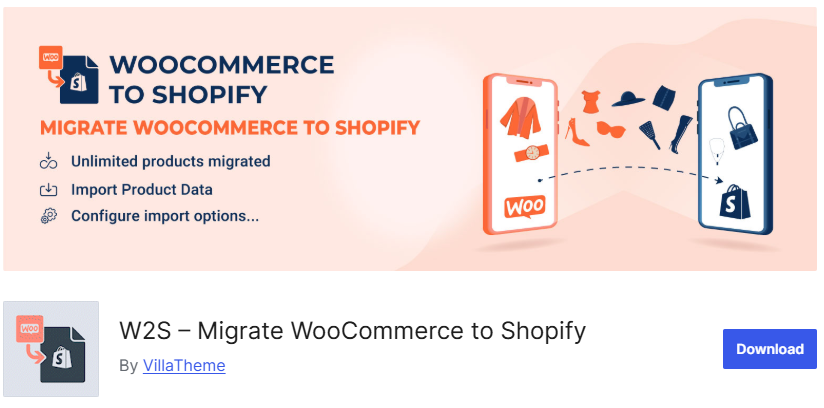
W2S is a free WordPress plugin that installs directly into your WooCommerce store. The process has two steps: enter your Shopify Admin API key into the plugin settings, then run the migration. No third-party account. No payment. No SKU limit.
The limitations are real. W2S migrates products, categories, tags, and SKUs – nothing else. No order history. No customer records. No review import. No SEO URL preservation and no 301 redirects. For a small store with a straightforward product catalog and no existing organic search traffic to protect, W2S is entirely sufficient. If your store has order history you need to retain, or if you rank for any search terms on your current product URLs, invest $69 in Cart2Cart instead.
Best for: Small stores under 200 SKUs, zero migration budget, and no requirement to transfer orders, customers, or preserve SEO rankings.
Read more: Migrate Products from WooCommerce to Shopify Easily
Quick-Pick Guide: Which Tool Should You Use?
| Your Situation | Use This Tool | Key Detail |
| Store < 200 SKUs, zero budget | W2S Plugin | Free – products only |
| Any size, need migration done fast | Cart2Cart | From $69, demo available |
| Mid-size, need re-import + URL mapping | Ablestar | From $19.99/mo |
| Large store, complex variants and metafields | Matrixify | From $20/mo |
| Complex store, need 24/7 support and SEO | LitExtension | From $79 |
Step-by-Step Migration Process
The eight steps below apply regardless of which migration tool you choose. Follow them in order. Each step has a specific role in keeping your data intact and your SEO rankings protected.
- Back up your full WooCommerce store – database and files – to an off-server location.
- Export all current product page URLs from Google Search Console and save the list.
- Create your Shopify store, enable the storefront password, and do not connect your domain.
- Choose your migration tool and connect both your WooCommerce REST API and Shopify Admin API.
- Run a demo migration with 10–20 products. Verify images, variants, and metafields in the result.
- Run the full migration. Processing time ranges from 30 minutes to several hours depending on store size.
- Set up 301 redirects from all WooCommerce product URLs to their new Shopify equivalents.
- Complete the 10-point post-migration checklist before removing the storefront password and going live.
| 💡 Time your go-live carefully. Schedule it for a low-traffic period – evenings or weekends – so you have time to handle any issues before customers arrive in volume. |
Preserving SEO During a WooCommerce to Shopify Migration
SEO is the highest-risk part of any platform migration. Done wrong, you can lose 30 to 50 percent of your organic search traffic within two to four weeks of going live. Done right, your rankings survive the transition – and Shopify’s faster page load speeds can actually improve them over time.
301 Redirects Are Not Optional
WooCommerce uses the URL structure /product/product-name. Shopify uses /products/product-name. Every old URL must have a 301 redirect pointing to its new equivalent. A 301 redirect tells Google the page has moved permanently – it transfers the page’s link equity and ranking signals to the new URL. Without redirects, Google treats those pages as deleted. Rankings disappear. To create redirects in Shopify, go to Admin, then Online Store, then Navigation, then URL Redirects. Cart2Cart and LitExtension both create redirects automatically during migration.
What to Do Immediately After Go-Live
Submit your new Shopify sitemap.xml to Google Search Console as soon as your store is live. Check canonical tags on product pages to confirm there is no duplicate content. Run a full site crawl using Screaming Frog or Ahrefs Site Audit to catch any 404 errors immediately. With correct 301 redirects in place, Google typically completes its re-indexing and transfers full SEO authority within three to eight weeks.
Post-Migration Checklist – 10 Items
| ☐ | All 301 redirects from WooCommerce URLs are live and tested |
| ☐ | New sitemap.xml submitted to Google Search Console |
| ☐ | Canonical tags correctly configured on all Shopify pages |
| ☐ | All product images loading correctly – no broken links |
| ☐ | Variants, SKUs, and inventory counts verified 100% accurate |
| ☐ | Google PageSpeed Score ≥ 70 on both mobile and desktop |
| ☐ | Mobile responsive layout tested across all major devices |
| ☐ | Payment gateway tested with a real transaction |
| ☐ | Order confirmation emails sending correctly to customers |
| ☐ | Google Analytics, Meta Pixel, and all tracking scripts reinstalled |
Migration Cost and Timeline
Cost and time depend primarily on how many SKUs you have and how complex your data structures are. These are realistic estimates based on completed migrations:
| Store Size | Timeline | Cost | Recommended Tool |
| Small store (<200 SKUs) | 1–2 days | $0 – $69 | W2S Plugin / Cart2Cart |
| Mid-size store (200–1,000 SKUs) | 2–4 days | $69 – $150 | Cart2Cart / Ablestar |
| Large store (1,000+ SKUs) | 3–7 days | $150 – $300+ | Matrixify / LitExtension |
| Full-service agency migration | 1–2 weeks | $500 – $2,000+ | Specialist e-commerce agency |
Stores under 1,000 SKUs without custom ERP integrations or loyalty program connections can handle migration independently using Cart2Cart or LitExtension. Hiring a specialist agency only makes financial sense for very large stores, stores with multiple third-party integrations, or businesses that need absolute zero downtime guaranteed during a high-revenue sales period.
Real Migration: What Success Looks Like
A fashion ecommerce store with 800 SKUs had been running on WooCommerce for three years with stable Google rankings. The problem: shared hosting slowed to a crawl during seasonal sales, and recurring plugin conflicts were consuming hours of developer time each month.
They chose LitExtension to migrate the full product catalog, 2,400 orders, and 1,800 customer accounts. Automatic 301 redirects were created for all 800 product URLs. The migration completed in three days, including testing and verification. Result: zero lost Google rankings, PageSpeed Score improved from 58 to 81, and total migration cost was $79 for LitExtension plus one month of Shopify Basic at $39.
This is not an exceptional outcome. It is what a well-executed WooCommerce to Shopify migration looks like when you use the right tool and follow the correct process.
Frequently Asked Questions
Can I keep the same product URLs when moving to Shopify?
No. Shopify enforces the /products/ URL prefix on all product pages, so your URLs will change. The correct response is to set up 301 redirects from every old WooCommerce URL to its new Shopify equivalent. Google will transfer ranking signals and domain authority to the new URLs within three to eight weeks. Do not skip this step.
How long does Google take to re-index a migrated Shopify store?
With 301 redirects correctly in place and a new sitemap submitted to Google Search Console, most stores see complete re-indexing within two to four weeks. High-priority pages with strong inbound links are often re-crawled within a few days.
Can I transfer WooCommerce order history to Shopify?
Yes – but only through an automated migration tool such as Cart2Cart, LitExtension, or Matrixify. The native Shopify CSV import does not support orders. Once migrated, WooCommerce orders appear in Shopify with an archived status. They are fully searchable and visible but cannot be edited.
Do WooCommerce plugins and themes work on Shopify?
No. WooCommerce plugins are built in PHP for WordPress and are not compatible with Shopify’s Liquid templating system. You will need to find equivalent Shopify apps for each plugin function you currently rely on. Most Shopify apps offer a 7 to 14-day free trial. Map out your current plugin list before migration so you can estimate the cost of replacing each one.
What is the cheapest way to migrate WooCommerce to Shopify?
The W2S plugin is free and migrates products with no SKU limit. If you need order history and customer data as well, Cart2Cart at $69 is the lowest-cost automated option that covers the full dataset. Shopify’s built-in Store Importer handles CSV product imports at no cost but does not support orders, customers, or SEO URL preservation.
| Ready to Migrate Your Store? A WooCommerce to Shopify migration does not have to be complicated. With the right tool and the right process, most stores complete the move in one to three days – no data loss, no SEO drop, no downtime. • Store < 200 SKUs, zero budget → Use the W2S Plugin (free) • Any size, want it done fast → Try Cart2Cart’s free demo at cart2cart.com • Complex store, need expert support → Get a free consultation at litextension.com The best time to migrate is before your next peak sales period – not during it. |