Setting up Meta (Facebook) Pixel and the Conversions API on Shopify often brings warnings in Events Manager: duplicate events, missing parameters, invalid match keys, and more. Left unfixed, these errors make your ad reports less accurate and your ads harder to optimize.
Below are the 7 errors we see most often, what each one means, and how to fix it.
Tired of fixing pixel errors by hand?
OC Meta Pixel sets up Meta Pixel and Conversions API on Shopify in about 2 minutes, with deduplication and fake event blocking built in. Free plan available.
7 Common Facebook Pixel Errors & How To Fix Them
1. The Facebook Pixel Activated Multiple Times on the Web Page (Event Duplicated)
Facebook Pixel activated multiple times means that a Pixel with the same ID and event name has been sent to Facebook many times. This can happen when the Facebook Pixel tracking code has been added more than once by the developer or store owner in the website’s source code.
If the site also uses different plugins, extensions or tools for tracking, many of them may already include the Facebook Pixel code.
To fix this, find and remove the duplicate Facebook Pixel code. Review the page’s source code and check whether the pixel code is added more than once.
After finding the duplicates, remove the extra tracking code so the Facebook Pixel fires only once on each page.
Step-by-step fix: How to fix “Make sure identical events share a matching deduplication key”.
2. New Domains Sending Data
This error appears when Facebook receives pixel events from website domains it doesn’t recognize. It can happen for these reasons:
- Stores running Facebook Pixel on a preview theme will see domains like shopifypreview.com. The pixel still collects data while you edit the theme and sends it to Facebook. In this case, you can ignore the warning.
- When you add a pixel to your website, your pixel ID becomes public. Other people can copy it and place it on their own website (this rarely happens).
- Some websites use affiliate programs where a pixel is embedded to track user activity and sales (this rarely happens).
To fix this, set traffic permissions for your pixel:
- Go to Events Manager.
- Select Data sources.
- Click Settings.
- Select Create Allow List. To block domains that copied your Pixel ID, choose Create Block List from the drop-down menu.
- Enter the domain you want to allow (or block).
You should also check your website logs and analytics regularly for unusual pixel activity, so you can spot and fix problems early.
If you keep receiving pixel events from strange domains, email support@orichi.info for Facebook Pixel support.
3. Facebook Pixel Event Missing Some Deduplication Parameters or Missing Purchase Value Parameter
This is one of the most common Facebook CAPI errors. It means you are not sending some deduplication keys (event name, event ID, _fbp, and external ID) with your server events. Meta uses these keys to spot and merge duplicate events. Without them, your event counts can be wrong.
To fix this, check the Event ID on your events to see which deduplication parameters are missing. Open the Facebook event testing tool. If everything is correct, you will see something like the screenshot below:

Step-by-step fix: How to fix “Make sure identical events share a matching deduplication key”.
4. Server Sending Invalid Match Key Parameters for PageView or Other Events
Here are several screenshots of this error:
Server sending invalid IP address parameter in events like PageView, ViewContent and AddToCart


This error means the values your server sends are not unique or are in the wrong format. The cause can be the server-side code or settings, the data sent from the browser, or a mismatch between the format Meta expects and the data it receives.
To fix it, try these steps:
- Check the server-side code or settings that send the PageView event. Make sure it sends the match key parameters correctly.
- Review the browser-side code that captures the data and sends it to the server. Make sure the match key parameters are captured and included.
- Compare the format Meta expects with the data you actually send. For example, if a parameter should be a string, make sure you send a string.
If you’re not familiar with code, these steps may be hard to follow. Email us at support@orichi.info with screenshots of the issue, and our technical team will help you fix it.
If you’re on Shopify, OC Meta Pixel sends the right customer details with each server event, which helps Meta match them correctly.
5. Potentially Violating Personal Data Sent to Facebook
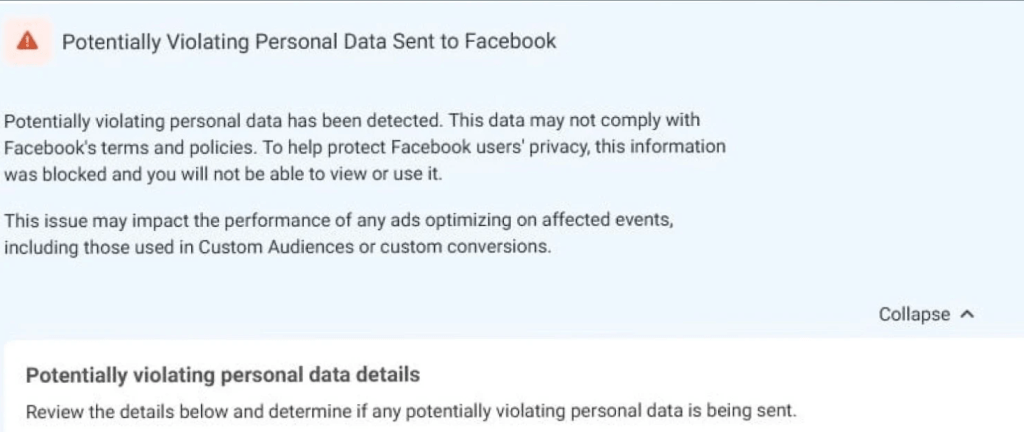
This error usually comes from browser events. It happens when Facebook detects user data in the page URL. Some platforms and tools, like PayPal, add user details to the URL after someone signs up or makes a purchase.
To fix this, turn off the setting or plugin feature that adds user data to the URL of the thank-you page (after signup or purchase). You can also switch to server-side tracking only, so you can clean the URL before sending it to Facebook.
This error can also come from a “You may also like” feature on your website. Meta no longer accepts these parameters, so try turning this feature off.
6. Same Event ID Received for Many Event Instances
This error happens when several different events are sent with the same event ID. For example, a visitor opens your product page and two events fire: PageView and ViewContent. Instead of each event having its own ID, both share the same one.
An event ID is a unique label for each event sent to the Conversions API. When Meta sees the same ID on different events, it gets confused, because each ID should stand for one event only.
Here’s how to fix it:
- Check your event setup: Make sure each event gets its own unique event ID.
- Check your server-side code: If you send events with your own code or an API, make sure it creates a new event ID for each event.
- Stop sending duplicate IDs: From now on, give every event a unique ID. Old events already sent can’t be changed, but new ones will be counted correctly.
- Test your events: After any change, use Meta’s event testing tool or the Pixel Helper Chrome extension to make sure each event has a unique ID.
7. Pixel and Catalog Not Paired
This error means your pixel isn’t linked to your Shopify product catalog, so it can’t track the store events your Facebook ads bring in.
To fix it, make sure your Facebook Pixel is set up correctly and connected to your product catalog:
- Check that the correct Facebook Pixel ID is on your website. You can find it in Meta Events Manager under Data sources.
- Review your event setup for mistakes or missing details. Make sure the events you track include product details that match your catalog.
- Use the Meta Pixel Helper to check that your pixel fires correctly on your website.
Then connect the pixel to your catalog:
- Go to facebook.com/products.
- Select your Shopify product catalog.
- Go to Catalog and choose Events.
- Select Connect to Tracking.
- Select the pixel you want to use and click Save.
How To Check Facebook Pixel Conversion API Errors
The easiest way to check for errors is Meta’s Test Events tool in Events Manager. It helps you find and fix problems with your pixel or server events. Any errors are listed in the Diagnostics tab so you can look at them one by one.
Errors marked in red need a quick fix. Yellow ones are warnings you should still review. If you send events from your own server, also check your server logs for Conversions API error messages.
Check your Conversions API events regularly so you can catch errors early and keep your ad data accurate.
FAQs
Where can I see Meta Pixel and Conversions API errors?
Open Meta Events Manager, select your pixel, and check the Diagnostics tab. Each warning shows which event is affected and a suggested fix.
How long does it take for errors to clear after a fix?
Usually a few days. Meta needs new events coming in before it removes the warning.
Do I need both Pixel and Conversions API?
It’s recommended. The Pixel tracks in the browser, and the Conversions API sends events from the server, which helps when browsers or ad blockers stop the Pixel. Read more in Meta Pixel vs Conversions API for Shopify.
What’s the easiest way to avoid these errors on Shopify?
Use one tool that sends both Pixel and Conversions API events with matching IDs. OC Meta Pixel does this without code and has a free plan.
Final Words
Most Meta Pixel and Conversions API errors come from a few simple causes: events sent twice, missing details, or data Meta can’t match. Fix them one by one, check Diagnostics in Events Manager, and give Meta a few days to update.
If you’d rather not fix events by hand, OC Meta Pixel sets up Pixel and Conversions API correctly from the start. Still stuck? Email us at support@orichi.info.